 Bloomz
See your child's hall passes
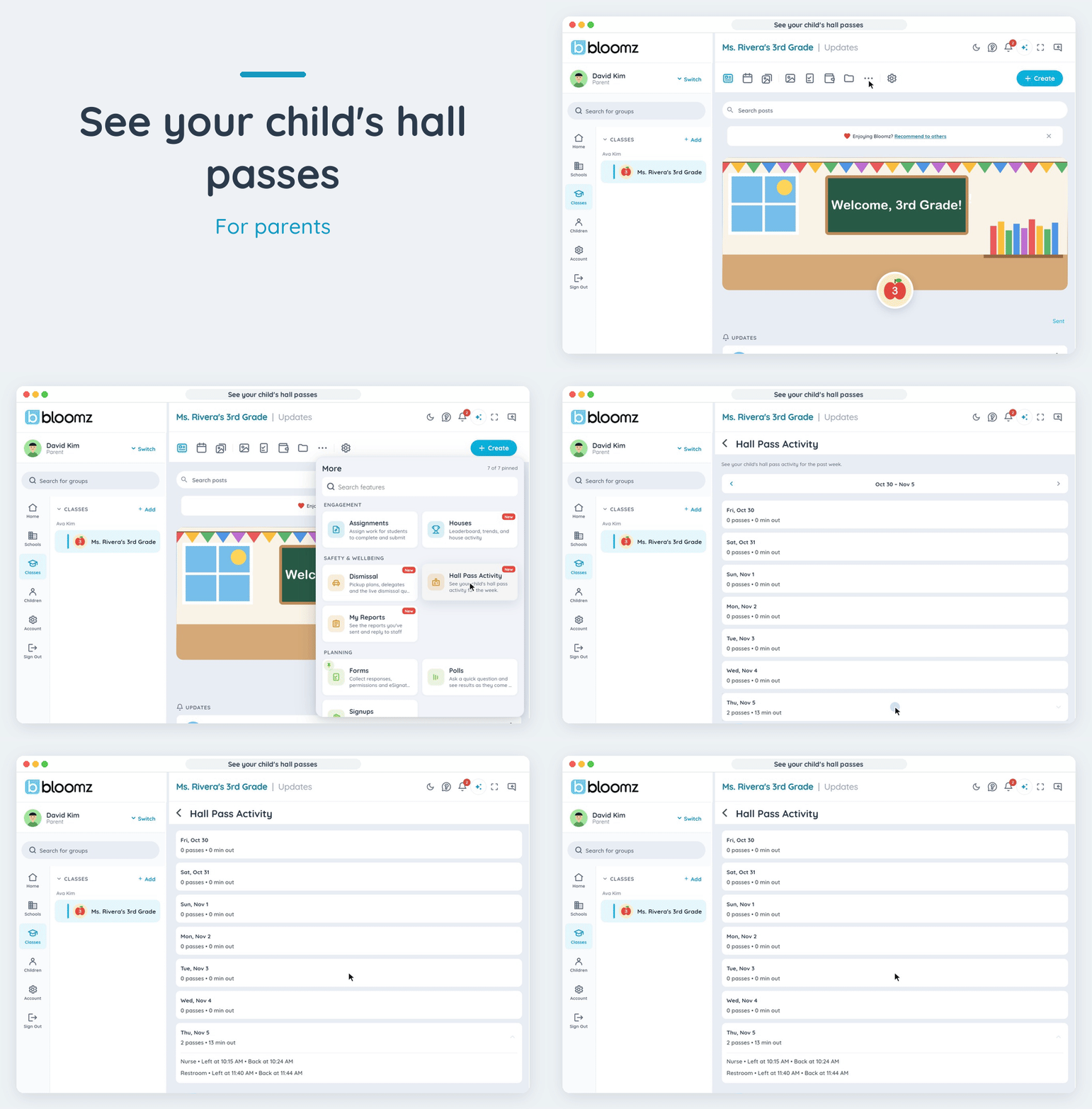
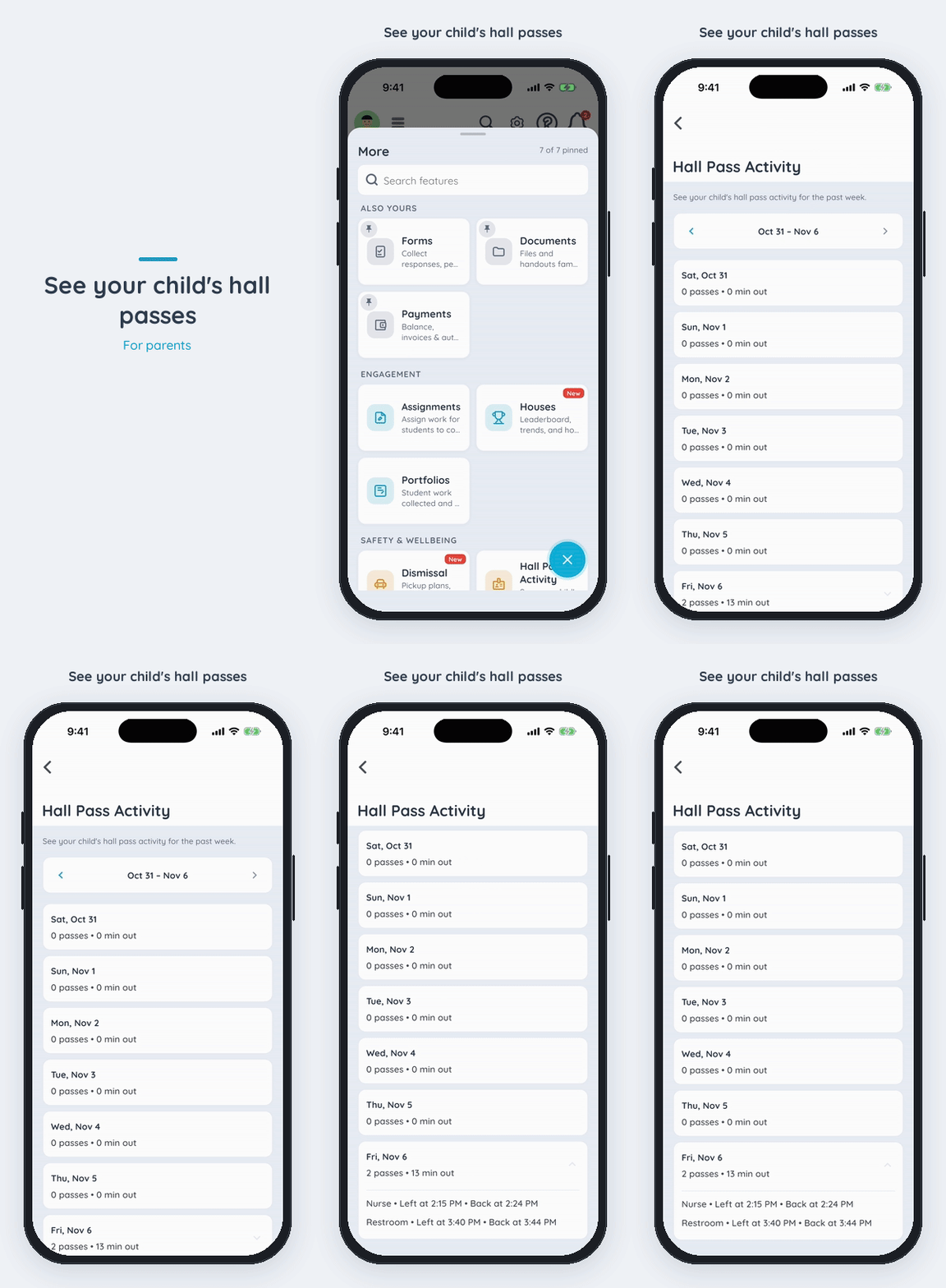
See every hall pass your child has taken this week — where they went, and how long they were out — from your own account.
Before you start
Your school must have Hall Pass switched on and must let parents see hall pass activity. If you don't see Hall Pass Activity in your child's class, the school hasn't turned on parent sharing — ask the school office. You see this for your own children only.
Step 1 — Open your child's class
Open your child's class, select More (…), then Hall Pass Activity under Safety & Wellbeing.
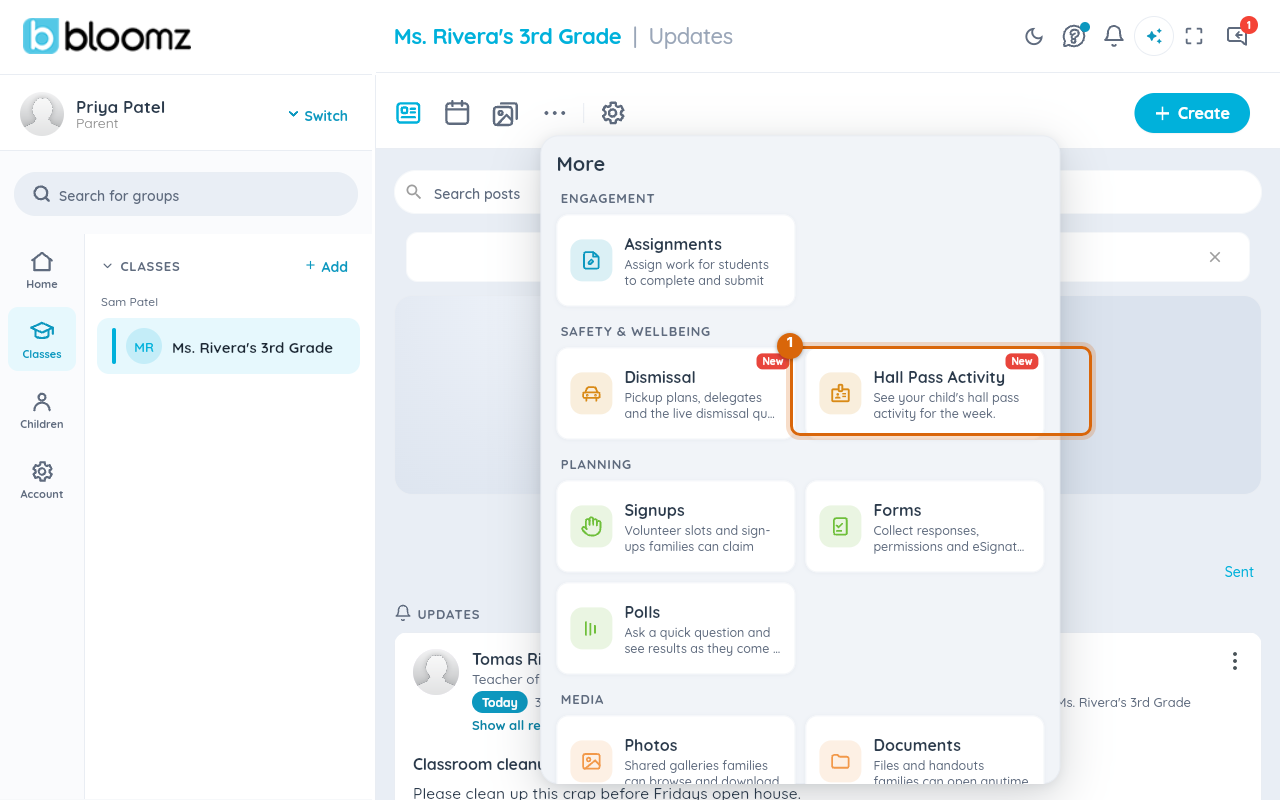
Step 2 — Read the week
The screen lists the current week day by day, with a pass count and total minutes out for each day that has activity.
Step 3 — Open a day for detail
Select a day to expand it in place: each pass on that day shows its destination and when your child left and got back.
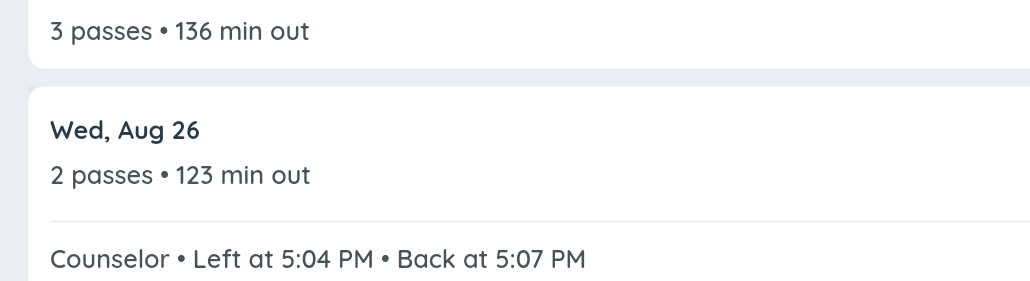
Step 4 — Look further back
Use the arrows on the week bar at the top to page to an earlier or later week.
Watch out: an auto-closed pass just means your child did not return by the grace period Bloomz gave them — it is not automatically a discipline record.