 Bloomz
Import your roster from a CSV — the import wizard
Bring a whole class or school roster into Bloomz in one pass instead of typing names in one at a time. The Prepare & Validate import wizard walks you through uploading your spreadsheet, matching its columns, reviewing and fixing problems, and confirming before anything is created.
Before you start
You need a CSV file with, at minimum, a name and an email or phone number per person, plus which class each row belongs to if you're importing a whole school. Most spreadsheet apps (Excel, Google Sheets) export to CSV from File → Download or File → Export. You can upload your school's CSV export as it is — the wizard matches its columns automatically.
Step 1 — Open the import wizard
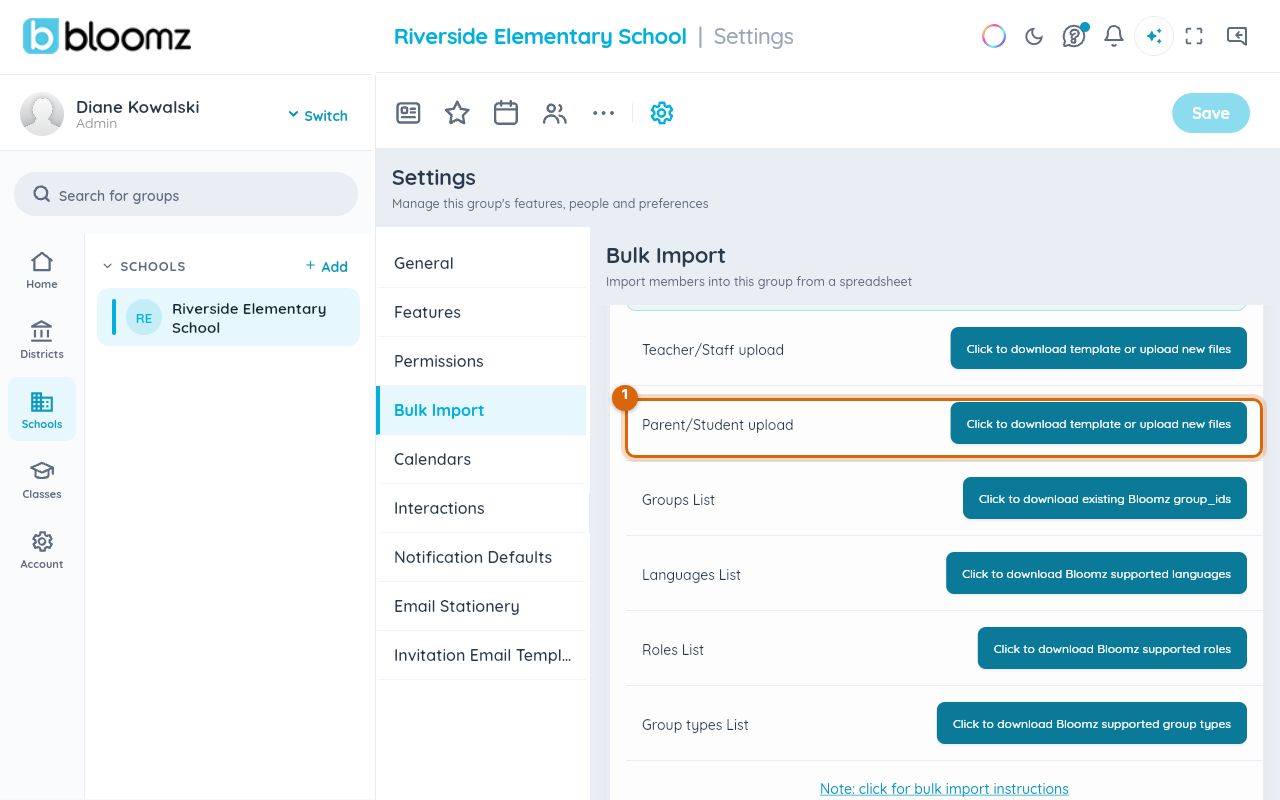
From the invite screen, select Bulk Import (on a free plan this opens an upgrade screen instead). On the Bulk Import screen, select Prepare & Validate. The wizard has four steps, shown across the top: Upload, Match columns, Review & fix and Confirm.
Step 2 — Upload your file
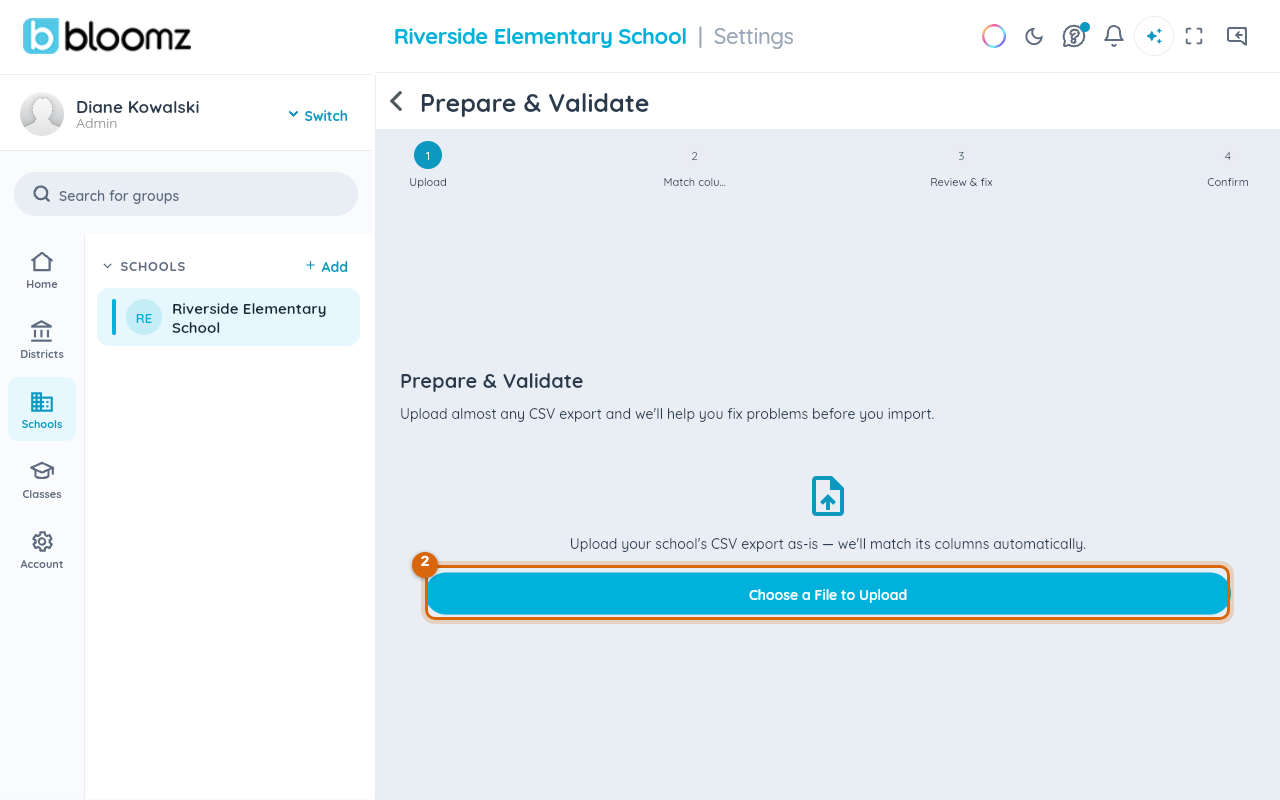
Select Choose a File to Upload and pick your CSV. If the wizard asks Where is this file from?, leave Bloomz file selected unless your file is an export from one of the other systems listed. Bloomz checks your file and shows what it found.
Step 3 — Match your columns
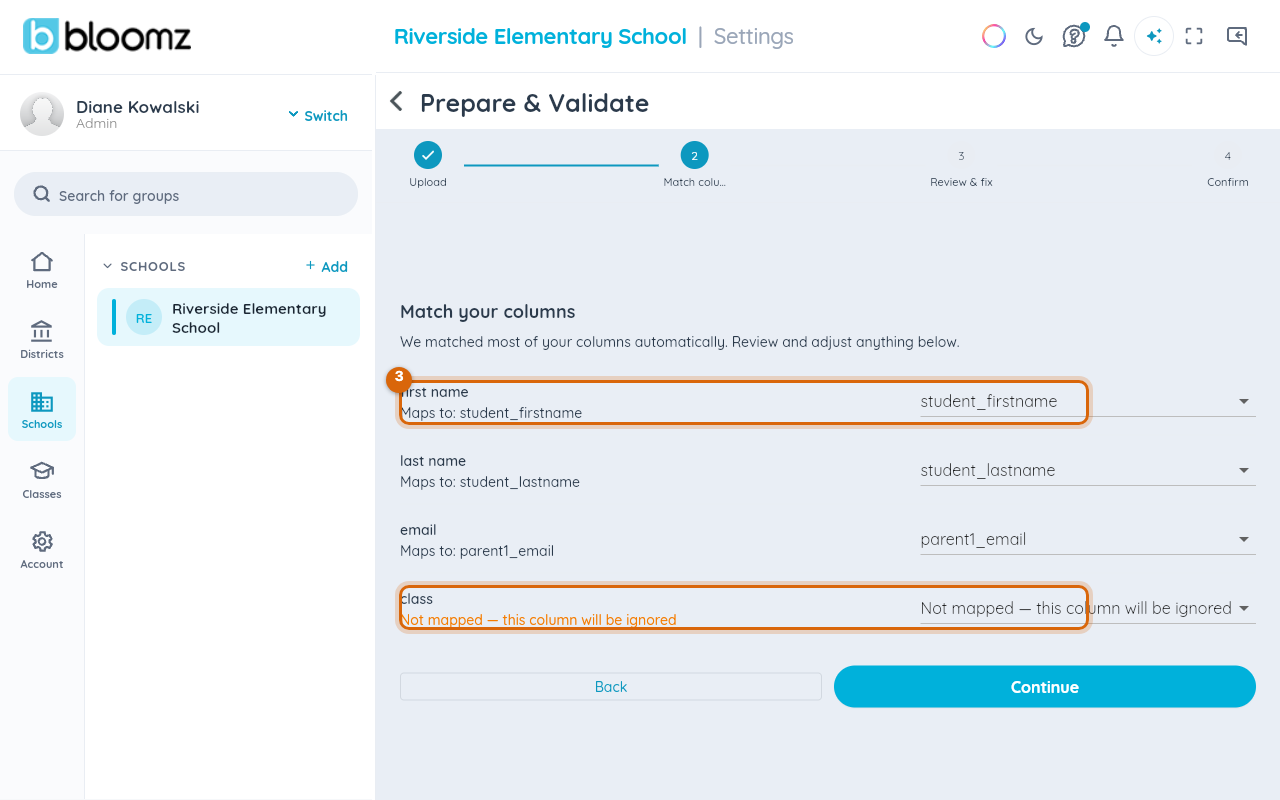
On Match your columns, check how each column in your file (Name, Email, Phone, Class, Role) Maps to a Bloomz field. Most are matched automatically; check them rather than trusting a guess. A column marked Not mapped — this column will be ignored is left out of the import. Select Continue when you're happy.
Step 4 — Review and fix errors
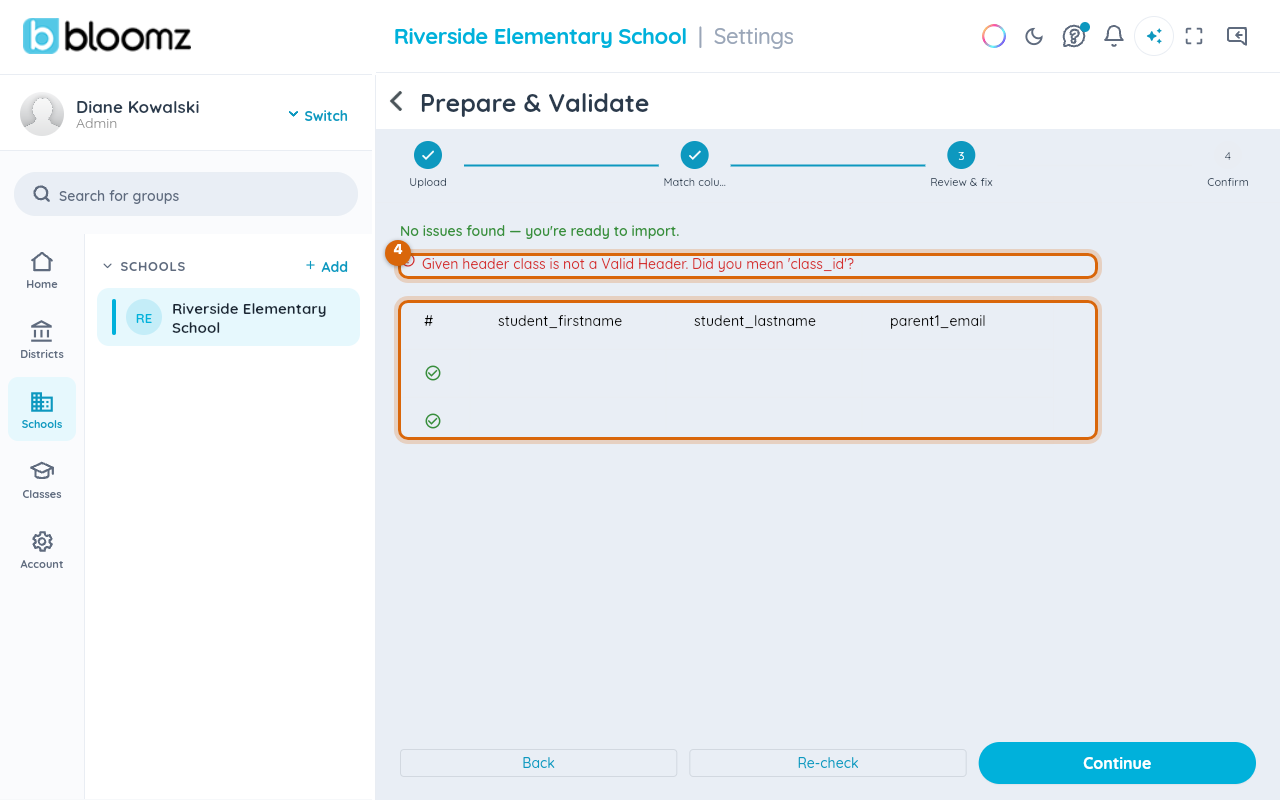
On Review & fix, the wizard shows how many rows are ready and how many need attention. Every row with a problem — missing email, unrecognized class name — is listed with its issue in the Errors column. Fix the value in the table and select Re-check, or fix the source file and upload it again. When no rows need attention, select Continue.
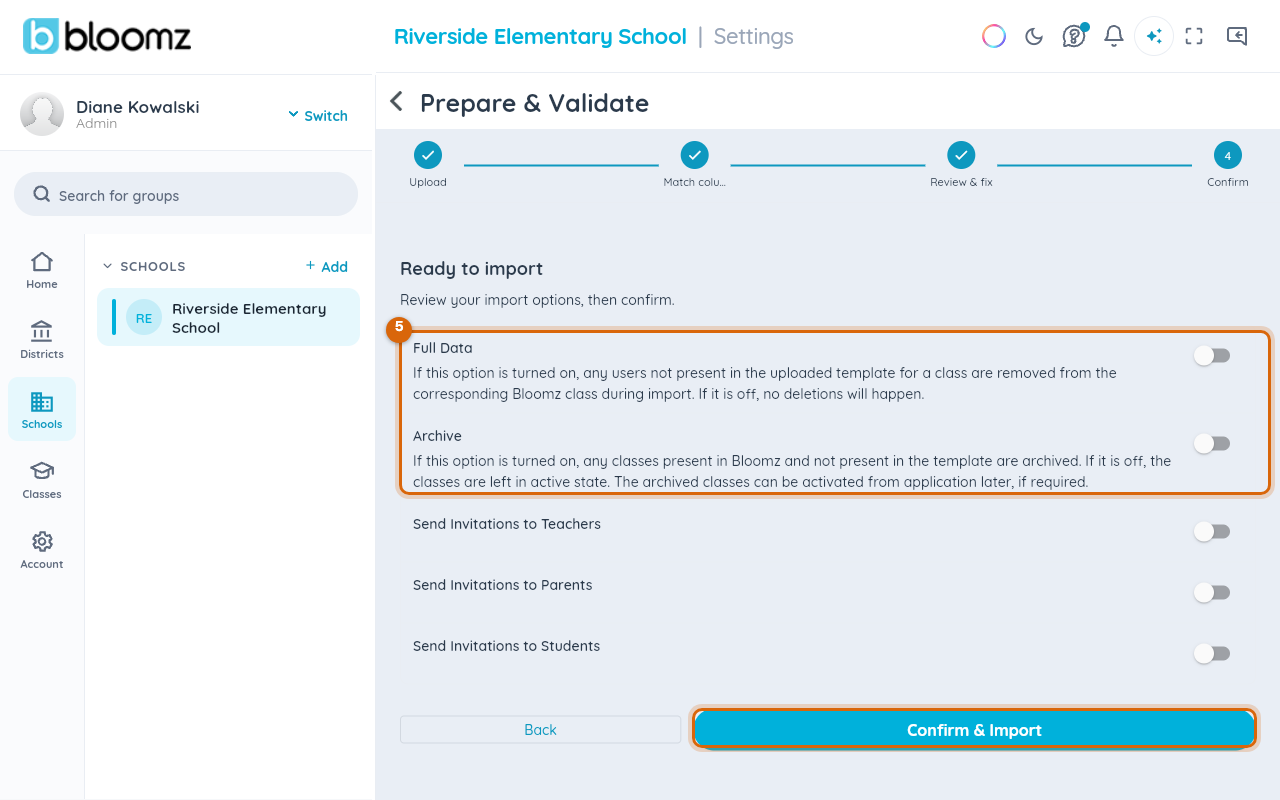
Step 5 — Confirm the import
On Ready to import, review your import options (for example whether to send invitations to teachers, parents or students), then select Confirm & Import. Bloomz creates the accounts and rosters, then shows a summary of how many were created versus skipped.
Watch out: importing the same CSV twice does not duplicate people it already recognizes by email, but it can create duplicates for anyone whose email changed between imports — see Remove a member, or merge duplicate accounts if that happens.