 Bloomz
Remove a member, or merge duplicate accounts
Take someone off your roster when they've left, or combine two accounts that actually belong to the same person — a real, built-in capability now, not just a removal workaround. Which one you want depends on the case: removing ends someone's membership in a class or school; merging keeps one account and folds a second one's data into it.
Before you start
You need to be a teacher (for your own class roster) or a school admin (for any account or merge queue at your school). Removing someone doesn't delete their account, only their membership in that class or school. Merging is different for students than for adults — Bloomz keeps them as two separate tools, covered separately below — and neither one ever combines accounts across two different schools; a school admin can only act on duplicates inside their own school.
Remove a member
Step 1 — Open the member's profile
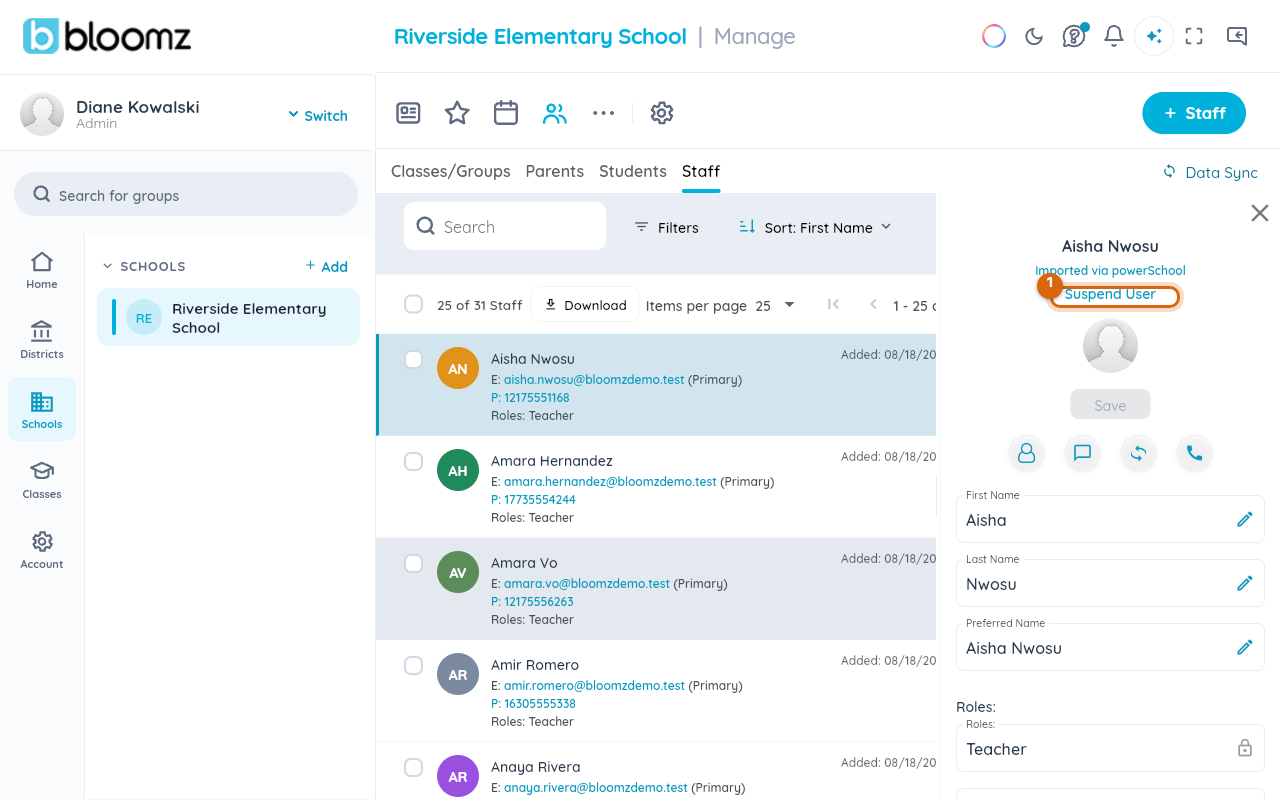
From Manage → Members, select the person you want to remove. Their profile opens with their role, contact details and a Remove action.
Step 2 — Remove the member
Select Remove from Class (or Remove from School for an admin). Confirm the removal — they lose access to that class or school immediately.
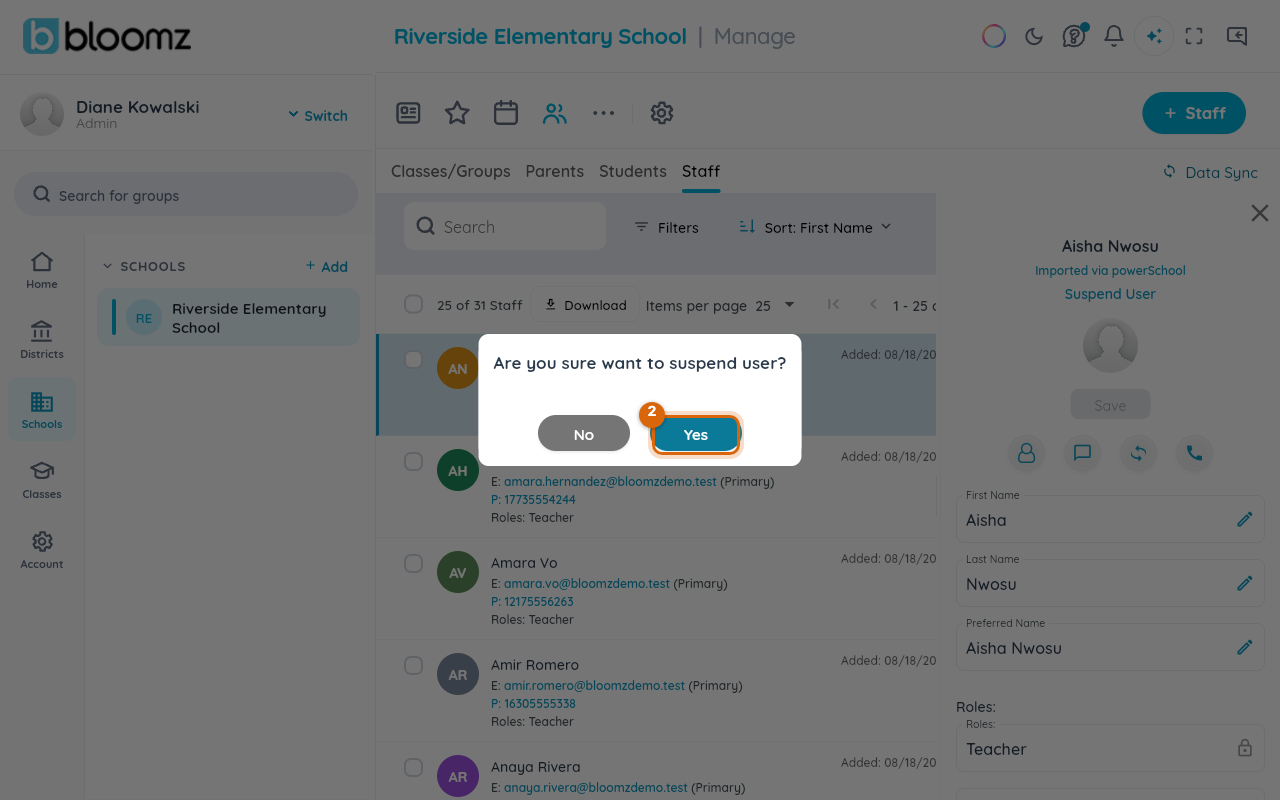
They drop off the roster right away and stop receiving that group's posts and messages; their Bloomz account itself still exists.
Remove many parents at once
To take several parents off your school in one go, for example after a list of families has left:
Step 1 — Open Parents
Go to Manage, then Parents. You need to be a school admin (or a teacher, on your own class's list) to see the bulk actions.
Step 2 — Find the parents
Use the search box or the filters to narrow the list to the parents you want to remove.
Step 3 — Select them
Tick the parents you want, or tick the select-all box at the top of the list. If there are more matches than fit on one page, Select all N matching appears (N is the number of matching parents); choose it to select every parent in the results, not just the page you can see. Check the count before you continue. If there are too many matches, Bloomz asks you to narrow your search or filter first.
Step 4 — Delete
Select Delete above the list. A Remove confirmation opens; confirm with the Remove From button (it names your school). The parents no longer have access to your school and stop receiving its posts and messages. Their Bloomz accounts are not deleted. Large selections are removed in batches while a progress message shows; if a batch fails, Bloomz stops and tells you how many were removed.
Watch out: check the list and the count before you confirm.
Merging two student profiles
Manage → Students shows a Possible Duplicates card whenever two or more live students at your school share a name — the same name can mean two different children or the same child added twice, so Bloomz asks rather than guessing.
Bloomz does not merge two students who share a name when their student numbers differ or their birthdates differ. Both profiles stay. If you merge a pair by hand, Bloomz asks you to confirm.
Step 1 — Open Possible Duplicates
Select the Possible Duplicates card on Manage → Students. Each same-name cluster lists the live students who share it, with grade and guardian count shown for each, so you can tell whether it's one child added twice or two different children.

Step 2 — Merge, or mark them different
For each pair, choose Merge (folds the other record into the one you keep — this cannot be undone in one step) or Different Children (dismisses the pair; it won't be suggested again unless another student with the same name shows up). The pair drops off the Possible Duplicates card as soon as you decide either way.
Watch out: merging is one-directional — the record you select is the one that survives, and the other one's data folds into it. Read both rows before choosing which to keep.
Merging two adult accounts
Step 1 — Open Duplicate Accounts
For parents and staff, open Manage's Duplicate Accounts button (visible to admins once your school has this on) to review pairs of adult accounts Bloomz has flagged as possible duplicates.

The list shows every flagged pair at your school, newest first.
Step 2 — Merge or dismiss each pair
For each pair, choose Merge, or choose Not the same person to dismiss the pair so a wrong match leaves the list. (The student queue uses Different Children.) The pair leaves the queue as soon as you decide, and a merged account's children, classes, messages and photos move to the login you kept.
A parent or staff member can also start this themselves: from Account Settings, Combine Duplicate Accounts walks them through confirming a suggested duplicate is really theirs — by a code sent to the other account's email or phone, or that account's password — then choosing which login to keep. Both accounts' children, classes, messages and photos carry over to the login they keep.

Watch out: an admin merge that isn't allowed — most commonly because the two accounts belong to different schools — is refused with "This Merge Isn't Allowed" rather than silently doing nothing. Bloomz never combines accounts across schools; if that's genuinely the same person, contact Bloomz support.
Handling other duplicates
Merging combines accounts; it doesn't reach further than that. If real history needs to move somewhere the merge tools above don't cover — for example, content tied to an account outside your own school — contact Bloomz support rather than removing one of the accounts and losing that history. Removing a member (Steps 1–2 above) does not move their message or post history anywhere, so if the two duplicate accounts belong to different schools, or you're not sure which is the real duplicate, merge (or ask support) rather than removing one and hoping the history follows — it won't.