 Bloomz
Invite parents and students to a class
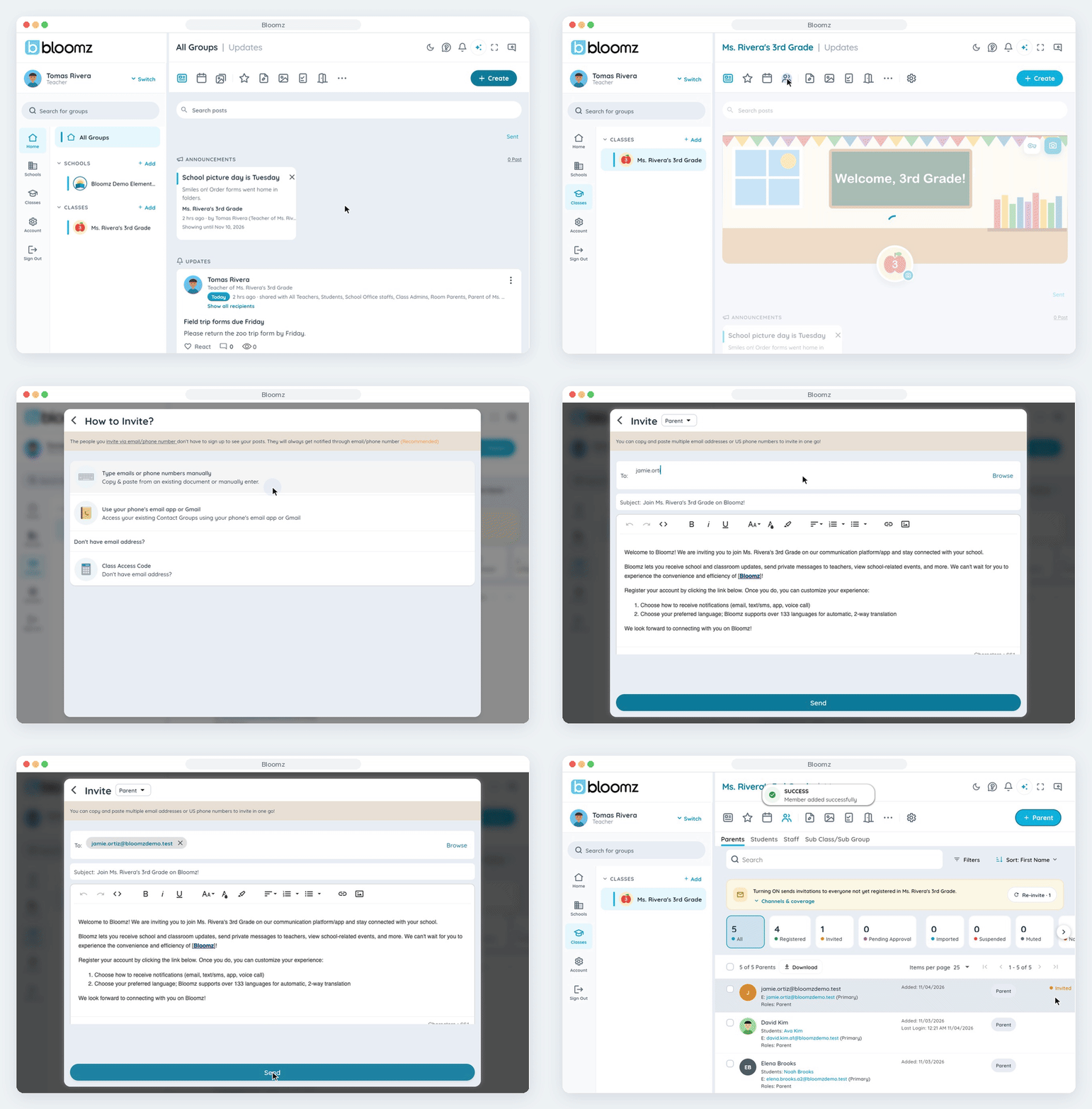
Get every family on your roster into Bloomz — one at a time or all at once — so they see your posts, calendar and messages from day one.
Before you start
You need to be a teacher (or co-teacher) on the class. Have each family's email address or phone number ready, or use a class code or QR code instead if you'd rather families join themselves (see Join with a class code or QR code).
Step 1 — Open your Parents list
Open your class, select the Manage icon in the toolbar, then the Parents tab. This lists everyone already on the class, with counts such as Registered and Invited, and gives you the + Parent button. (For students, use the Students tab and its + Student button instead.)
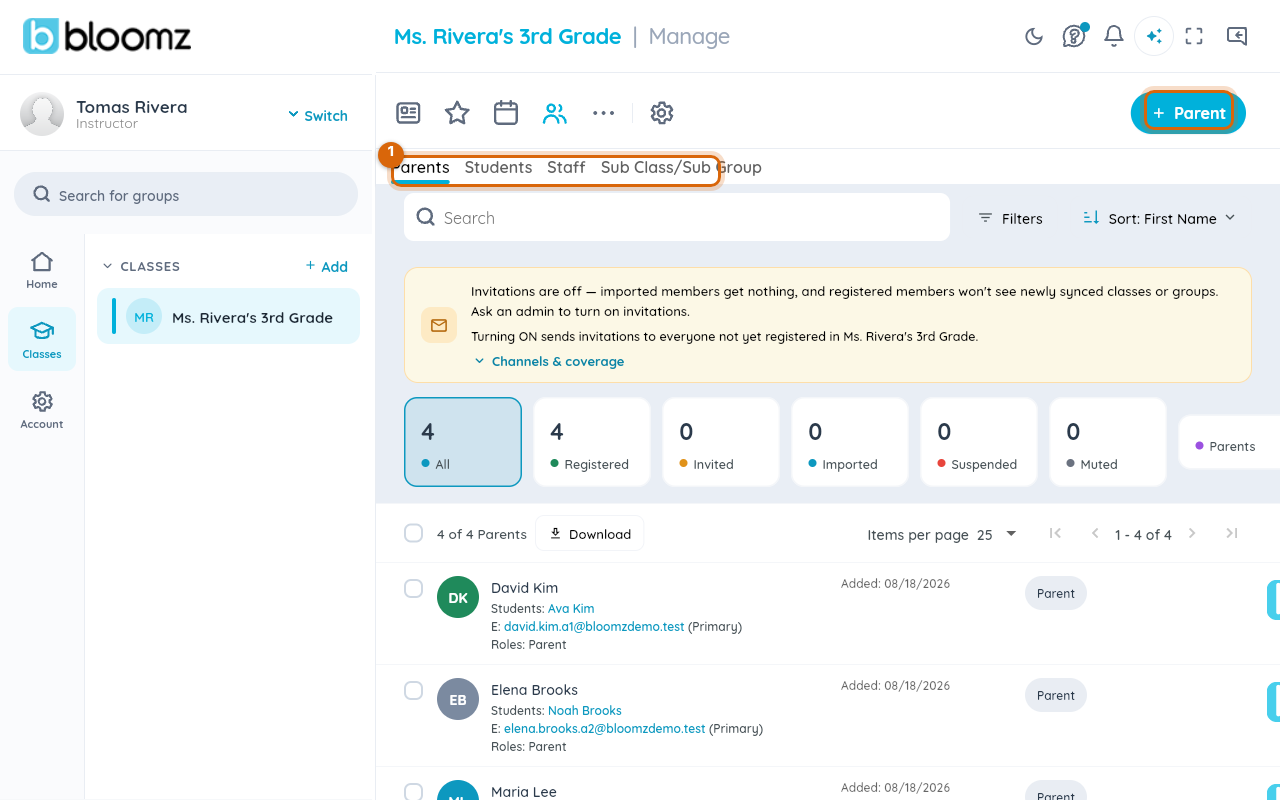
Step 2 — Invite one family
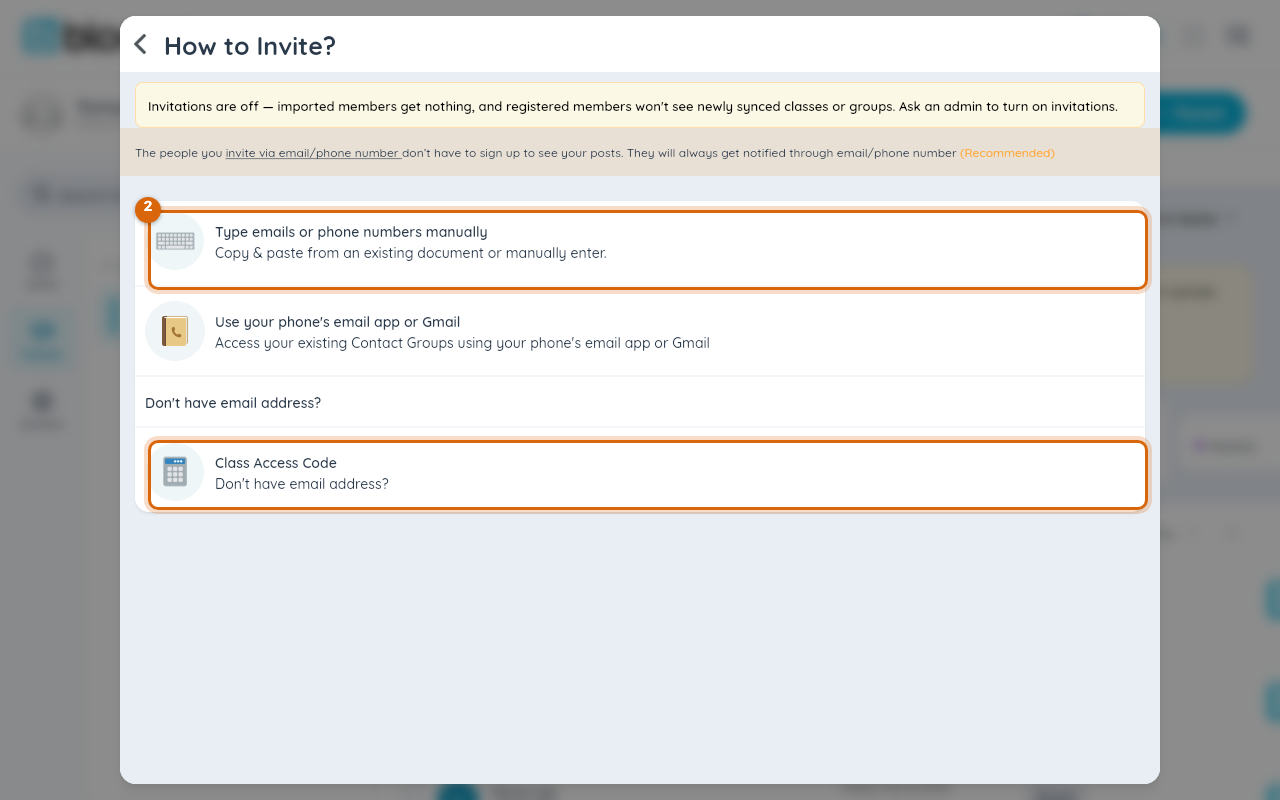
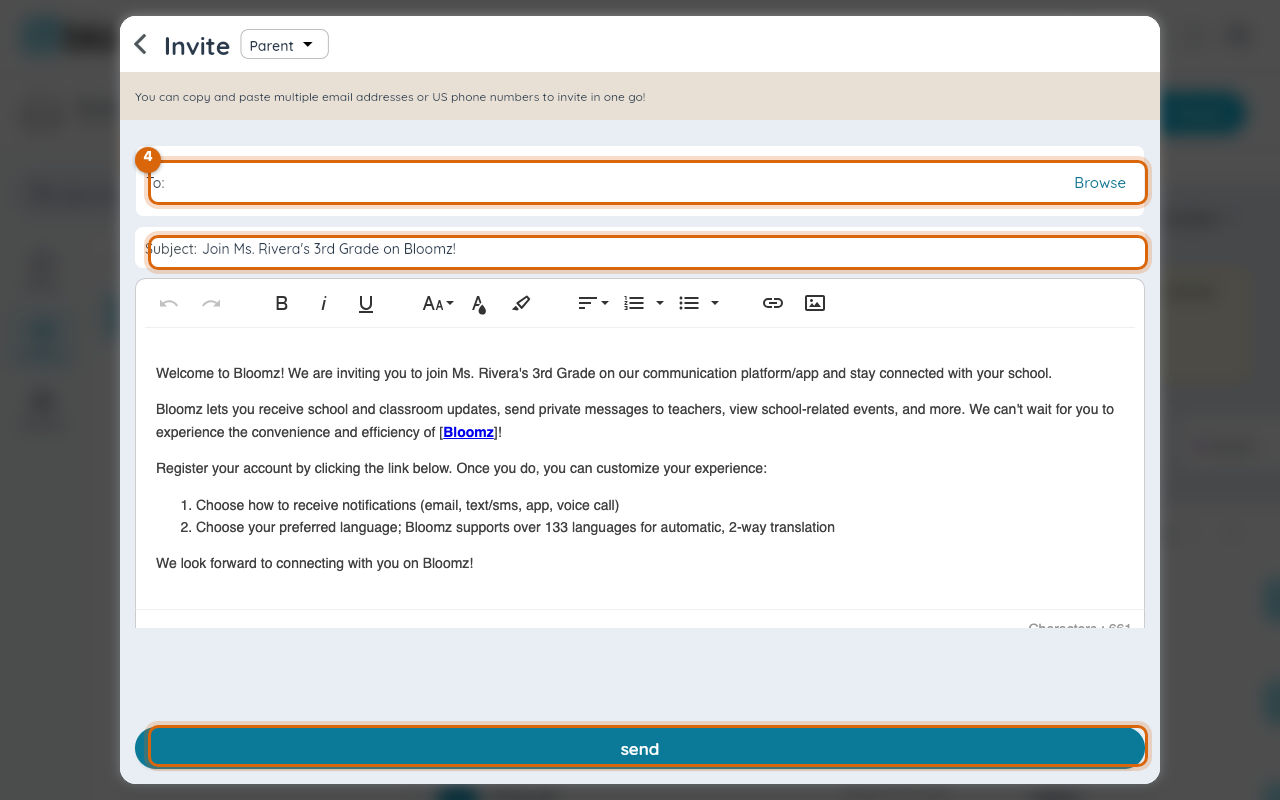
Select + Parent, then Type emails or phone numbers manually. On the Invite screen, select the To field, type the person's email address or US phone number and press Enter. The invitation message is already filled in; you can edit it.
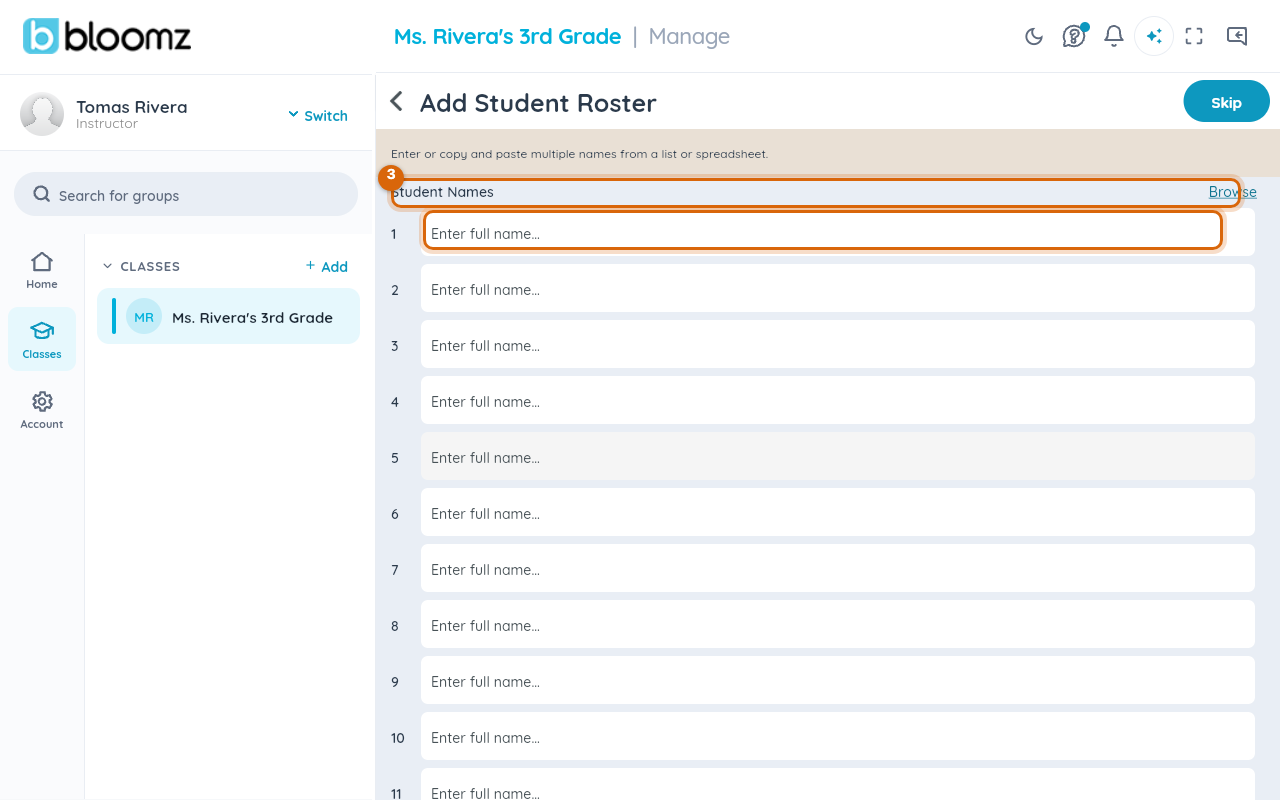
Step 3 — Invite many families at once
For a whole roster, paste or type several email addresses or phone numbers into the same To field — the screen says you can paste multiple addresses to invite in one go — or use Browse. See Import your roster from a CSV if you have a spreadsheet already.
Step 4 — Send
Select Send. Each new family appears on the Parents list with an Invited badge, and the Invited count goes up.
Watch out: if invitations are turned off for the class, Bloomz asks Invitations Are Off before it sends. Continuing turns invitations on if you have permission to; if you don't, the families are added but stay marked Imported until an admin turns invitations on, and they are not emailed.
What families see
Each invited family gets an email or text with a join link. Once they accept, they are counted as Registered instead of Invited on your Parents list — see Find who's registered and who's still invited to track that at a glance.