 Bloomz
Build a custom role and assign it to staff
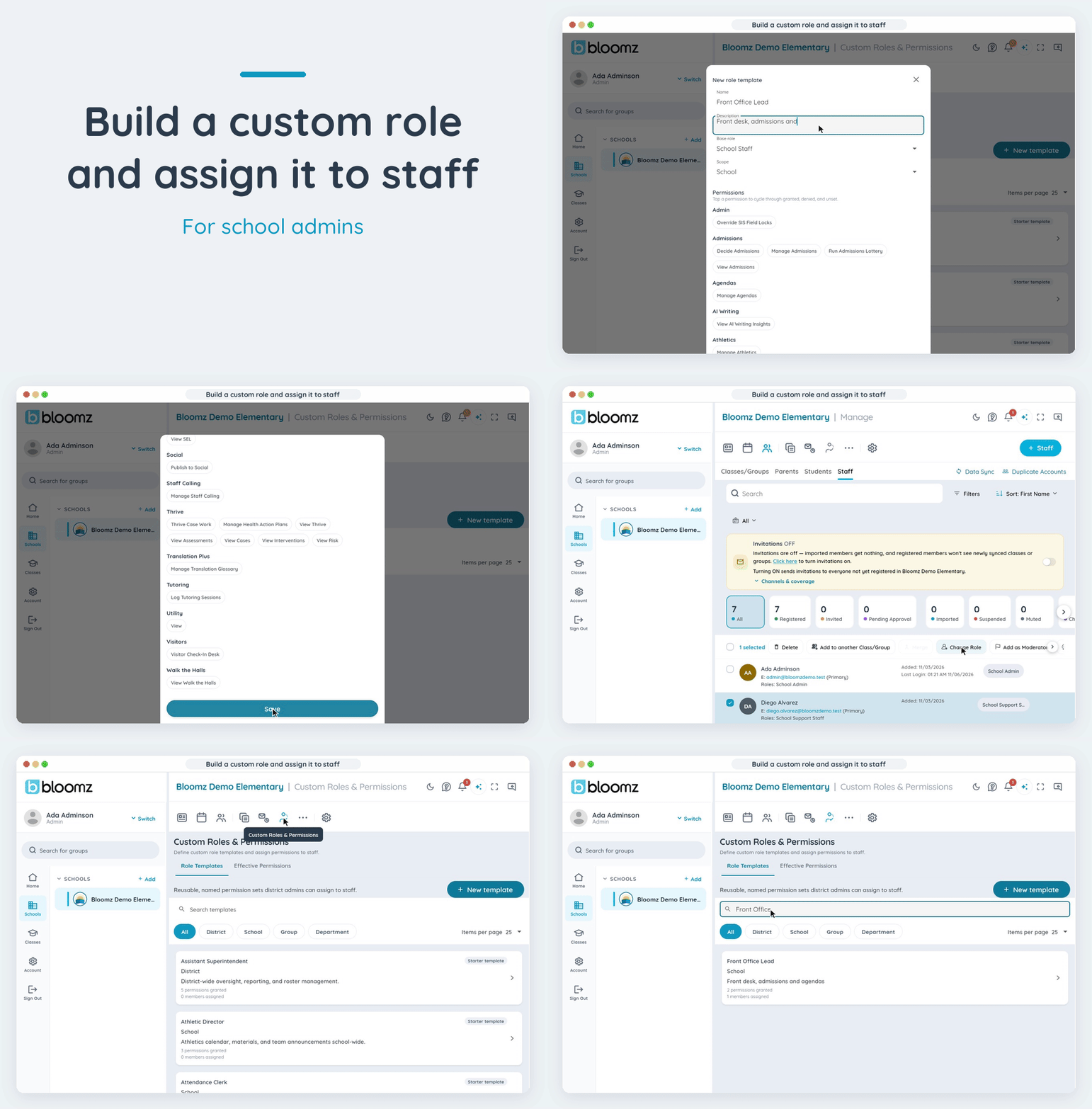
Build a named, reusable role from your district's permission catalog — "Front Office Lead," "Athletics Coordinator" — then hand it to any staff member the same place you already assign their platform role. Custom roles add precisely-scoped permissions on top of a person's role; they never take permissions away from what that role already grants.
Before you start
You need district-admin access, and Custom Roles switched on for your district. Every custom role builds on top of a platform role (School Admin, School Office Staff, School Support Staff) — it can widen what someone can do, never restrict it, so plan your platform roles first and use custom roles for the extra, specific permissions a job title needs on top.
Step 1 — Open Custom Roles & Permissions
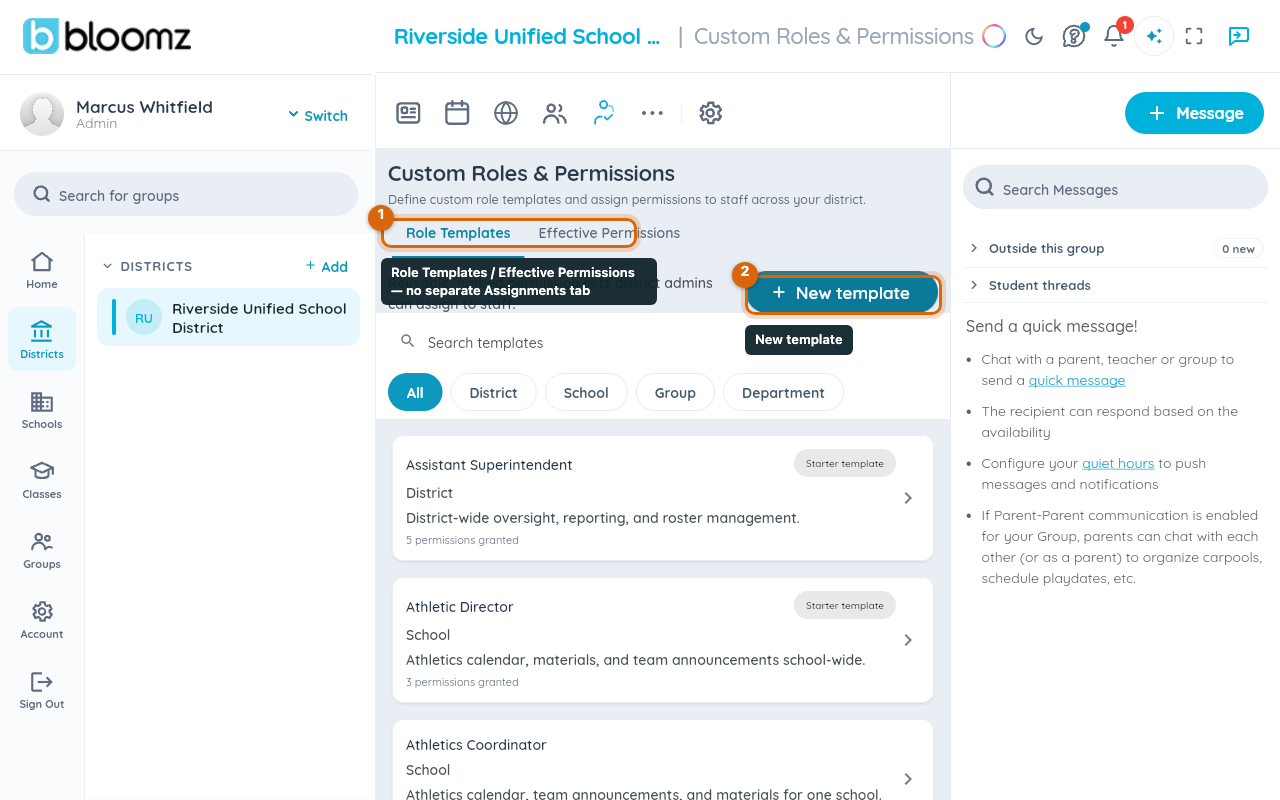
Open your district, select the … (More) menu, and choose Custom Roles & Permissions — search "Custom Roles" if it isn't in the first screen. The hub has two tabs: Role Templates, where you build and manage roles, and Effective Permissions, a lookup tool for what a specific person can actually do. There's no separate tab for assigning roles — that happens from Manage instead (Step 3).
Step 2 — Build a role from the catalog
Select New template, name it, and optionally set a Base role (a label only — it doesn't itself grant anything) and a Scope (District, School, Group or Department). Under Permissions, the catalog is grouped by area — Admissions, Attendance Analytics, Agendas, and dozens more; select a permission to cycle it through Granted (green), Denied, and Unset, then select Save.
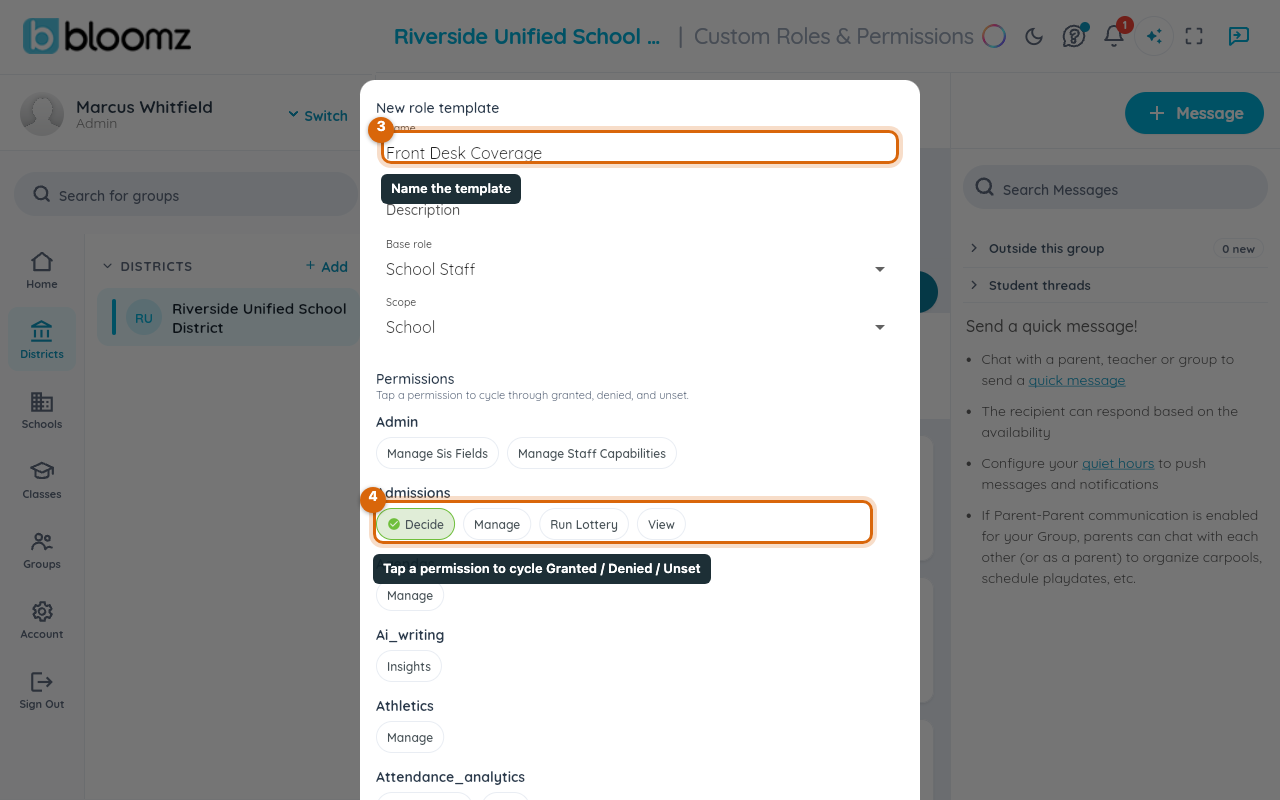
Watch out: Denied always wins over anything a platform role or another template grants, but a custom role can never grant something the person's underlying platform role is blocked from doing entirely — it adds specific permissions on top, it doesn't replace the role system.
Step 3 — Assign it from Manage
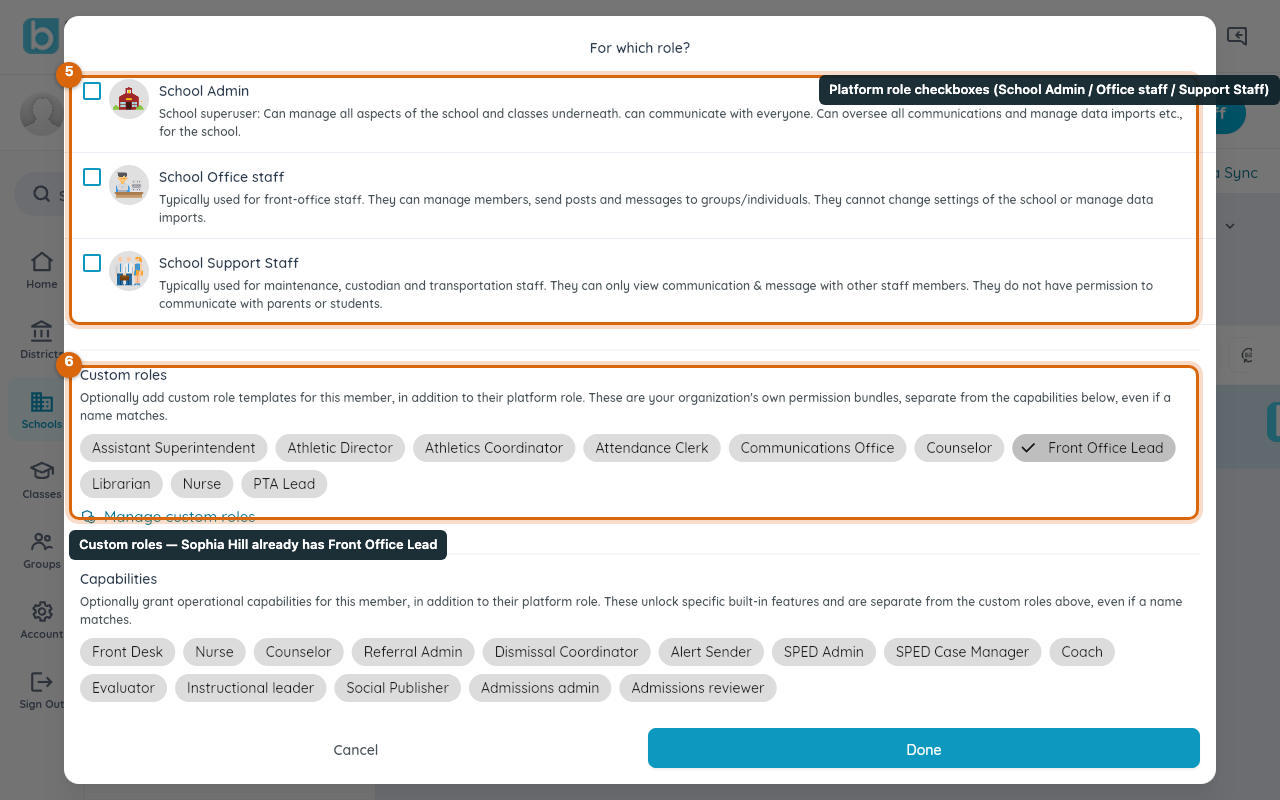
Custom roles are assigned the same place platform roles are: open Manage, select Staff, check the box next to the person's row, and select Change Role from the bulk-action bar (a new hire gets the same picker during Invite). The For which role? sheet lists the platform role checkboxes first, then a Custom roles section of chips — select as many as apply — and, separately, the older Capabilities section. Select Done to save.
Track who has what
Back in Custom Roles & Permissions, select a template row to open its peek tray — Edit, View Holders (who currently has this template), View audit trail (every create, update and delete, with who made the change) and Delete. Use Effective Permissions to look up one person plus a group and see every catalog permission they're granted or not, regardless of which platform role, custom role or capability it came from.