 Bloomz
Invite staff to your school
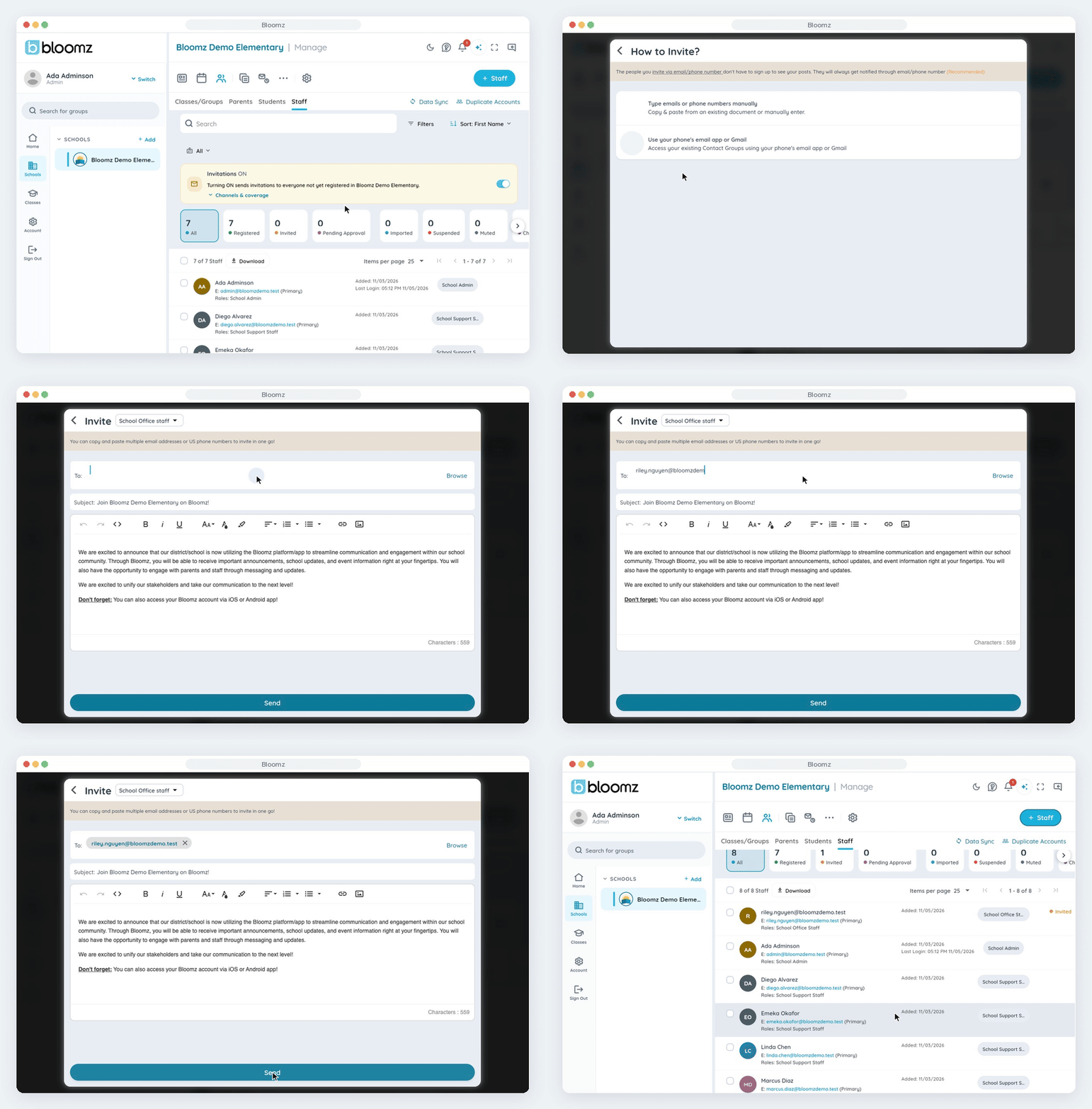
Bring teachers and office staff onto Bloomz under your school so they can be added to classes and see school-wide announcements.
Before you start
You need to be a school admin. Have each staff member's work email ready, and decide their role (for example School Office staff or School Support Staff), since that controls what they can see and do once they join.
Step 1 — Open Staff Management
Select Schools in the left rail and open your school, then select the Manage icon in the toolbar and the Staff tab. This lists everyone already invited or active at your school.
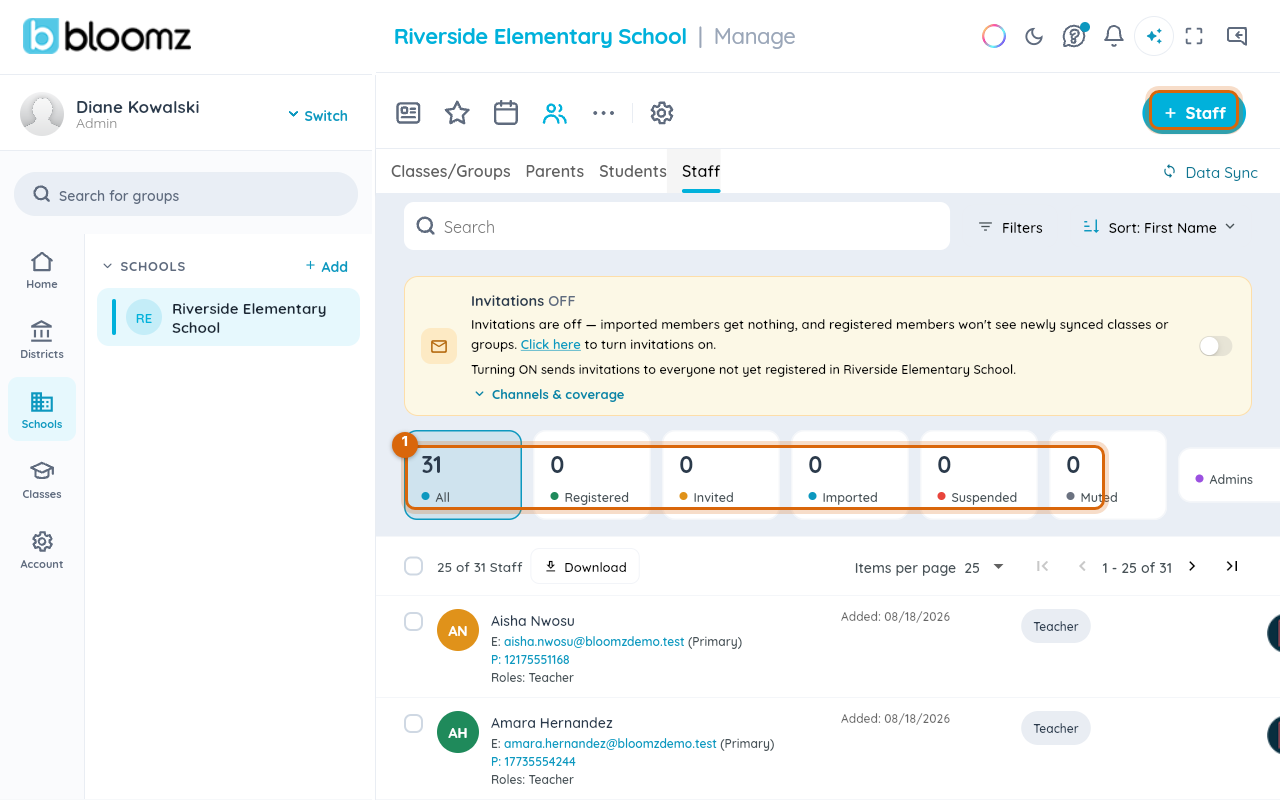
Step 2 — Start an invite
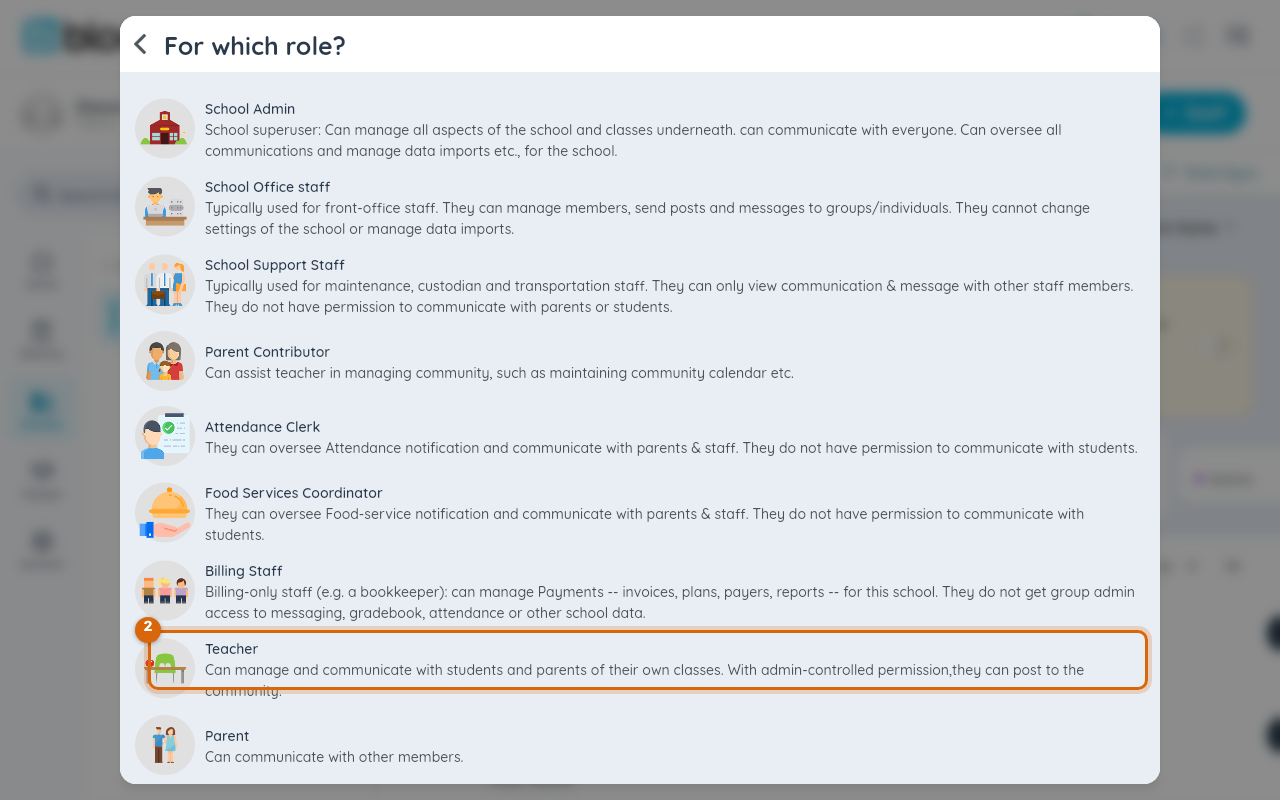
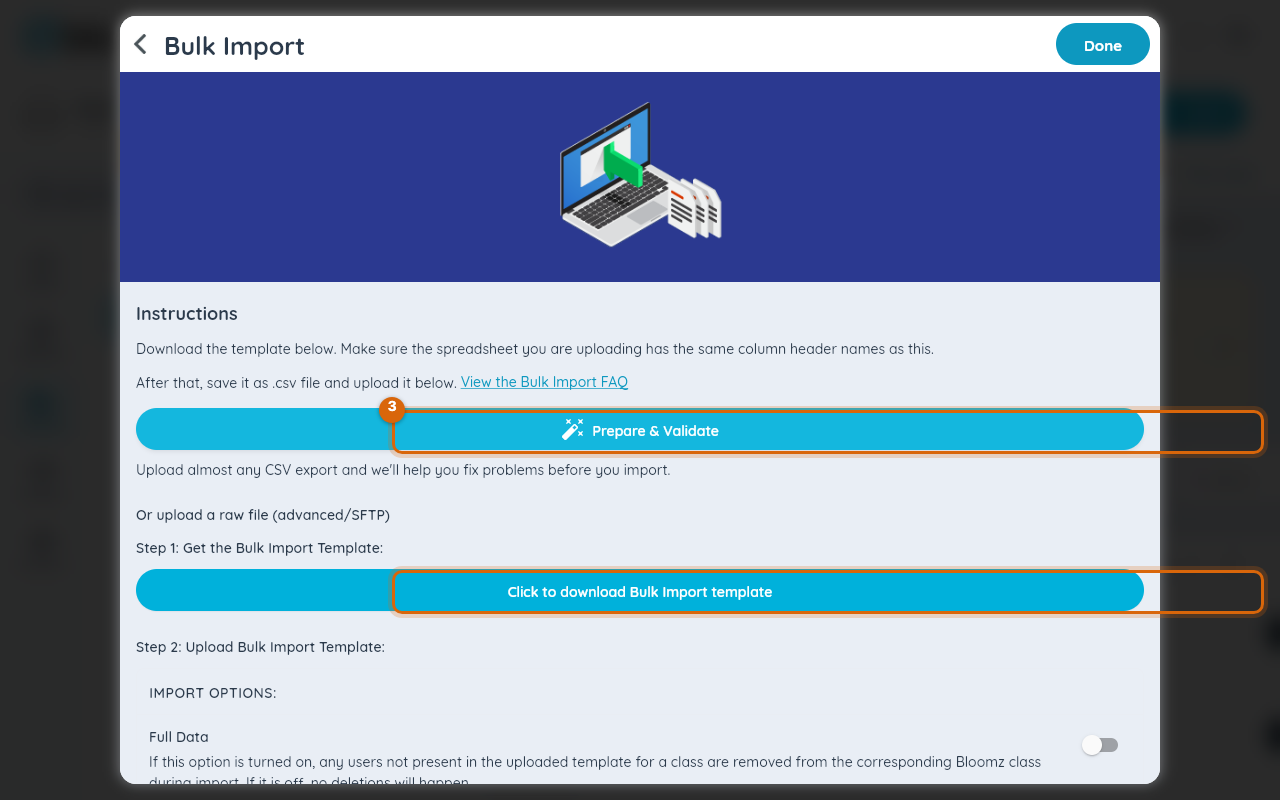
Select + Staff. On Add to which group?, your school is already ticked; select Done. Then, on For which role?, choose the role, and on How to Invite? choose Type emails or phone numbers manually.
Step 3 — Type the emails
Select the To field and type the work email, then press Enter. To invite several people at once, paste or type more addresses in the same field. The screen says you can copy and paste multiple email addresses or US phone numbers to invite in one go, which is faster than inviting a whole department one by one at the start of the year. The invitation email is already filled in; you can edit it.
Step 4 — Send the invites
Select Send. Each person gets an email with a link to set up their account and sign in.
Step 5 — Confirm they've joined
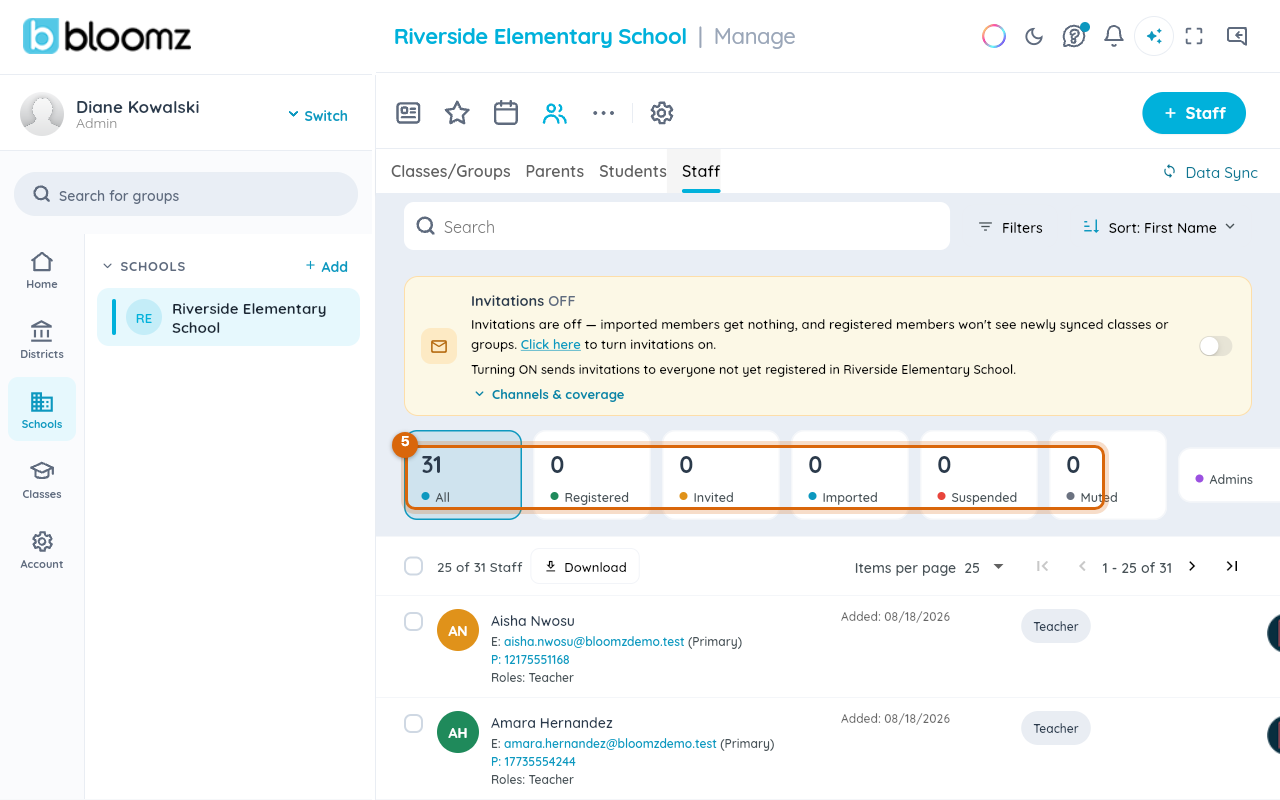
Back on the Staff list, the new person appears with an Invited badge, and the Invited count at the top goes up by one. Once they sign in, they are counted under Registered instead.
Watch out: invite each person with the right role, because the role controls what they can see and do. If you picked the wrong one, select the person on the Staff list and use Change Role in the toolbar. If you do not see it, remove them and invite them again with the correct role.
Related
- Invite parents and students to a class
- Build a custom role and assign it to staff
- Remove a member, or merge duplicate accounts