 Bloomz
Archive classes at the end of the year
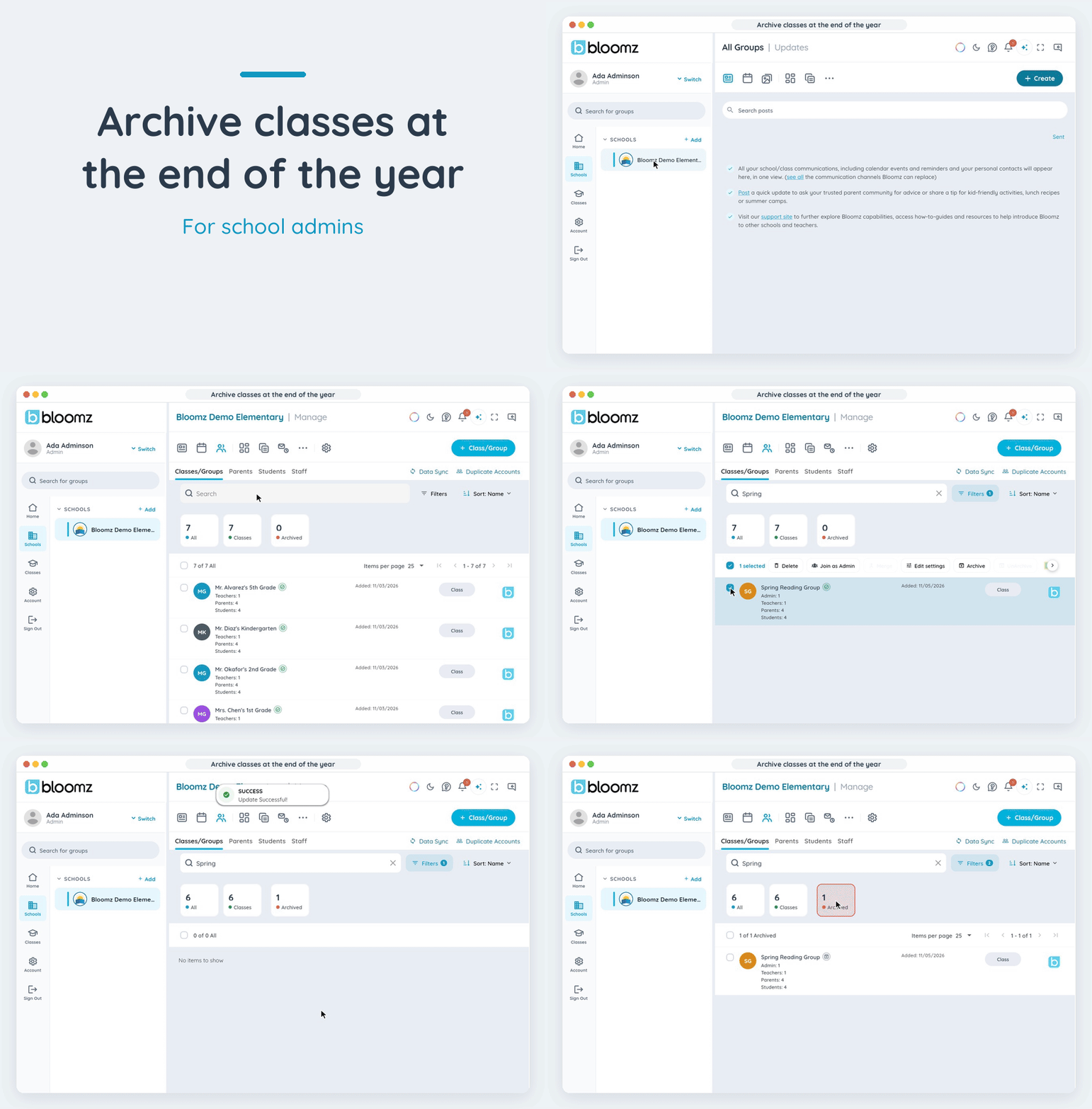
At the end of the school year, archive classes you're done with — one at a time or several at once — so they stop appearing as active without deleting their history.
Before you start
You need to be a teacher (for your own class) or a school admin (for any class at your school). Your school's permission Allow teachers to archive, leave or delete a class controls whether teachers can do this. In the phone app, archiving classes is a Premium feature: if the account is not Premium, Archive opens an upgrade screen instead. Archiving is a straightforward confirm — there's no separate rollover wizard that carries a roster, teacher assignment, or settings forward into a new class.
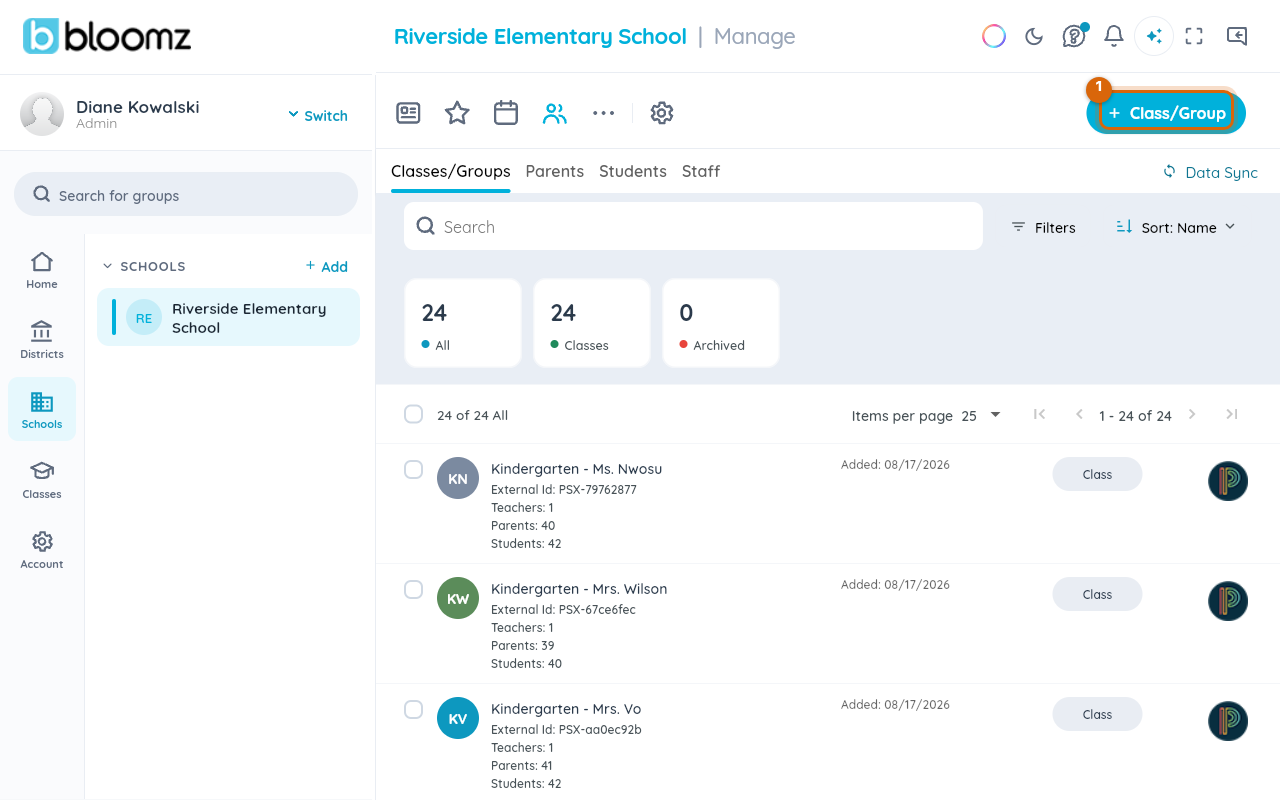
Step 1 — Open your Classes/Groups list
Open your school (or, as a teacher, your own class list) and select the Manage tab. This lists every class or group at your school.
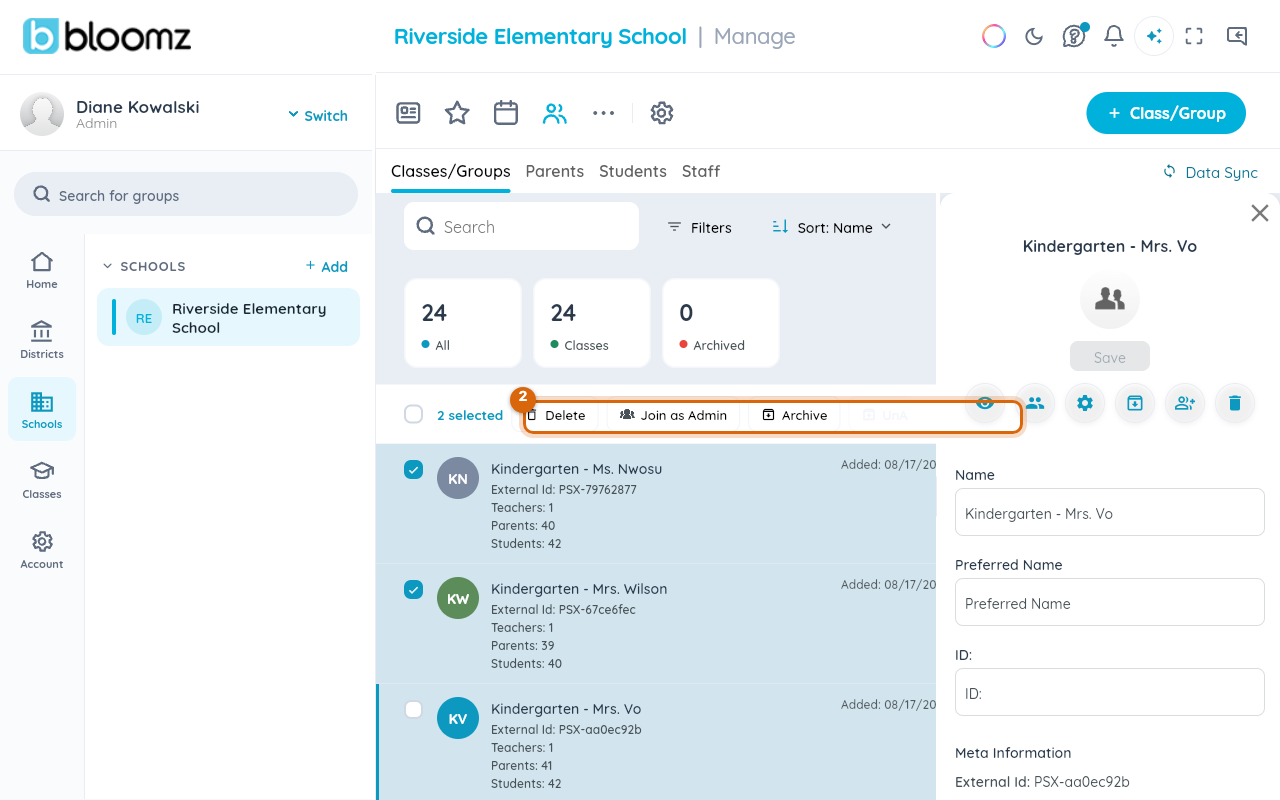
Step 2 — Select the classes to archive
Check the box next to each class you want to archive. Selecting one or more classes reveals the Delete, Join as Admin, Merge, Edit settings and Archive bulk actions above the list.
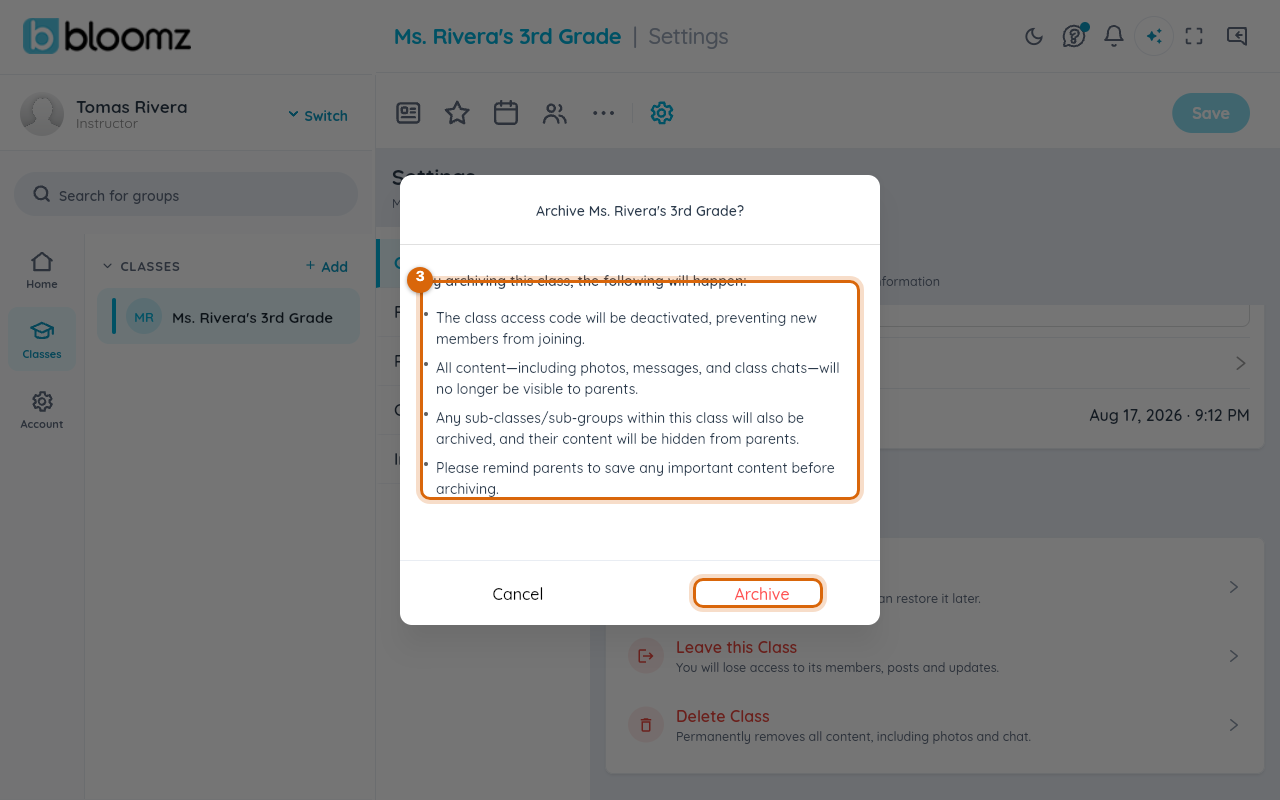
Step 3 — Archive and confirm
Select Archive. A confirmation dialog lists what archiving does: the class access code is deactivated so no new members can join, all content (photos, messages and class chats) is hidden from parents, and any sub-classes are archived too. It reminds you to ask parents to save anything important first. Select Archive in the dialog to confirm; the class then moves to the Archived count at the top of the list. A single class can also be archived the same way from its own Settings screen.
Watch out: archiving hides the class's content from parents straight away, so finish any end-of-year communication, and remind parents to save photos or messages they want to keep, before you archive, not after.
What archiving doesn't do
Archiving a class doesn't create a fresh class for the new year, and it doesn't carry the roster, teacher assignment, or settings forward — it only takes the old class out of active use; archived classes are listed under Archived. When you're ready to start the new year, create and roster each new class the same way you set up the old one (see Invite parents and students to a class and Import your roster from a CSV) rather than expecting archiving to build one for you.