 Bloomz
Log intervention sessions and track goals in a Thrive case
Each intervention step in a Thrive case tracks the sessions actually delivered against the sessions planned, as a fidelity bar. Logging each session shows the team whether the student is getting the support as planned. A goal graph shows whether that support is working.
Before you start
- The student has an open case with at least one intervention step (see "Open a case for a student").
- Logging and deleting sessions needs a role that can edit the case, such as a school admin or district admin.
Step 1 — Open the case
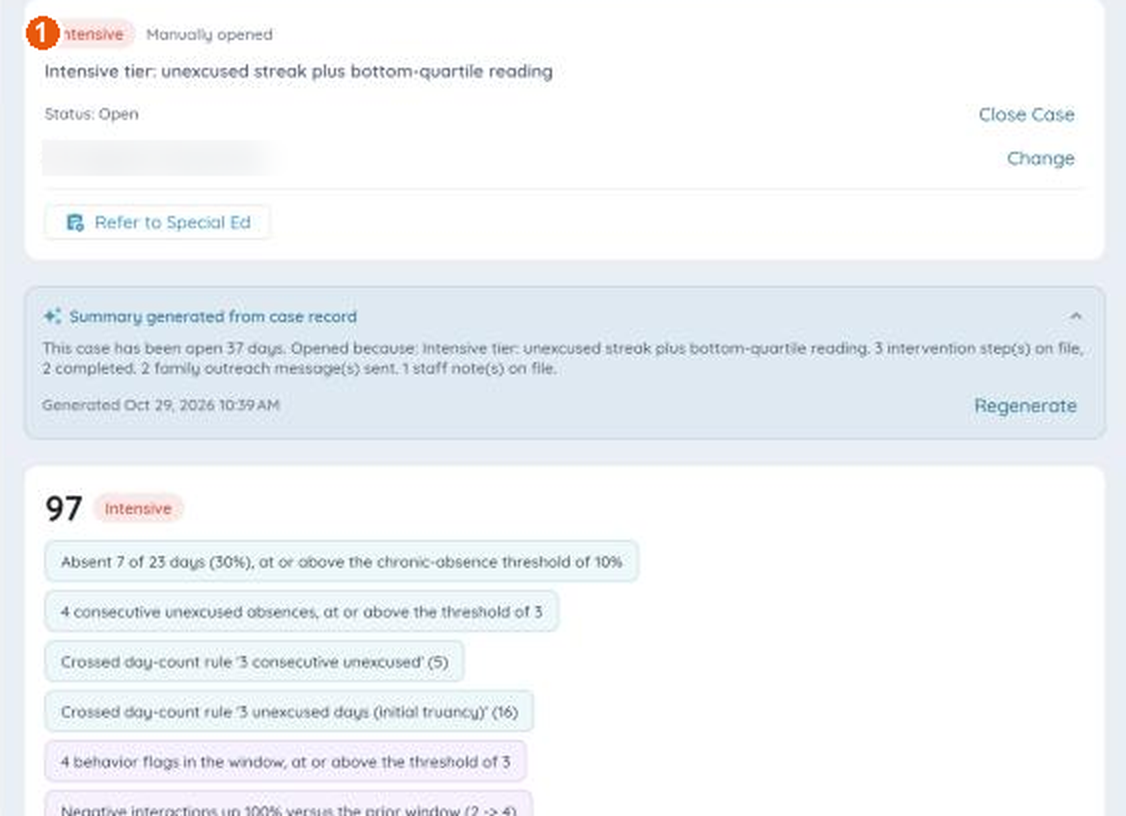
In the Watchlist, select the student, then select the folder button in their side panel. The case opens with its tier, why it was opened, who it is assigned to, a summary, and the factors behind the score.
Step 2 — Read the fidelity bar
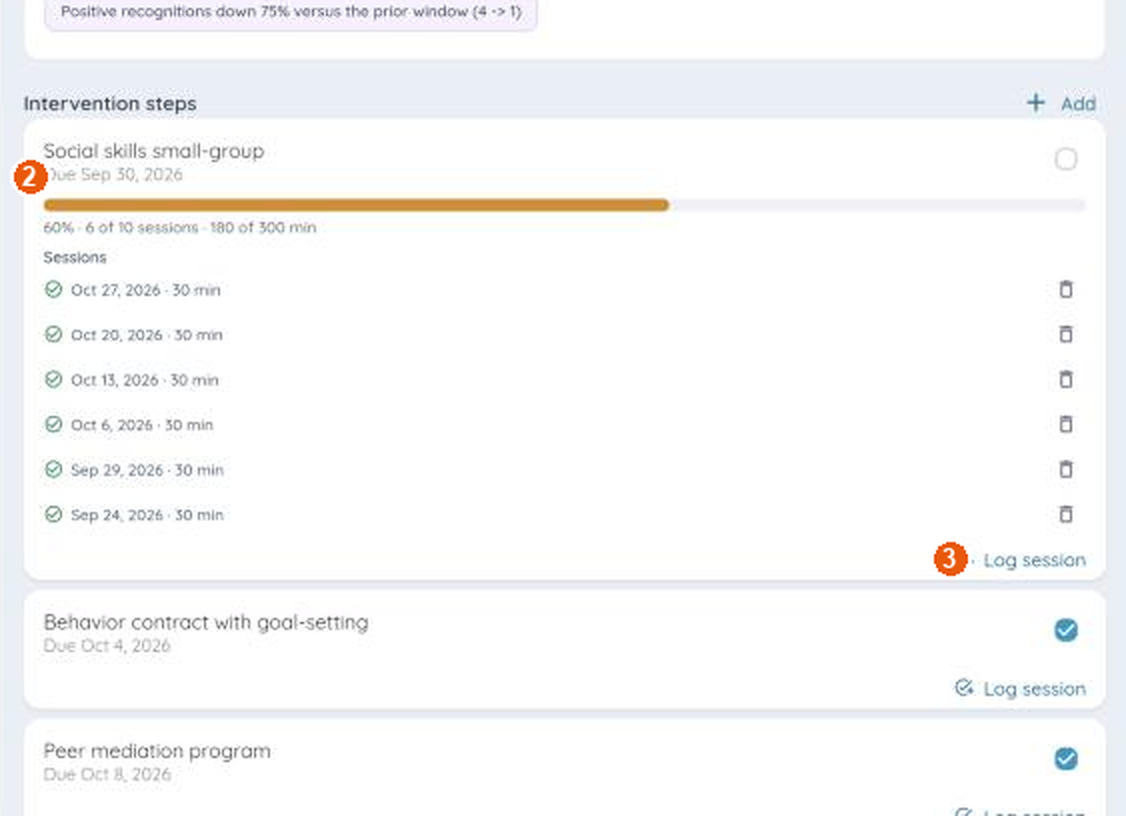
Scroll to Intervention steps. Under each step, the bar shows delivery so far, for example "60% · 6 of 10 sessions · 180 of 300 min". The bar is green at 80% and above, amber from 50% to 79%, and red below 50%. The sessions logged so far are listed under it.
Step 3 — Log a session
Select Log session on the step. Pick the date (from the step's start up to today) and the minutes, then save. The session joins the list and the bar updates. If you save the same session twice in a row, Bloomz tells you it is already logged and doesn't count it again.
Step 4 — Remove a session logged by mistake
Select the bin icon next to the session and confirm. The bar goes down to match.
Step 5 — Check goal progress
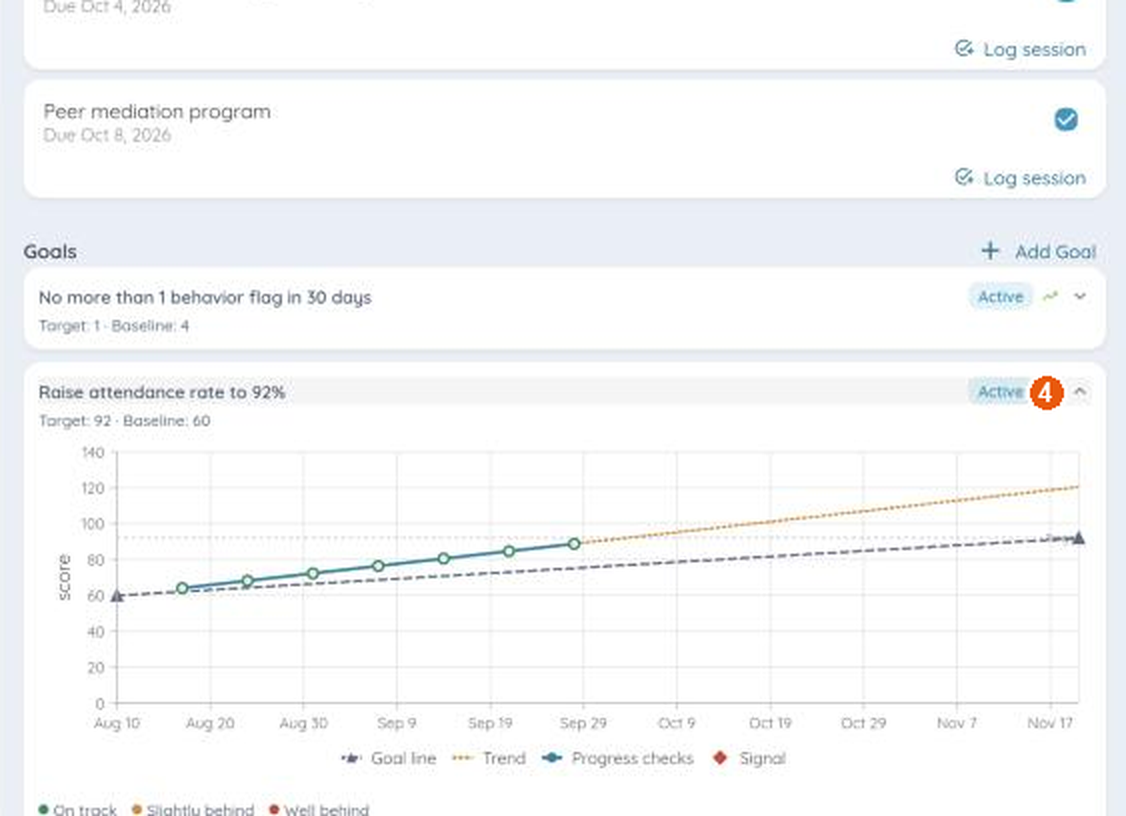
Under Goals, expand a goal with the arrow on its right. The graph shows:
- the goal line from the baseline to the target;
- each progress check as a dot, coloured on track, slightly behind or well behind;
- a trend line, once there are enough checks.
Watch out: the fidelity bar counts only sessions logged on the step. Tutoring sessions linked to the intervention appear in the case too, so the case can list more sessions than the bar counts.
What families see
Nothing. Cases, sessions and goals are visible only to staff. Families hear only through messages you send.