 Bloomz
Log a tutoring session and link it to an intervention
Bloomz treats tutoring as intervention delivery: staff log a session (who/when/how long), optionally link it to an intervention from the district's Thrive catalog, and the session lands as progress evidence on the student's open Thrive case, on the student's day timeline, and in a notice to the family.
Before you start
- Tutoring is off by default and, like Thrive, is provisioned for your district by Bloomz — ask your Bloomz account contact if you don't see it.
- Any staff member can log a session. Sessions can happen off school hours or off-site — logging isn't tied to being checked in anywhere.
- The note field is staff-only, and the subject never appears on the family-facing timeline.
Step 1 — Start from the Create menu
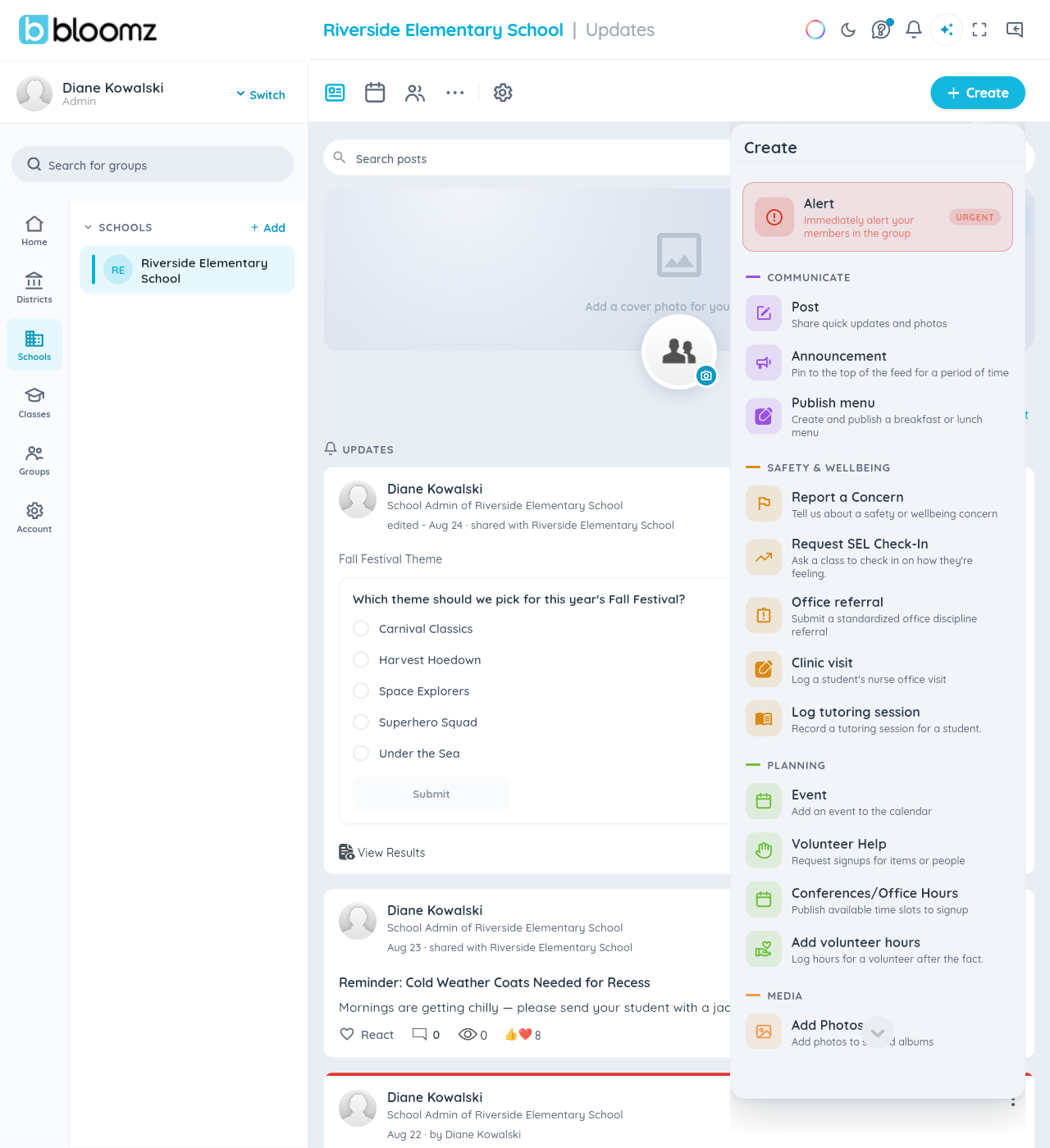
Select + Create, then Log tutoring session (under Safety & Wellbeing). You can also start from a student's profile, which pre-fills that student.
Step 2 — Fill in the session
Pick one or more students, enter the subject and the duration in minutes, and add a staff-only note if useful.
Step 3 — Link an intervention (optional but powerful)
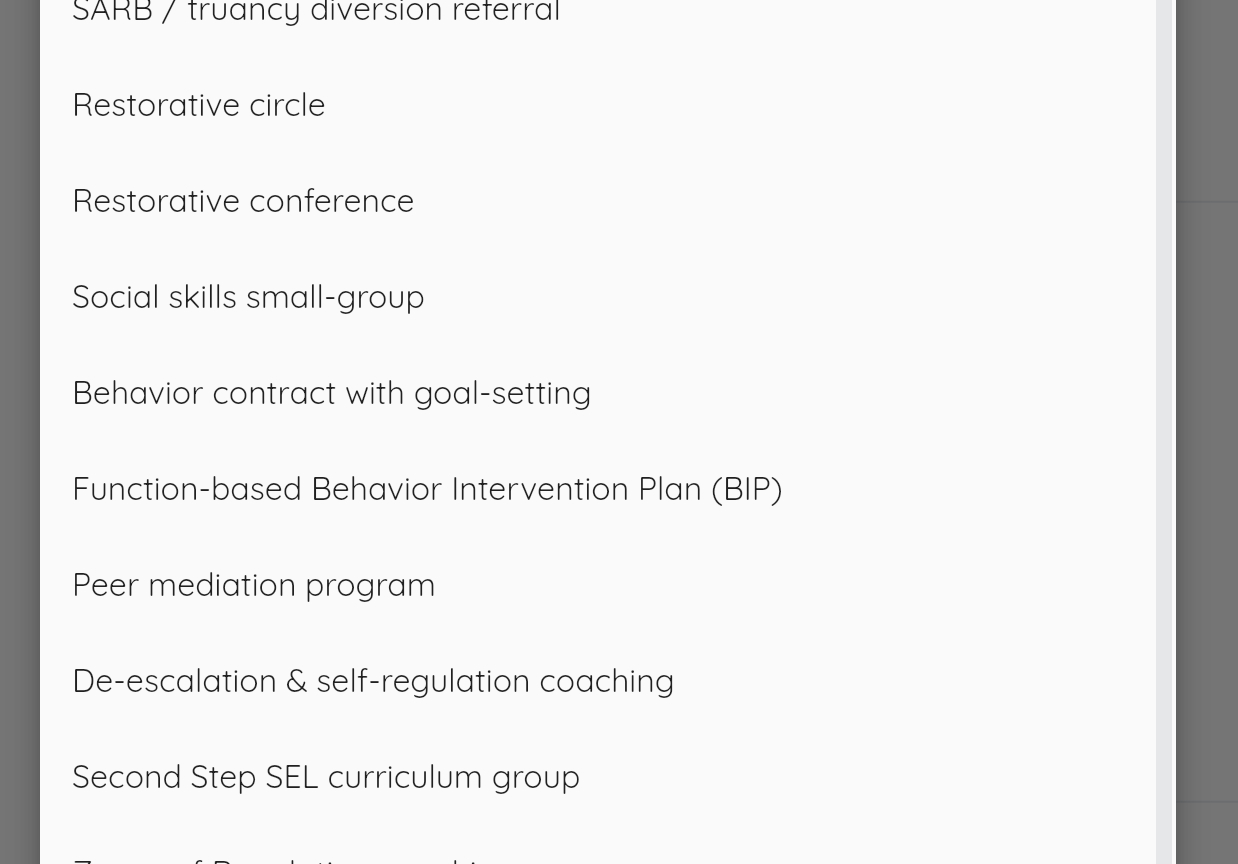
Pick an intervention from your district's existing Thrive catalog — for example a peer or certified tutoring entry. When a selected student has an open Thrive case, the session attaches to that case as progress-monitoring evidence.
Step 4 — Save
On save, the students' guardians are notified that a session was logged, and the session appears on each student's day timeline.
Step 5 — Review the session log and cases
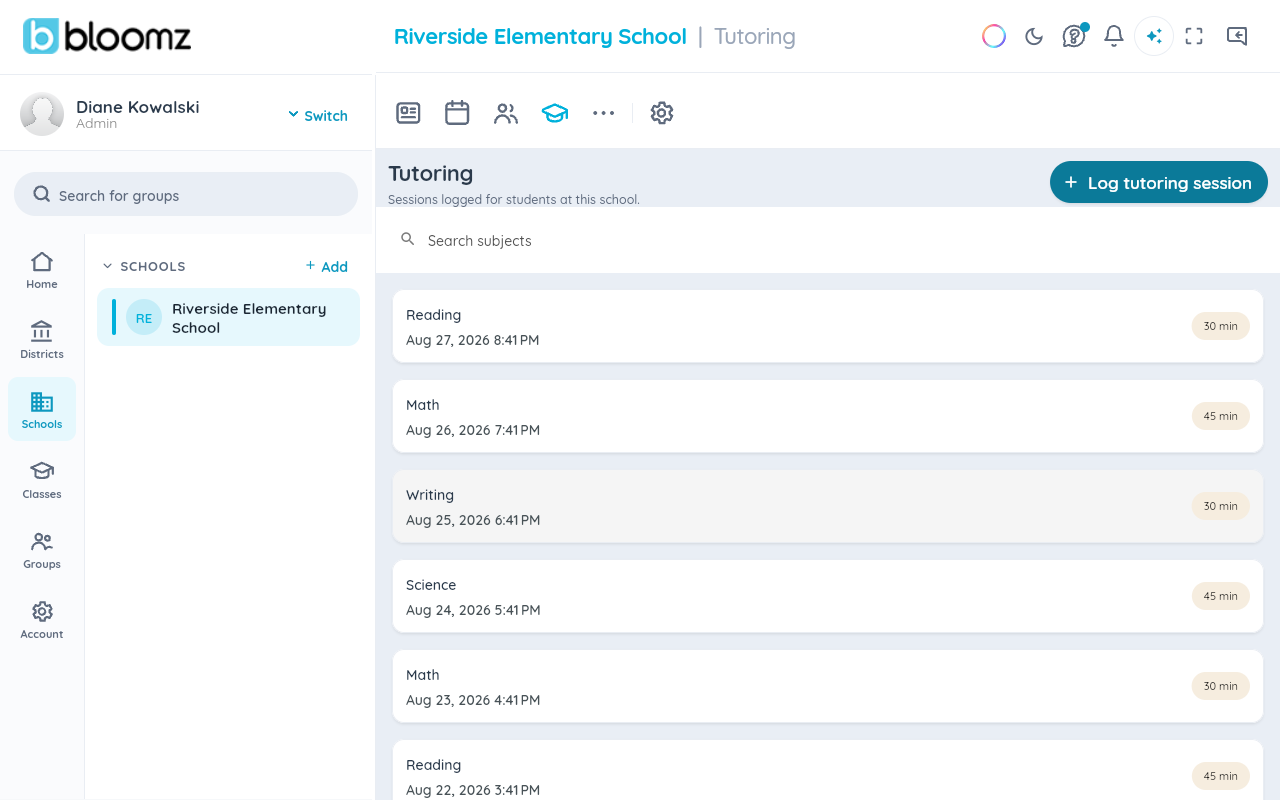
The Tutoring log page lists sessions with search over the subject plus filters, and a click-to-peek detail with a delete action. A Thrive case that gained sessions shows them in its read-only Tutoring Sessions section.

Watch out: Bloomz's Pulse attention list flags open cases that carry a tutoring-type intervention but have had no session logged in the last 14 days (your district can tune the window) — logging sessions promptly is what keeps a well-served case off that list. Very small flagged groups are suppressed rather than shown, to protect student privacy.
What families see
Guardians get a notification when a session is logged for their child, and the session appears on the child's day timeline with its duration. The subject and your notes are never shown to families.