 Bloomz
Review several students together in the Meeting view
Before an MTSS or student-support meeting, you can put several students side by side without leaving the Watchlist. The Meeting view shows each student's tier, area chips and score history in one panel, so the team can talk through them in turn.
Before you start
- Thrive must be turned on for your school.
- The Meeting view is available to staff who can open the Thrive Watchlist.
Step 1 — Open the Watchlist and check one student
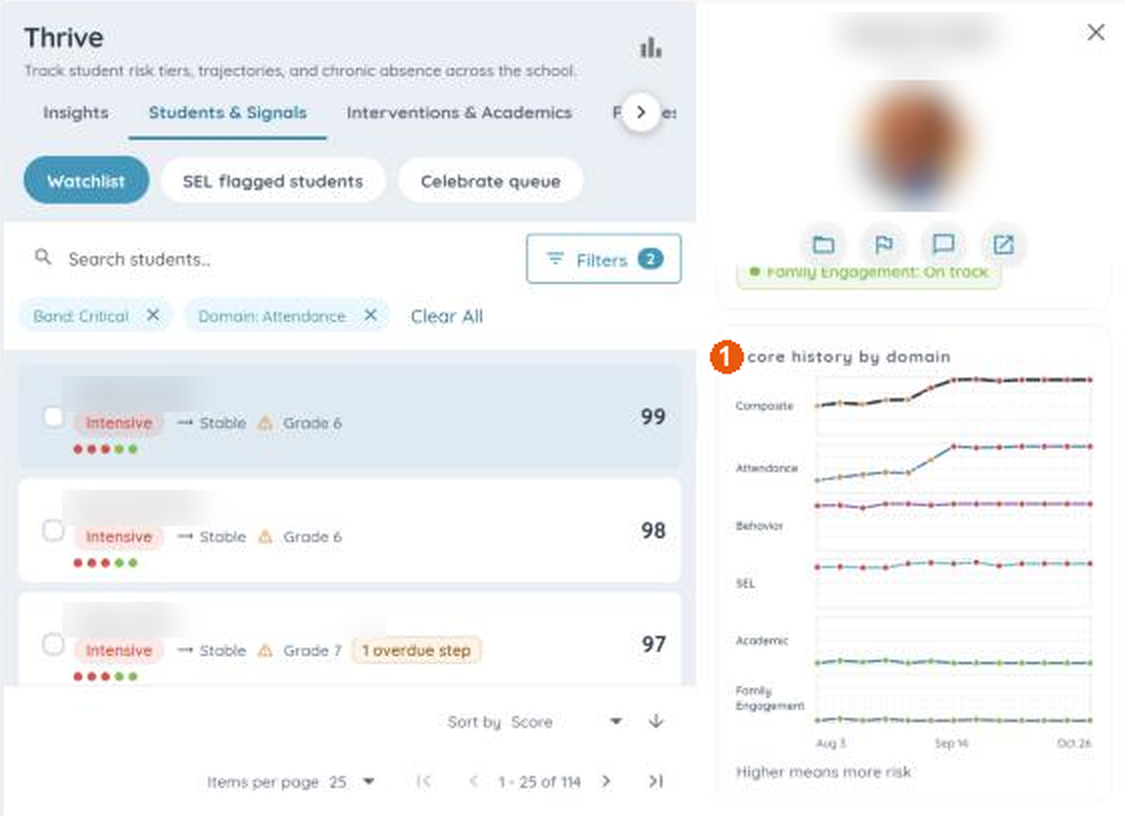
In Thrive, open Students & Signals > Watchlist. Filter or search for the students on your agenda, and select a name to check their side panel. The Score history by domain chart shows the composite score and each area over time. Higher means more risk.
Step 2 — Tick the students for the meeting
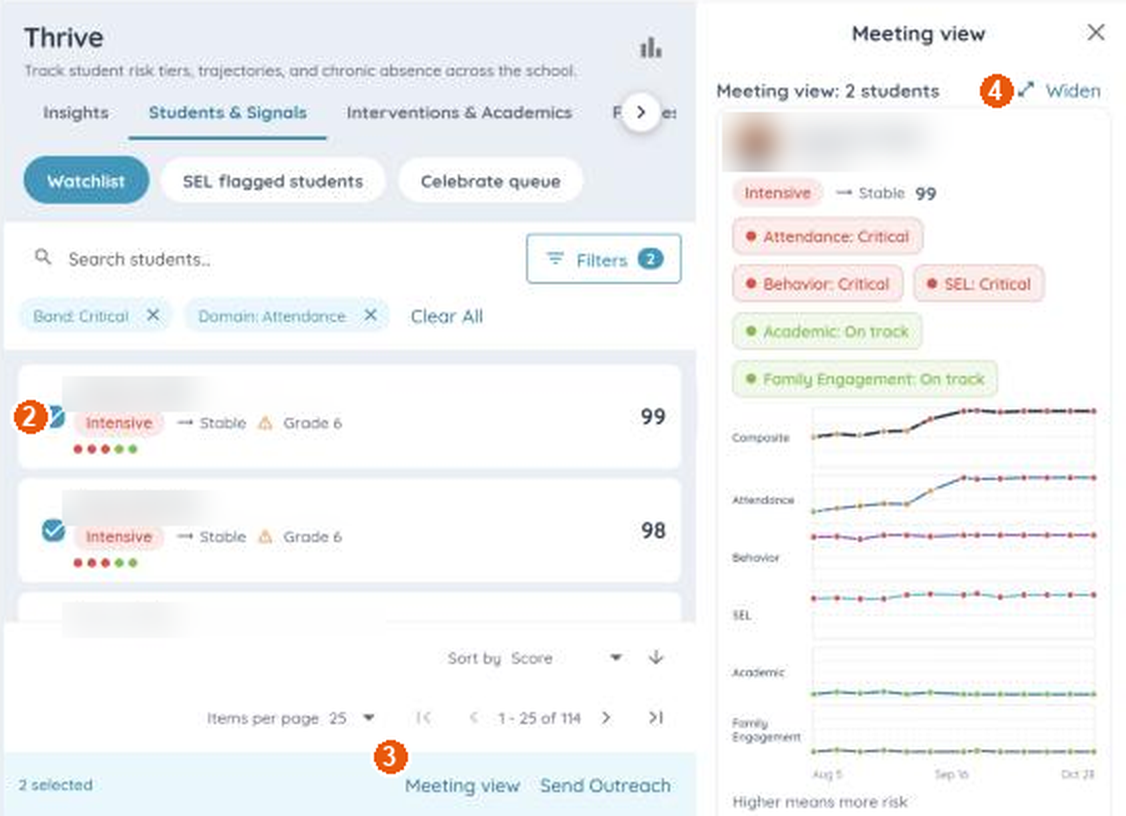
Close the panel and tick the box beside each student you want to discuss. A bar at the bottom shows how many are selected.
Step 3 — Open Meeting view
In the bottom bar, select Meeting view. The side panel shows one section per student: tier and score, the chip for each area, and the score history.
Step 4 — Widen it for the meeting
Select Widen to give the panel more room while you present. Select Narrow to go back.
Step 5 — Close it
Select the X or clear the selection. The Meeting view closes and the Watchlist keeps your filters.
Watch out: the Meeting view is for reading. To log a session, update a goal or message a family, open the student's case from their side panel.
What families see
Nothing. The Meeting view is visible only to staff.