 Bloomz
See how students moved between support tiers
Tier movement shows how many students moved between Universal, Targeted and Intensive support over a date range. Use it to check whether more students are getting better than worse, for the whole school or one class.
Before you start
- Thrive Academics must be turned on for your school.
- You need a Thrive role that can do case work, such as a school admin or counselor. Tier movement does not appear for people who cannot.
Step 1 — Open Tier movement
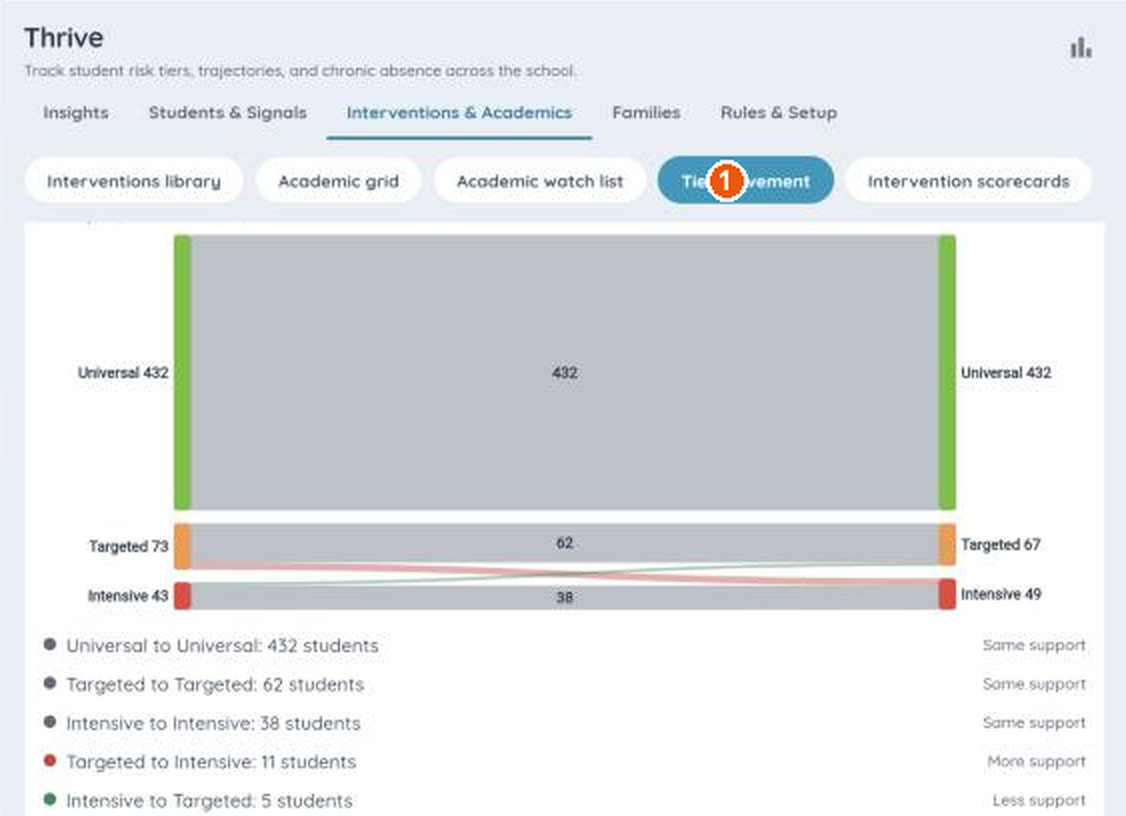
In Thrive, open Interventions & Academics > Tier movement.
Step 2 — Choose the range
Select Last 30 days or This school year, or pick the start and end dates yourself (From and To). To narrow it down, pick a class or a grade.
Step 3 — Read the flows
At the top you see the number of Students, and how many got Less support, More support or the Same support. In the chart, the left side shows each tier at the start of the range and the right side at the end, both with student counts. Each band between them is a group of students who moved, or stayed, between those tiers.
Step 4 — See the students in a band
Select a band to list the students in that movement, for example "Targeted to Intensive". Select a student to open their page.
Watch out: a student who moved up and back within the range counts as staying in their tier. The chart compares only the start and end of the range.
What families see
Nothing. Tier information is visible only to staff.