 Bloomz
Create a poll
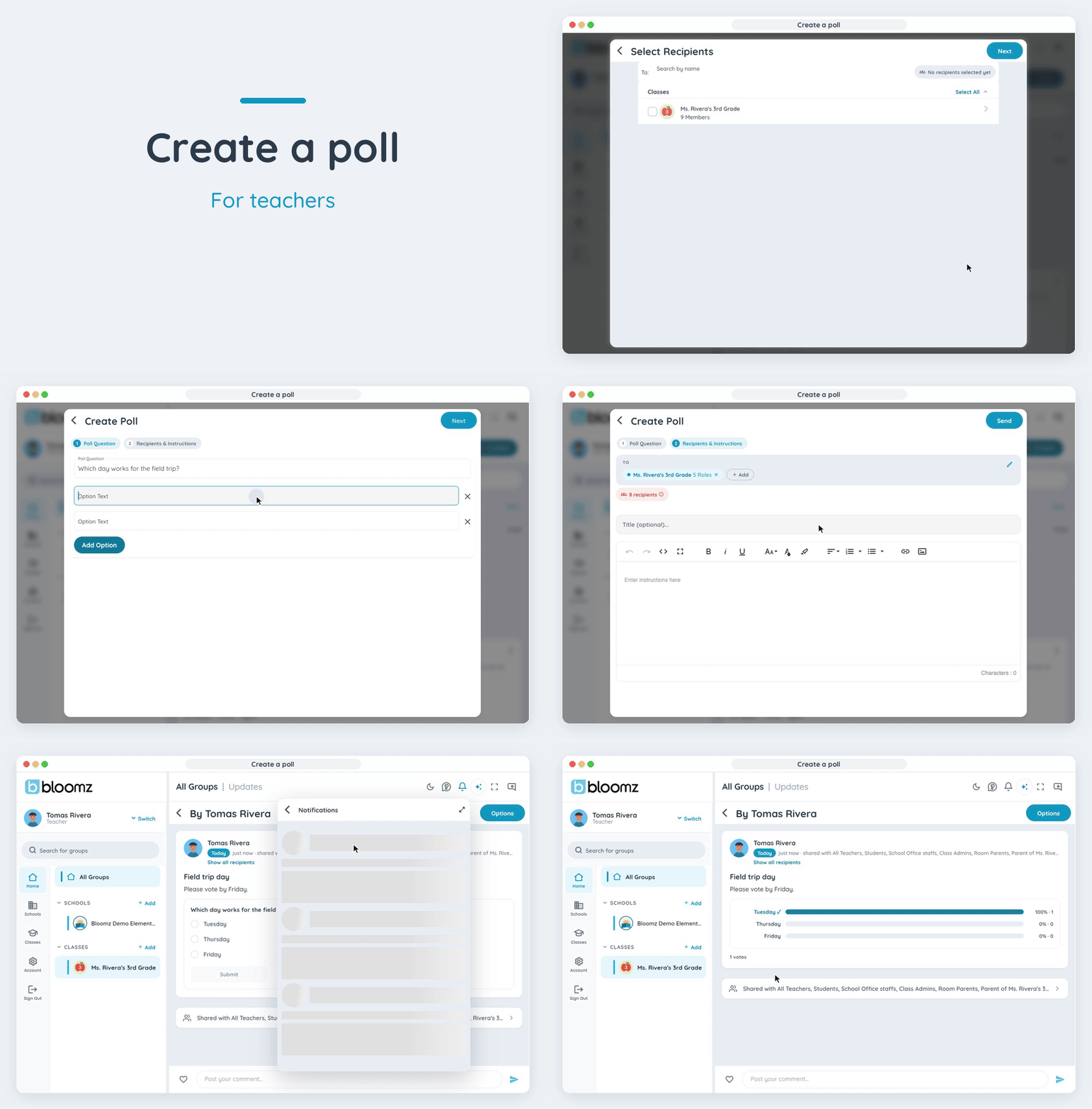
Need a quick read on the room — "Which day works for the field trip?" A poll asks a question with a fixed set of options; recipients tap one to vote, and everyone can watch the results come in.
Before you start
Poll needs to be turned on for your class first — an admin (or you, on your own class) switches it on under Settings > Features > Forms & Polls. The switch isn't shown for plain groups or departments, and it can appear greyed out if your school hasn't enabled it; in that case ask your school admin. A poll is built for a fast yes/no or pick-one question — not for open-ended feedback, which is better suited to a comment on a regular post.
Step 1 — Open Create and choose Poll
From your class, select Create, then Poll under Planning.
Step 2 — Choose your audience
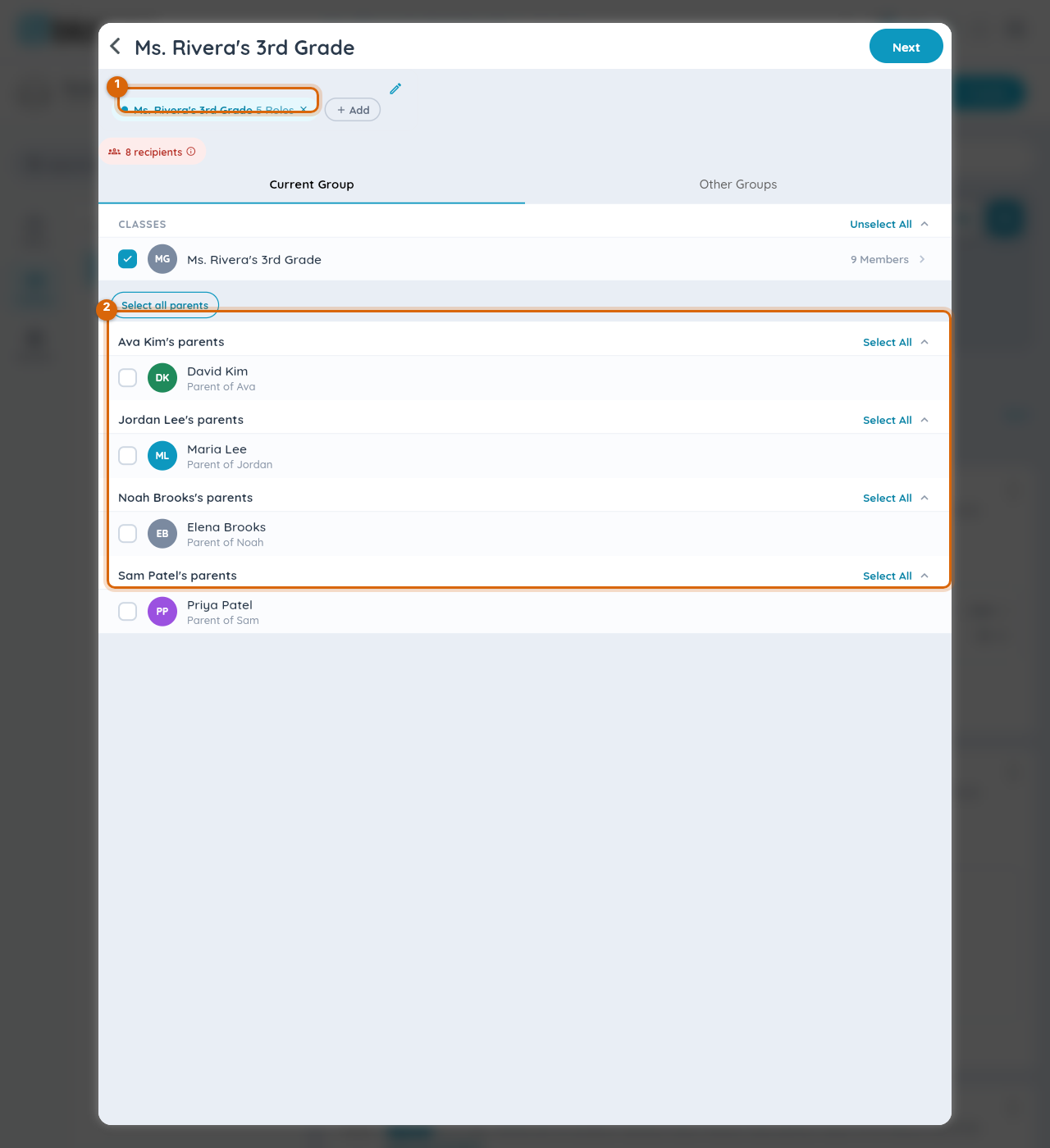
Poll opens straight into the recipient picker — pick who gets it the same way as any post: classes, roles, or individuals.
Step 3 — Write the question
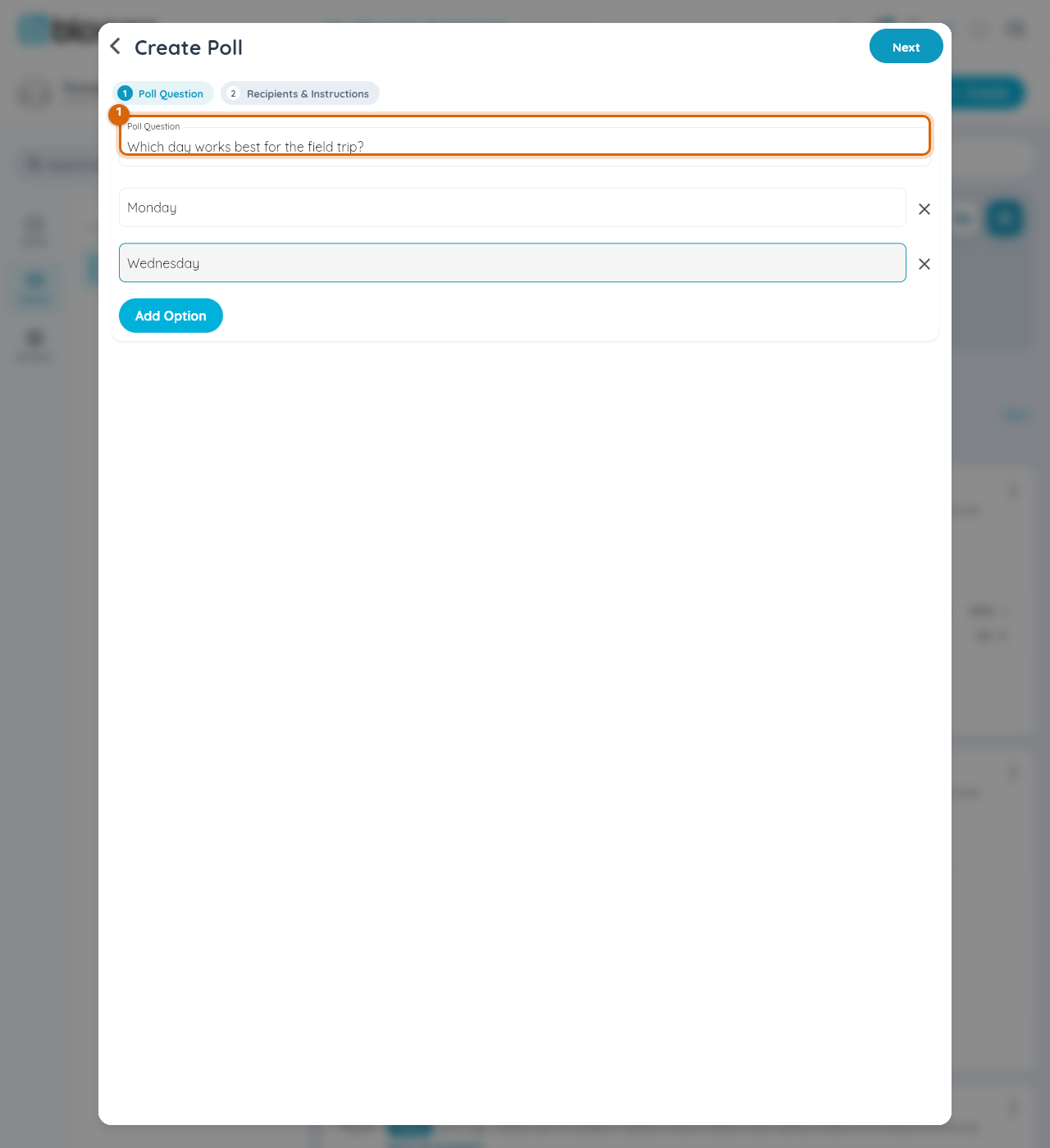
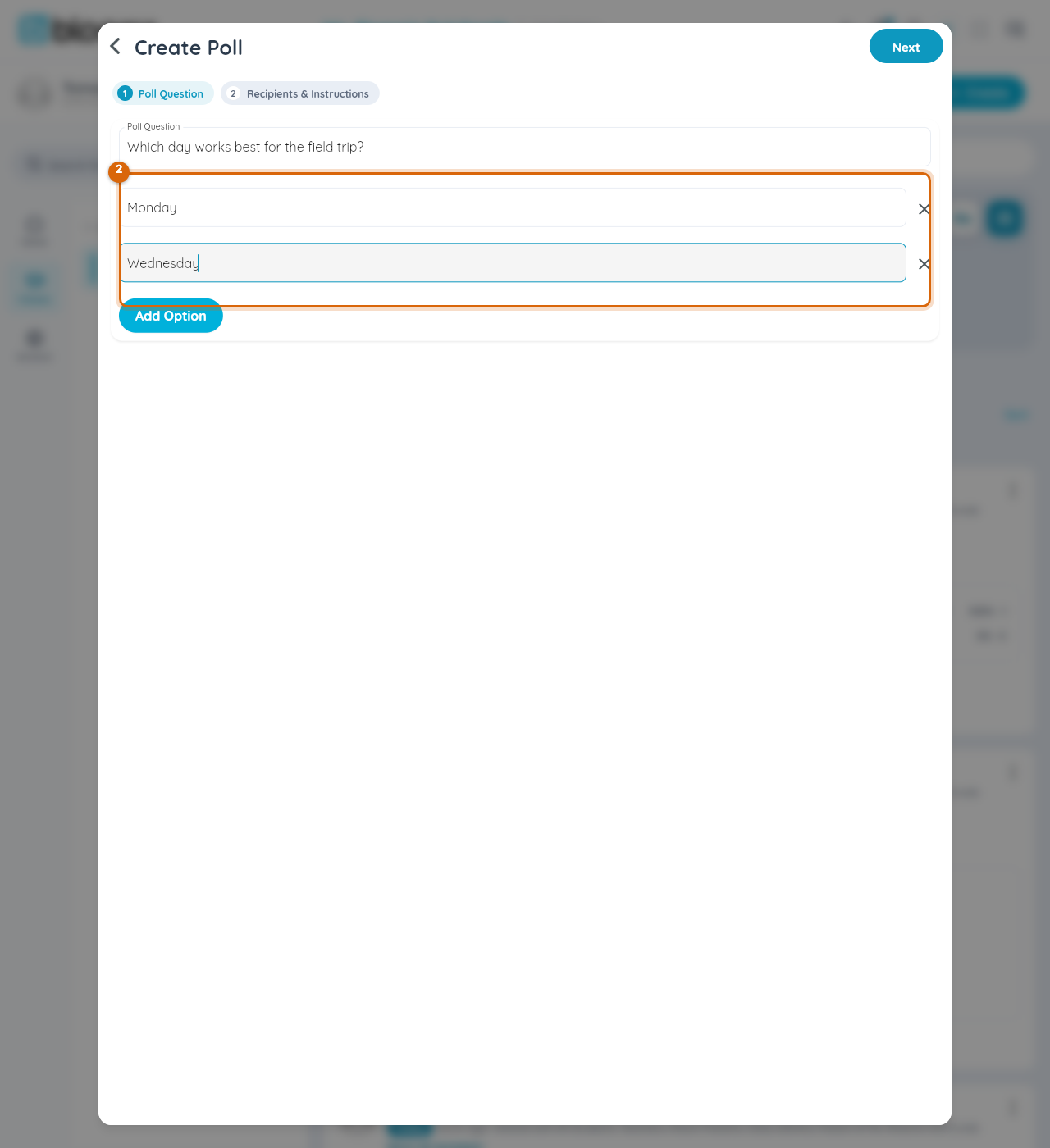
Choose Next to reach the Create Poll screen. Type your question in the Poll Question field — this is what recipients see at the top of the poll.
Step 4 — Add answer options
Add each answer option in its own row; use Add Option for more than the two you start with. Remove an option with its X if you don't need it. Every option needs text, and no two options can be the same.
Watch out: the second tab, Recipients & Instructions, has a required Instructions field below your recipients. It looks optional the way Title is marked "(optional)," but it isn't. If you leave it blank, Send shows Please enter description. and the poll does not go out; type a line explaining the poll (even just "Please vote by Friday") first.
Step 5 — Send the poll
Choose Next to reach Recipients & Instructions, confirm the TO chip, add a line of instructions, then choose Send. The poll goes out to everyone you selected, each option ready to tap.
If something is missing, Send shows a short message and nothing is sent. Fix the item named and select Send again:
- Please enter description. — the Instructions field is blank.
- Please add question title — the question is blank.
- Please add poll options — there are no answer options.
- Please fill in all poll options — one of the options is empty.
- Same option already exists — two options are identical.
Step 6 — Watch the results come in
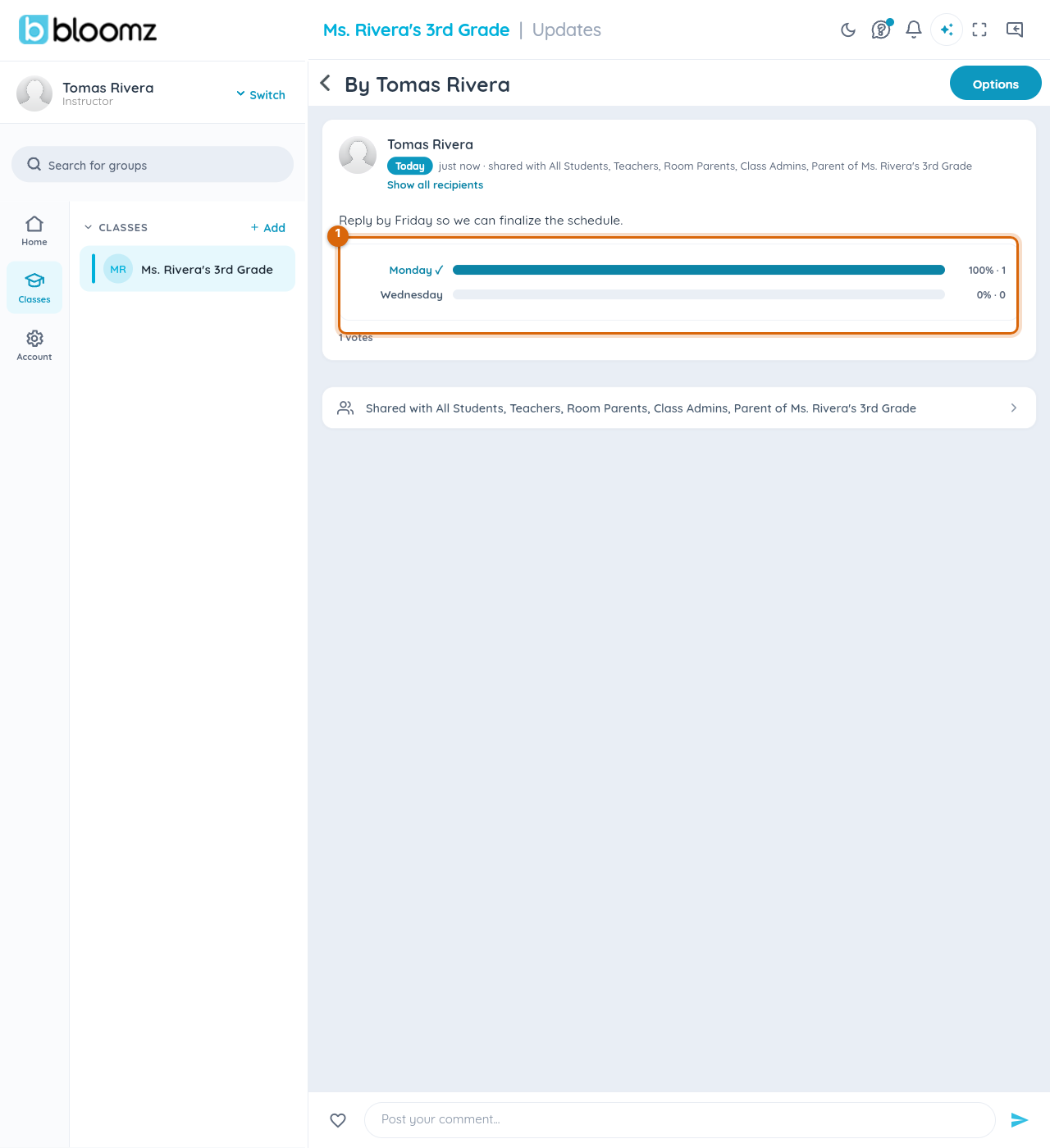
Open the poll from your feed or Sent history to see live results — a bar for each option that updates as votes arrive, and a total vote count.
Watch out: each person gets one vote and can change it, but can't select more than one option at a time — a poll isn't a multi-select checklist.
What families see
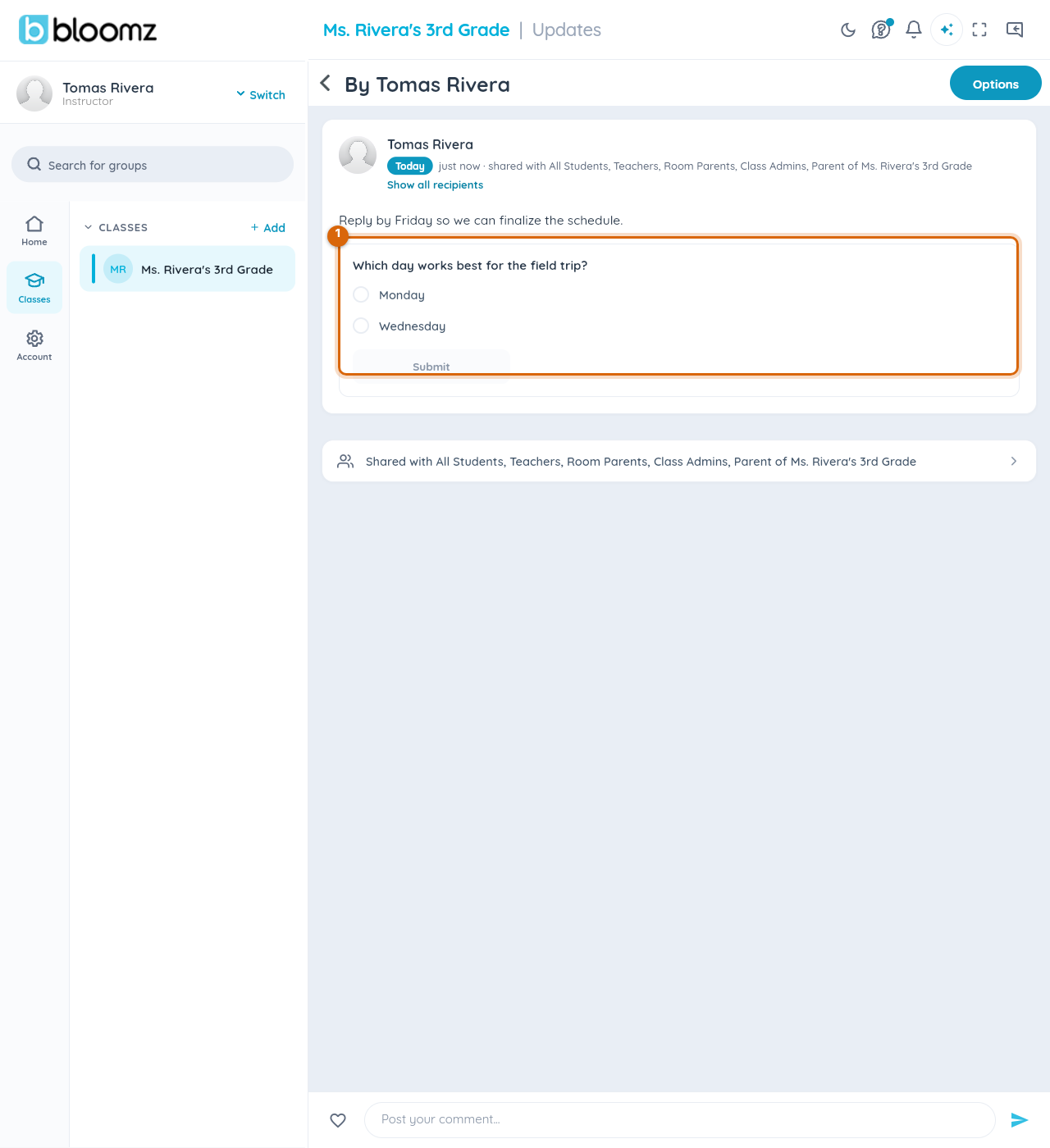
Recipients see the question and options; tapping one submits their vote and reveals the live results to them too, unless you're mid-poll and results are still catching up.