 Bloomz
React and reply to posts
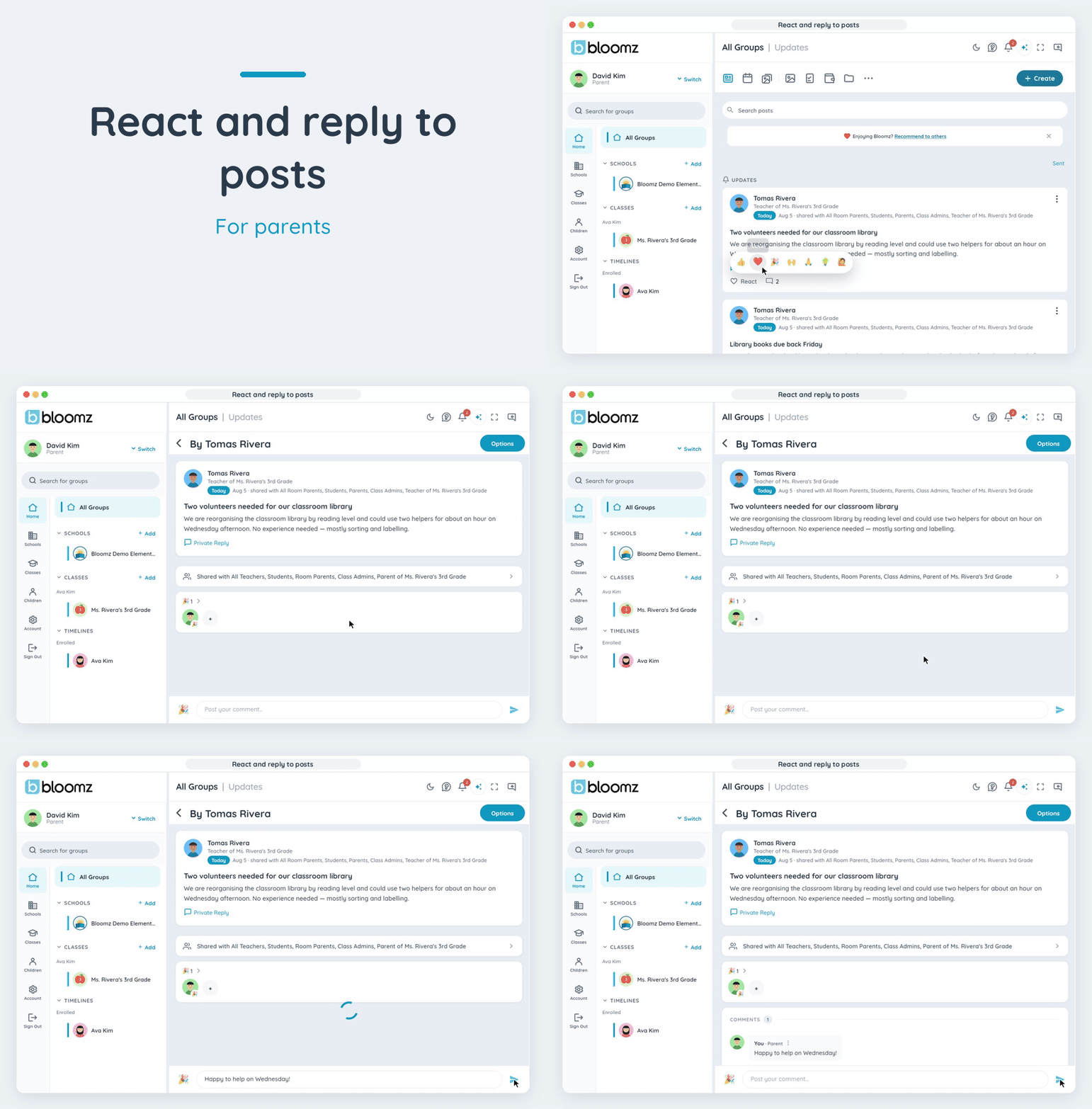
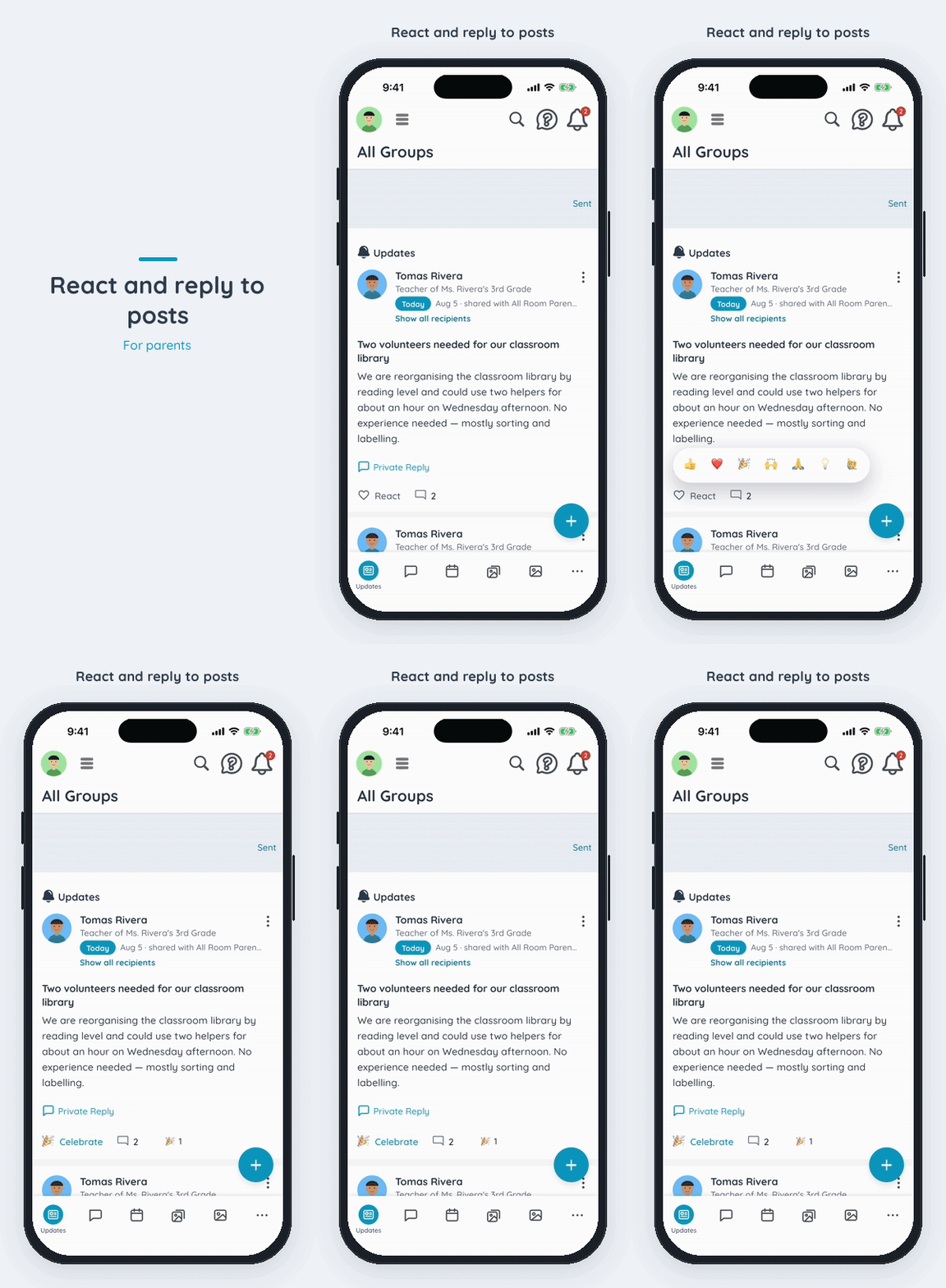
A quick reaction is often the perfect answer to a post — it tells the sender "seen, and appreciated" without adding another message to anyone's day. When a reaction isn't enough, reply with a comment. Both work the same for everyone who can see the post: parents, students, teachers, and school admins alike.
Before you start
If you can see a post, you can react to it — reactions follow exactly the same visibility rules as the post itself. Bloomz uses a small, fixed set of reactions chosen for a school community, not an open emoji keyboard:
| Reaction | Means |
|---|---|
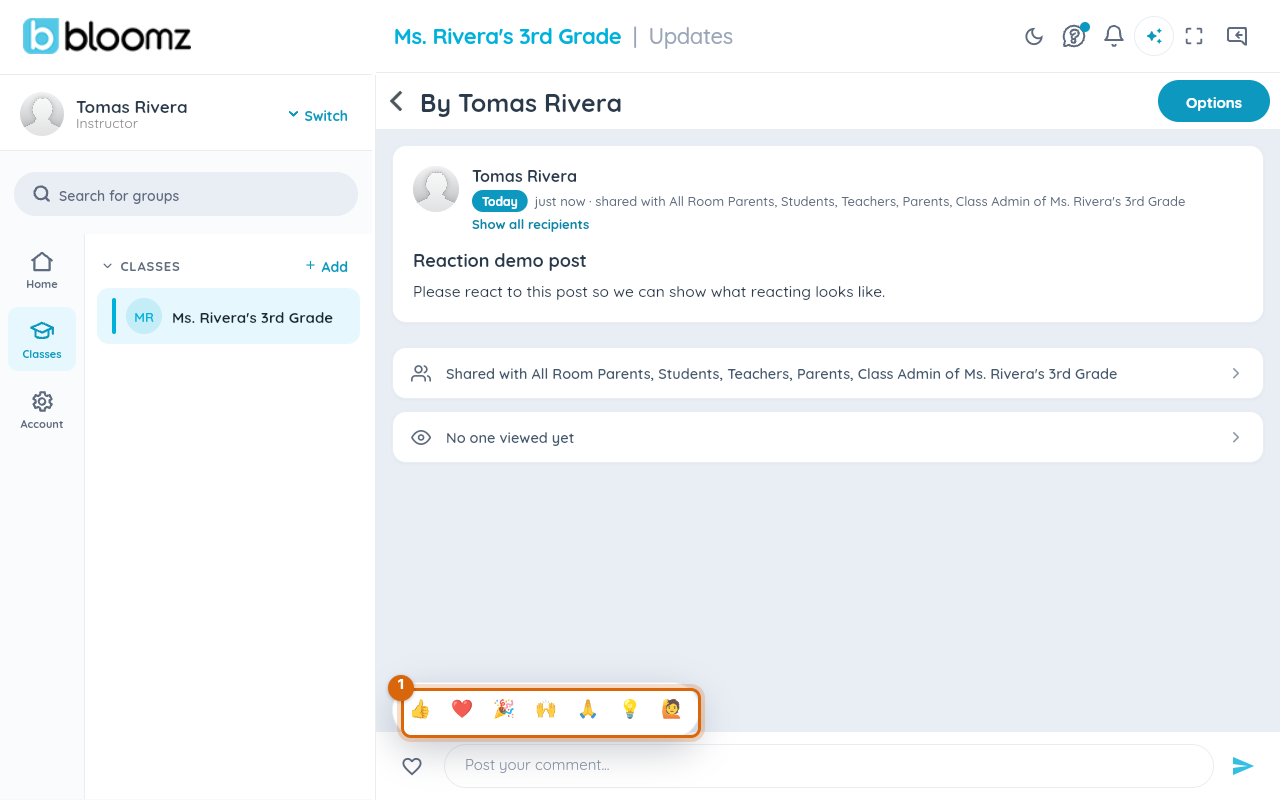
| 👍 Like | "I saw this / I appreciate this" |
| ❤️ Love | warmth |
| 🎉 Celebrate | achievements and good news |
| 🙌 Support | encouragement |
| 🙏 Thankful | gratitude |
| 💡 Helpful | useful information |
| 🙋 Count me in | "me too / I agree" — handy for "Who can bring snacks?" posts |
The set is deliberately all-positive — no sad, angry, or laughing reactions, which invite misread tone between teachers and families — and nothing outside this list can be sent.
Step 1 — Find the React control
On the feed, the action bar at the bottom of each post shows a heart outline with the word React. Once you have reacted, it shows your reaction's emoji and name instead, for example Like or Celebrate. On the post's own screen, the same control is a heart icon without the word.
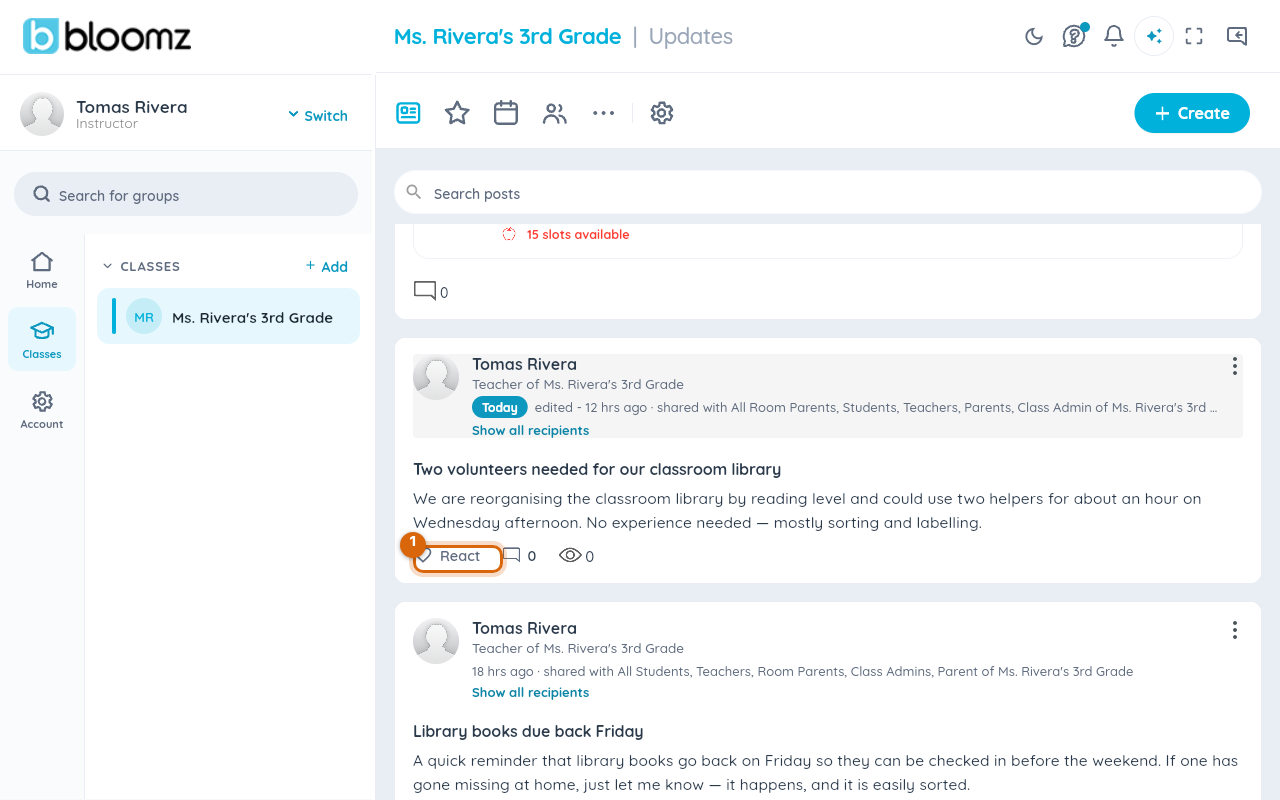
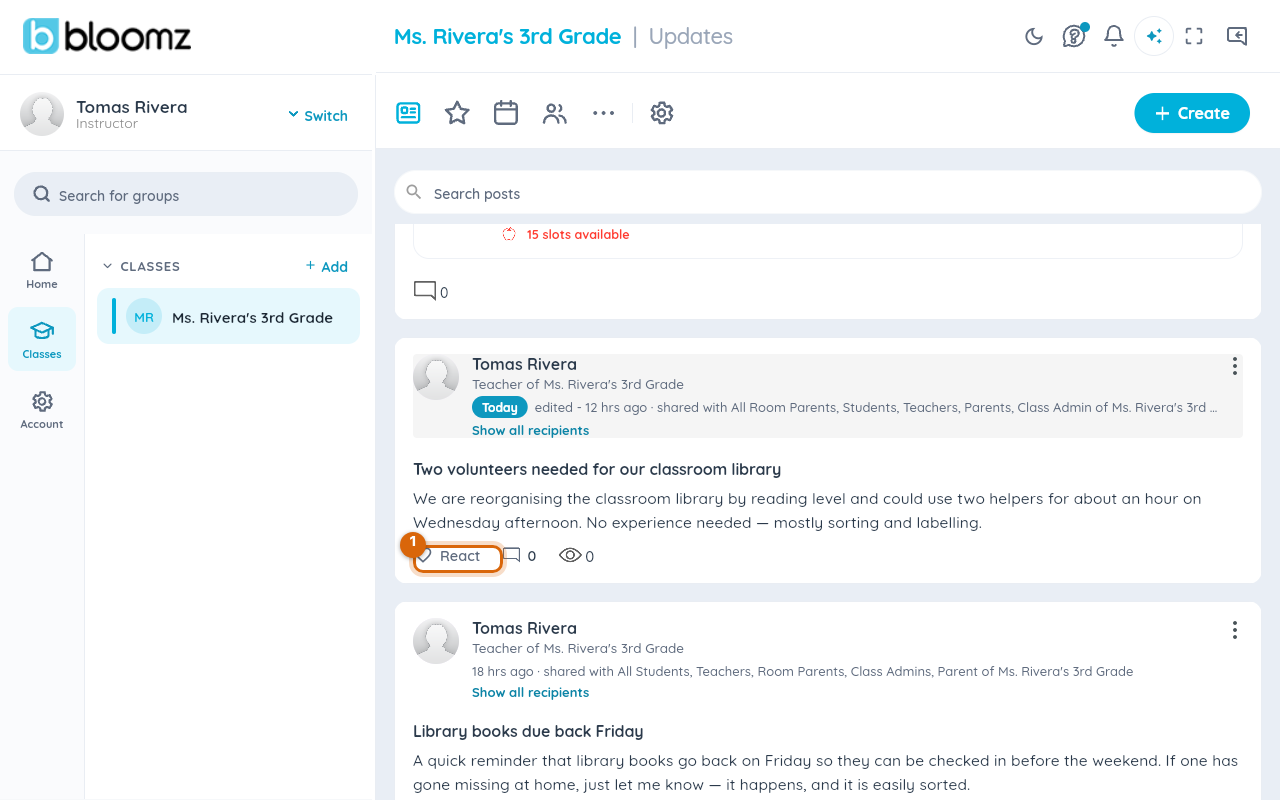
Step 2 — Pick a reaction
To open the reaction bar, point at the control with your mouse. On a phone, press and hold it, or simply tap it if you haven't reacted to the post yet. The reaction bar appears with all seven reactions; select the one you want. Your choice then shows on the post, and the post's reaction count goes up by one.
Step 3 — Switch or remove your reaction
You get one reaction per post. To switch, open the reaction bar again and pick a different reaction. To remove your reaction, tap the control once more while it shows your reaction. Either way the post's summary updates immediately, and your reaction is remembered whenever you come back to the post.
Step 4 — See who reacted
Every post shows a compact reaction summary — the reaction icons in use plus a total count. In the feed, select it to see the count for each reaction. To see exactly who reacted, open the post and select the reactions summary or the avatars on the post's detail screen. A sheet titled Reactions opens with an All tab, a chip for each reaction, and each person with the reaction they chose — useful when you asked "who can bring snacks?" and want just the 🙋 answers.
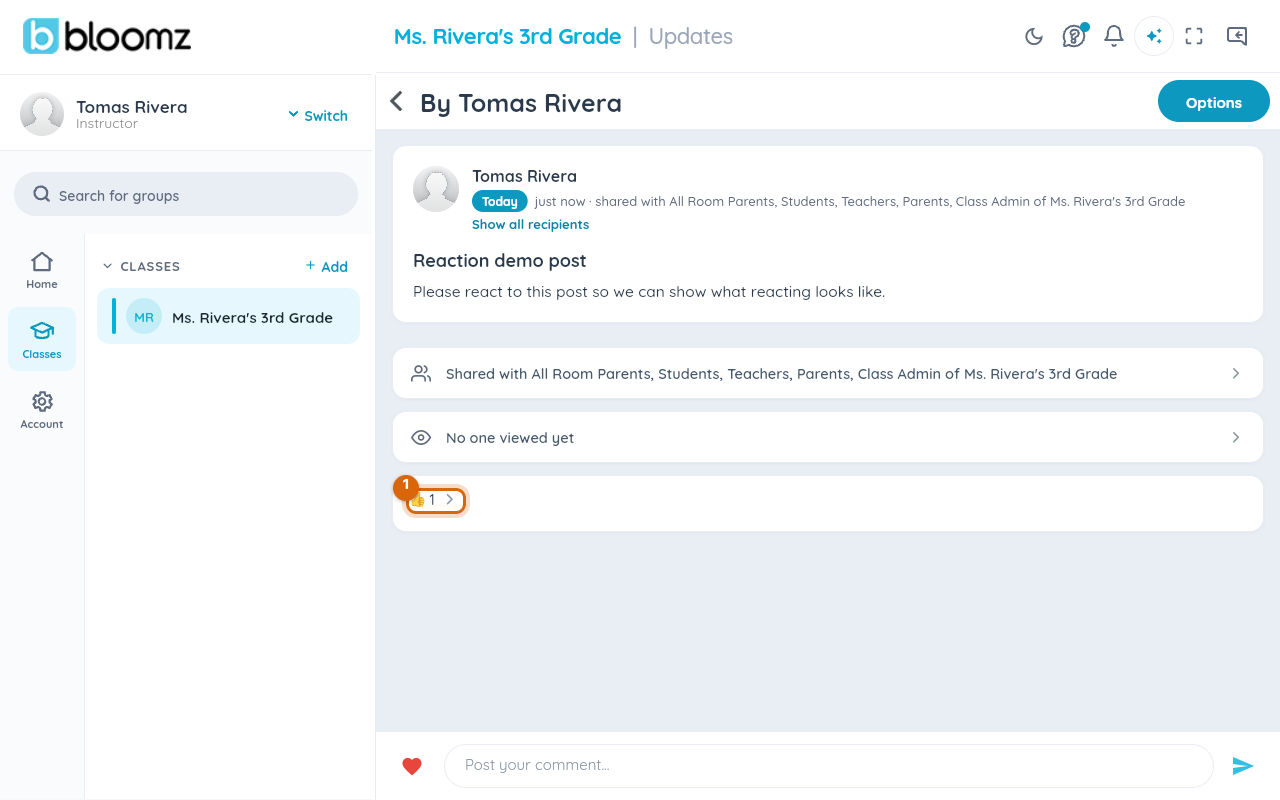
Watch out: reactions are not anonymous. Anyone who can open the post can see who reacted and with what — react as you would speak in the classroom hallway.
Step 5 — Reply with a comment
When you have something to say, open the post and write in the comment box. Your comment appears under the post for everyone who can see the post, as one running conversation. From a comment's menu you can delete your own comment, and flag or hide comments where your role allows it. Comments can be reacted to as well, the same way as the post.
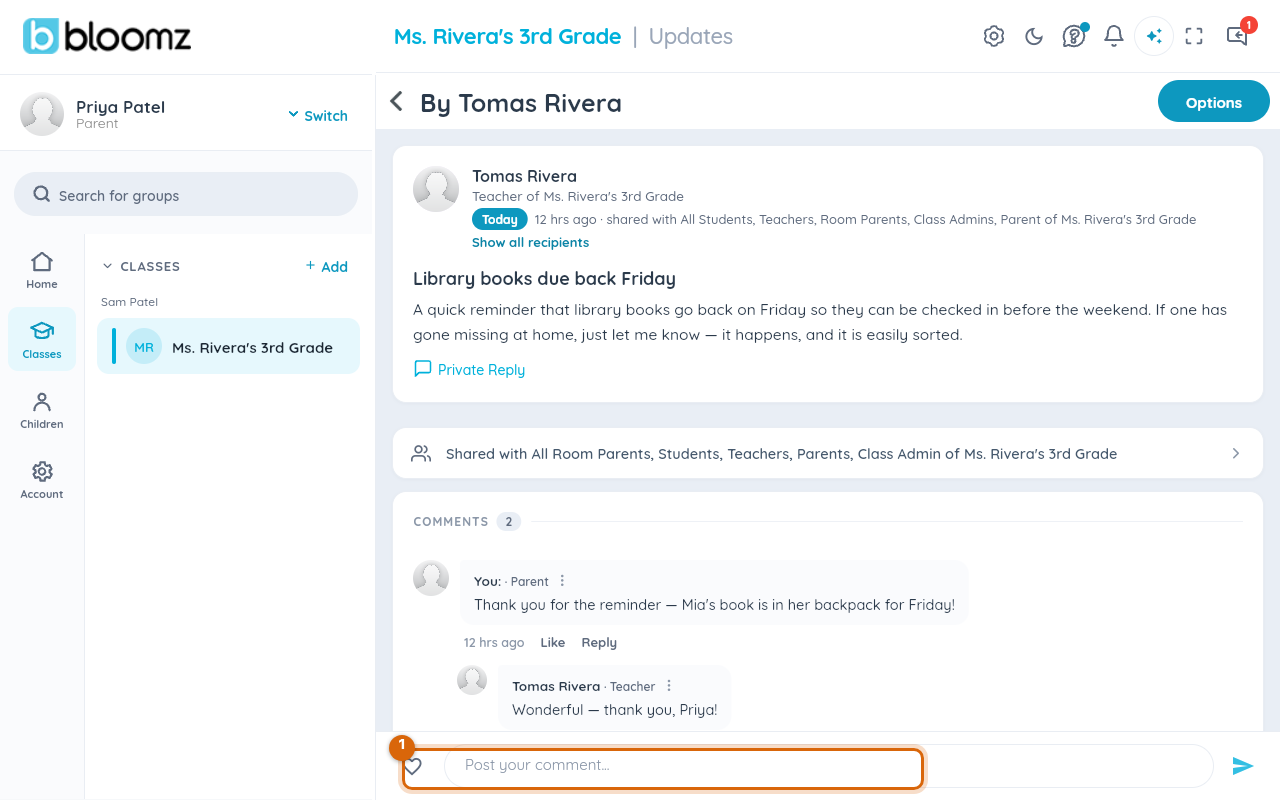
Watch out: the sender can turn comments off on a post. If there is no comment box, commenting is disabled for that post — a reaction still works, or you can message the sender directly. Where comments are disabled, replies are too.
Step 6 — Reply to a specific comment
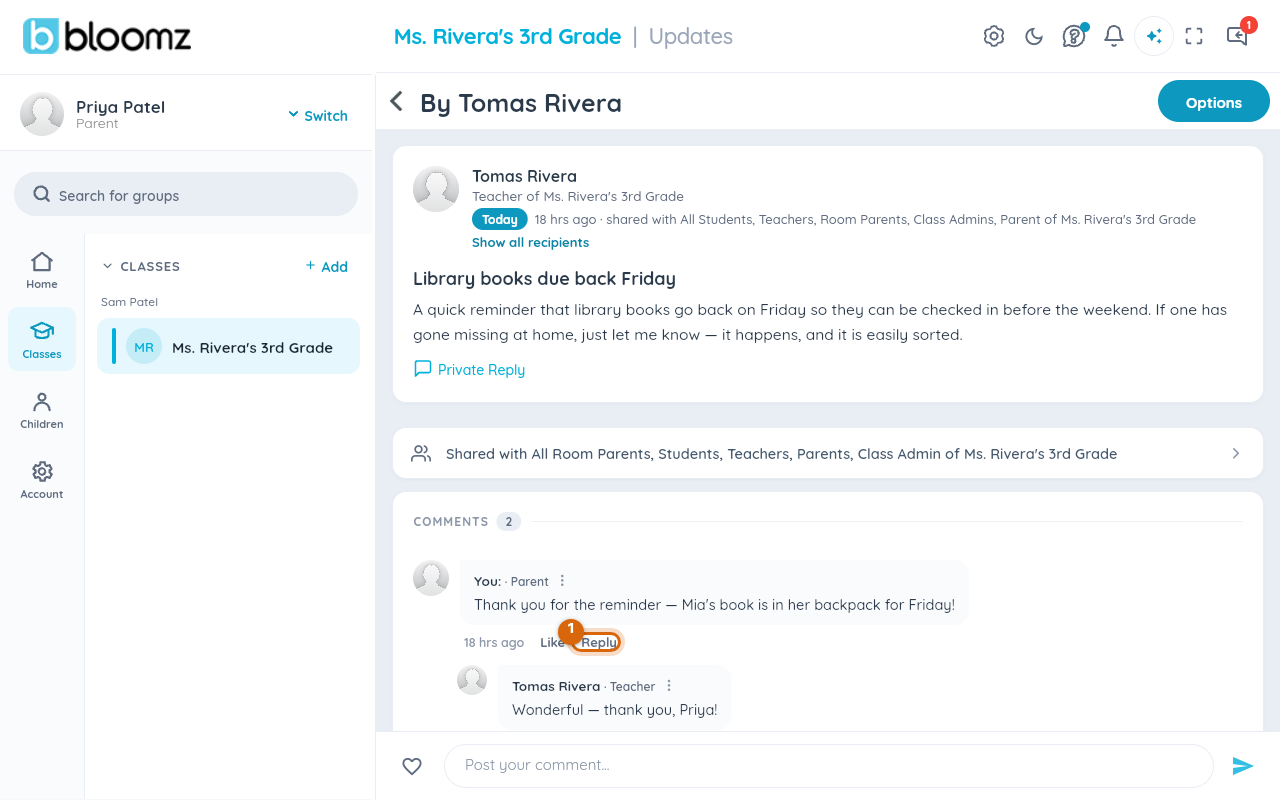
To answer one person rather than the whole thread, use Reply on their comment. Your reply appears indented beneath that comment, one level deep — replying to a reply attaches your answer to the same top-level comment rather than nesting deeper.
What the sender sees
The person you reacted to gets a quiet, batched notification — "5 people reacted to your post" rather than five separate pings — as a push notification by default, not an email. Nobody is notified of their own reaction. A reply to a comment notifies the comment's author, so your answer reaches the person you were answering.
Related
- Share an update with your class
- Send a message to one family instead of the whole class
- Recall a post you sent