 Bloomz
Add an intervention from the library and set a goal
Inside an open case, pick a pre-built intervention from your district's library — like a reading support plan — and set a measurable goal so you can track whether it's working.
Before you start
The intervention library is set up by your district, so the options you see depend on what they've added. Interventions matching the student's tier are suggested first.
Step 1 — Start a plan for the student
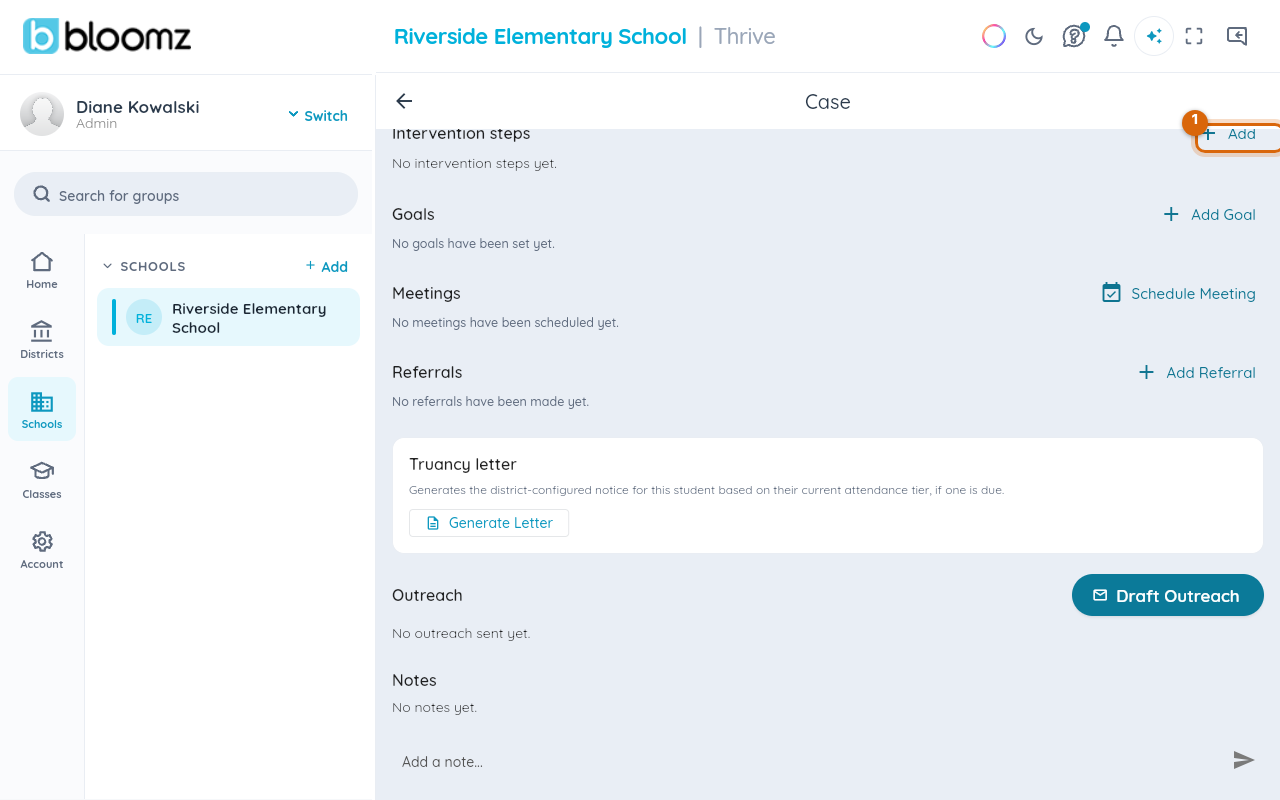
Open the student's panel and select Create Plan. The Create a plan window walks you through four steps: Case, Intervention, Champion and Goal. If the student already has an open case, Bloomz says Using this student's existing open case.; otherwise give a Reason for opening one.
Step 2 — Browse the library
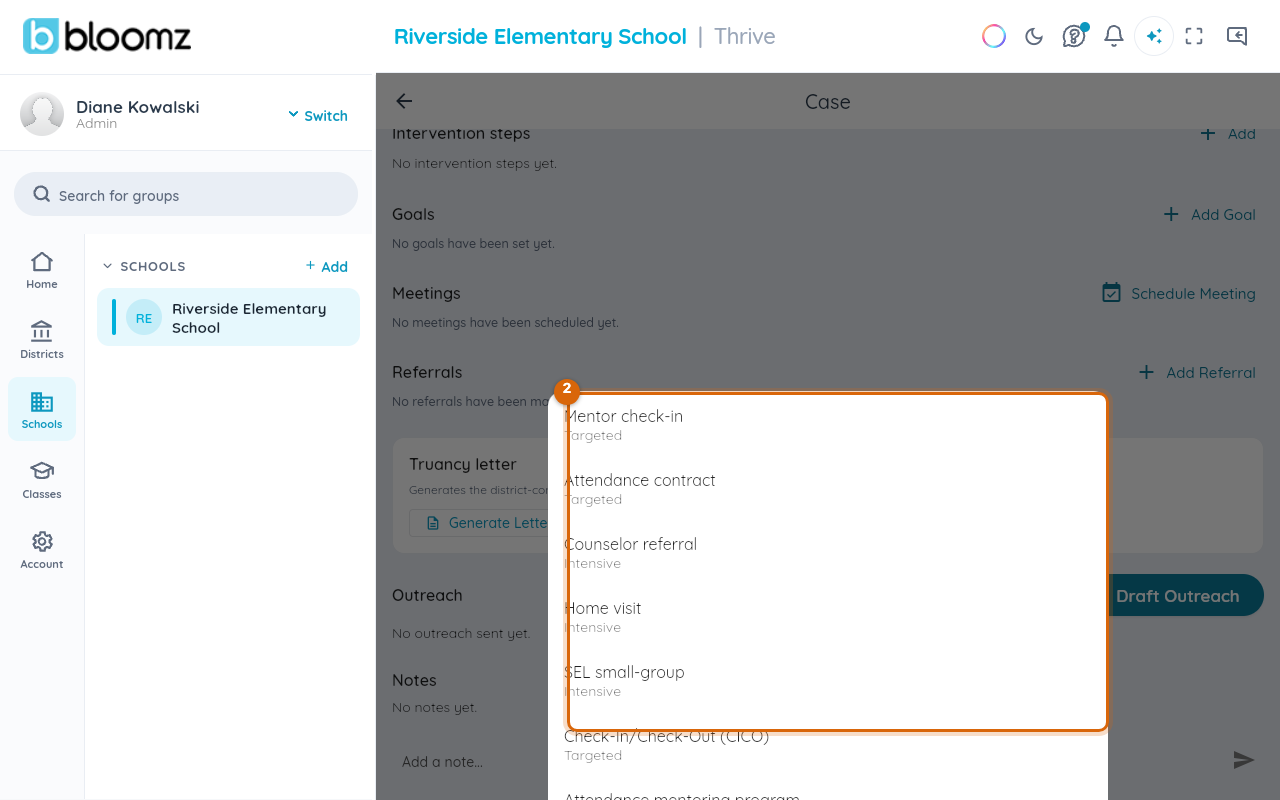
On Step 2: Intervention, browse or use Search interventions — for example a reading support plan, a mentor check-in, or a behavior contract — and select one that fits the concern.
Step 3 — Choose a champion
On Step 3: Champion, pick the staff member who will own this intervention day to day. This is optional — you can assign it later.
Step 4 — Set a measurable goal
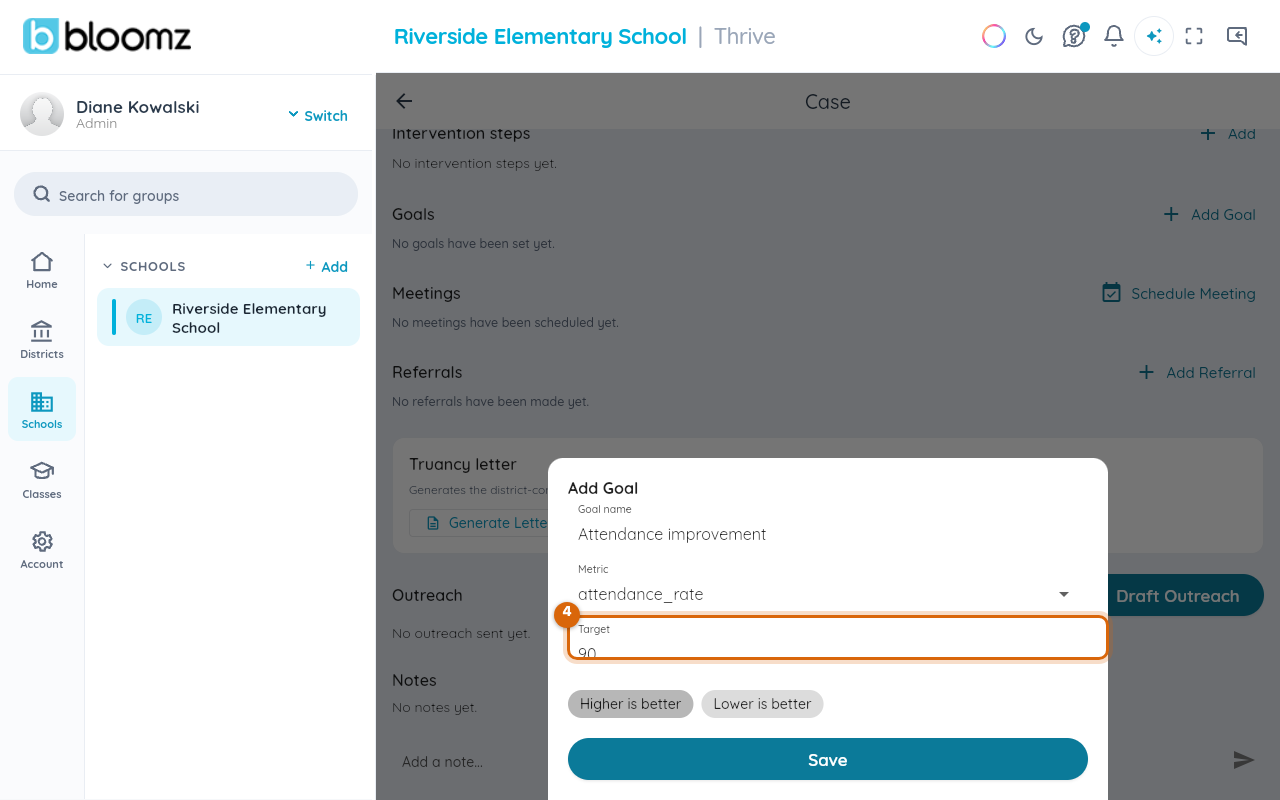
On Step 4: Goal, choose the Metric (like attendance rate or a reading level), a Target and a Target date, so progress has something to measure against. The baseline is filled in automatically from the student's current data. You can also add an optional first meeting.
Step 5 — Save and confirm on the case view
Select Create Plan. The intervention now appears on the case's step checklist, and the goal shows up with a progress graph ready for your next data points.