 Bloomz
Why was someone removed from a class after a sync?
A student (or their parent) can drop out of a class the moment a sync runs, with no warning first — and it's rarely a bug. This walks through the real causes, in the order to check them, and what to do about each.
Before you start
This is for a school or district admin looking at one specific removal — for the general sync status screen, see Understand the Data Sync page.
The short answer
Every sync — nightly or manual, Full Data or not — removes a student from a class if their SIS record no longer lists them in that class's section, and removes their parent from that same class along with them. This is the single most common cause, and it happens on ordinary syncs, not only Full Data ones.
Step 1 — Check whether they're gone from Bloomz entirely, or just this class
Open Manage > Students (or Parents) at the school and search for the person. Still there, just missing this one class? Skip to Step 2. Gone from the school altogether? Their SIS record has stopped listing them at this school at all — confirm that with whoever manages your SIS data before treating it as a Bloomz problem.
Step 2 — Check your SIS for the class's section
The removal reason is almost always: the person's SIS record no longer places them in that class's section. Open your SIS and check the student's current section assignment for that period or subject.
- They really did move sections or leave the class in your SIS — the removal is correct; nothing to fix in Bloomz.
- Your SIS still shows them in the class, but a different section than the one Bloomz's class is linked to — this is the most common false alarm. See Step 3.
Step 3 — Check for a second section feeding the same real class
If your SIS splits one real class into two sections — a few students in a separate section of the same period, common for co-taught or pulled-out groups — Bloomz makes a separate class for each section. Only the section a student is actually in "counts" for that Bloomz class; being scheduled in the other section looks, to Bloomz, like they left. Open Manage > Classes/Groups and check whether a second class exists with the same name, teacher, or period as the one they were dropped from.
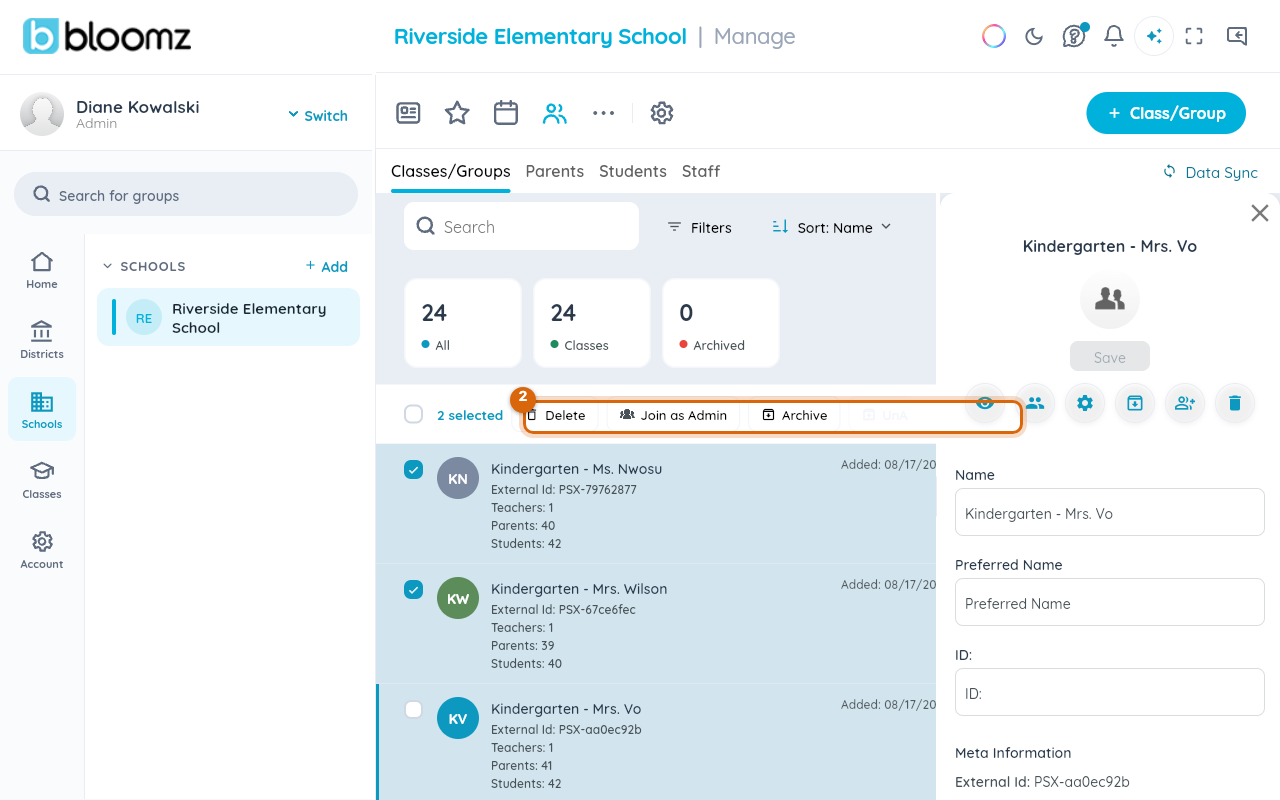
If you find one, Merge the two classes — see Combine two class sections into one class. Merging links the Bloomz class to every SIS section involved, so a student in any of them stays in.
Watch out: don't just add the student to the class by hand instead. As long as two separate sections exist, the next sync removes them again — hand-adding papers over the symptom without fixing the cause.
Step 4 — Rule out a large-scale sync problem
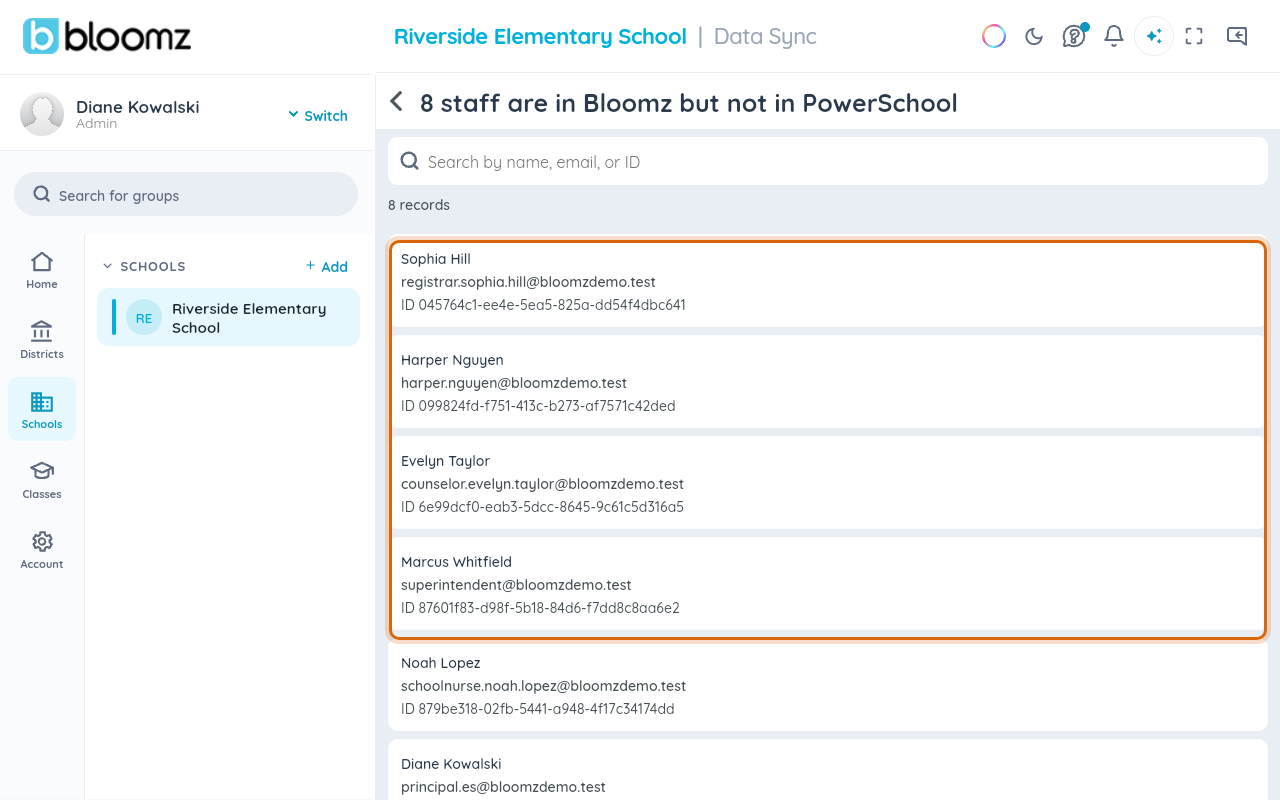
If this is one of many students removed at once, check Data Sync for the school — a "not imported" or discrepancy count on the Students or Parents & contacts pipeline card points at a broader feed problem, not a one-off. See Check your SIS sync and fix an issue.
What the safety limits do and don't cover
Bloomz has two safety limits, and neither one covers a single student leaving a single class:
- One pauses the whole sync if 10% or more of a school's synced classes would disappear entirely in one run (the SIS stopped sending whole sections, not individual students within them).
- The other blocks a school-wide people removal at or above 50% of the school's members.
A single student's ordinary class removal never trips either one — it isn't a bug or a missed safety net, it's just not the kind of event either limit was built to catch.
Bring a hand-added student back
Once your SIS reflects where they should be, add them back to the class yourself if you can't wait for the next sync, or wait for the next scheduled sync to re-add them based on the corrected SIS data. A person with no SIS id at all — added entirely by hand, never matched to a SIS record — is never removed by a sync in the first place. If you add students by hand and want them to stay, turn on Keep manually added students. Students added by hand are tagged Added manually.