 Bloomz
Check your SIS sync and fix an issue
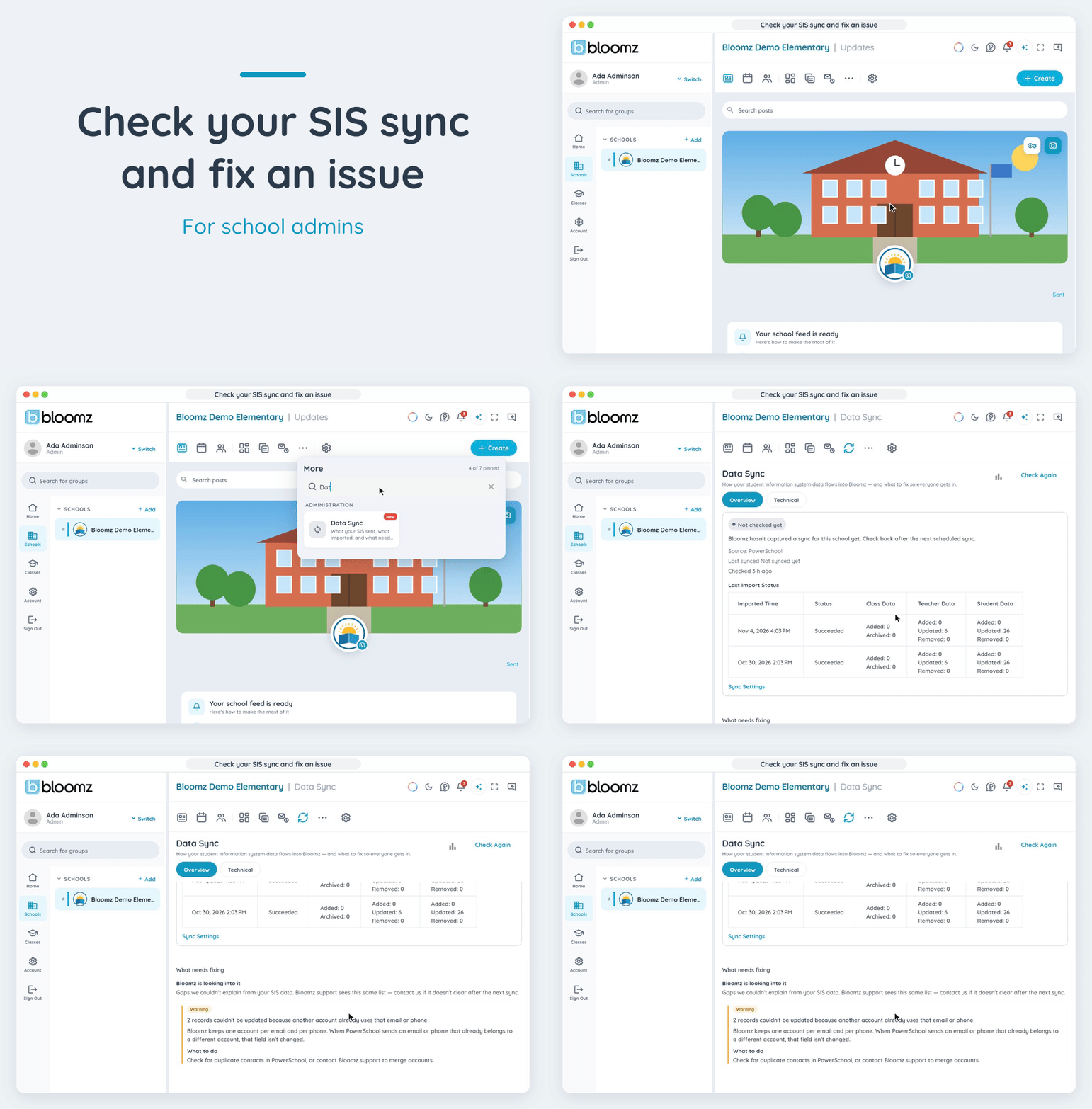
Data Sync shows the live status of your school's roster import from your Student Information System (SIS) — what it sent, what made it into Bloomz, and what still needs attention — so an enrollment problem shows up here before a family notices it.
Before you start
Data Sync is for school admins and district admins, and only appears once your school has a SIS connection configured. If you do not see it, your school is managed manually and there is no sync to check.
Step 1 — Open Data Sync
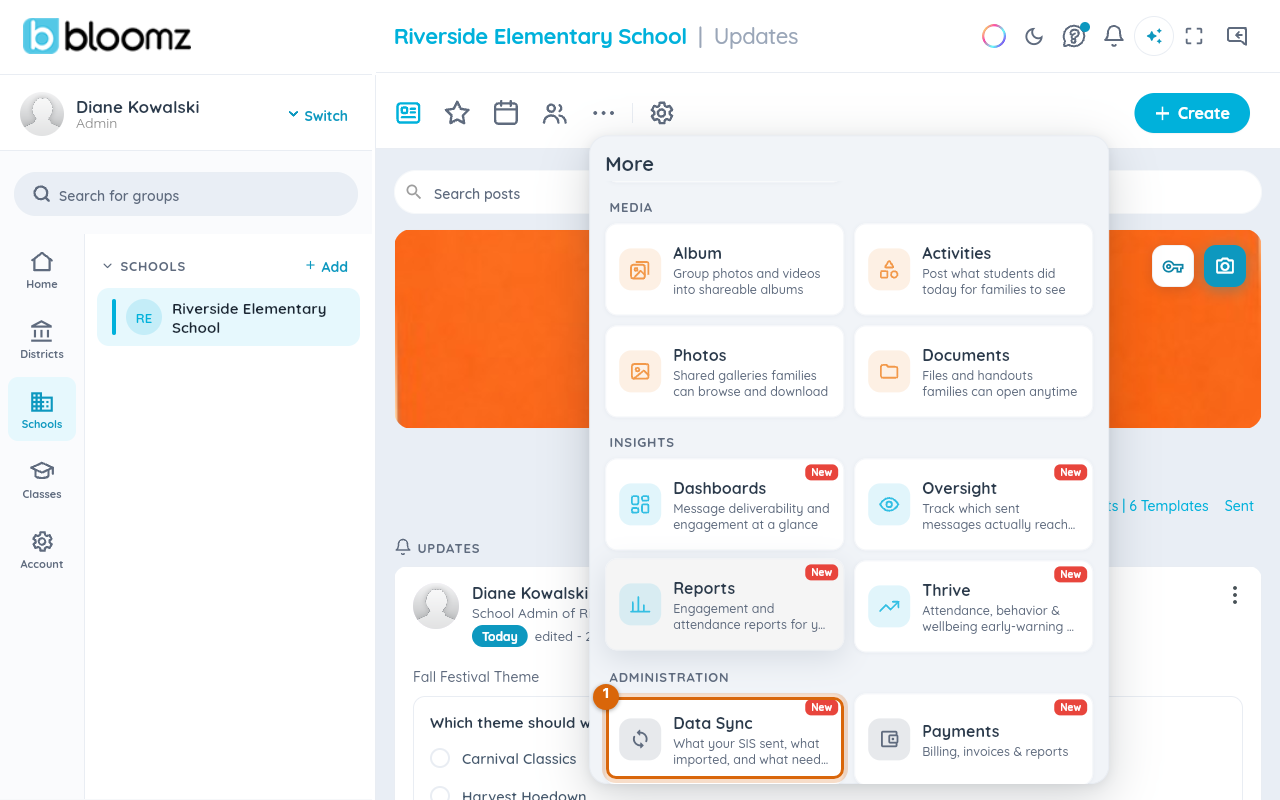
Open your school, select More (…) in the tab row, and choose Data Sync under Administration.
Step 2 — Read the sync status
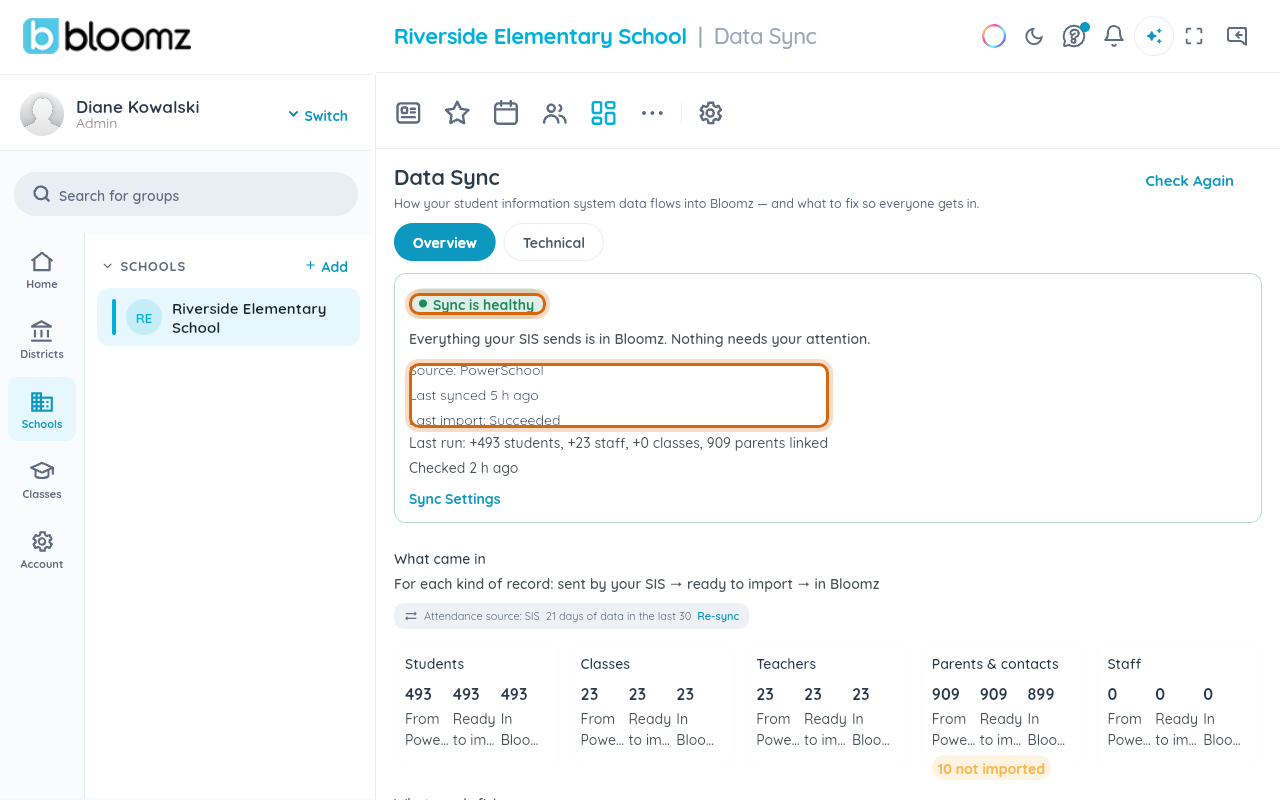
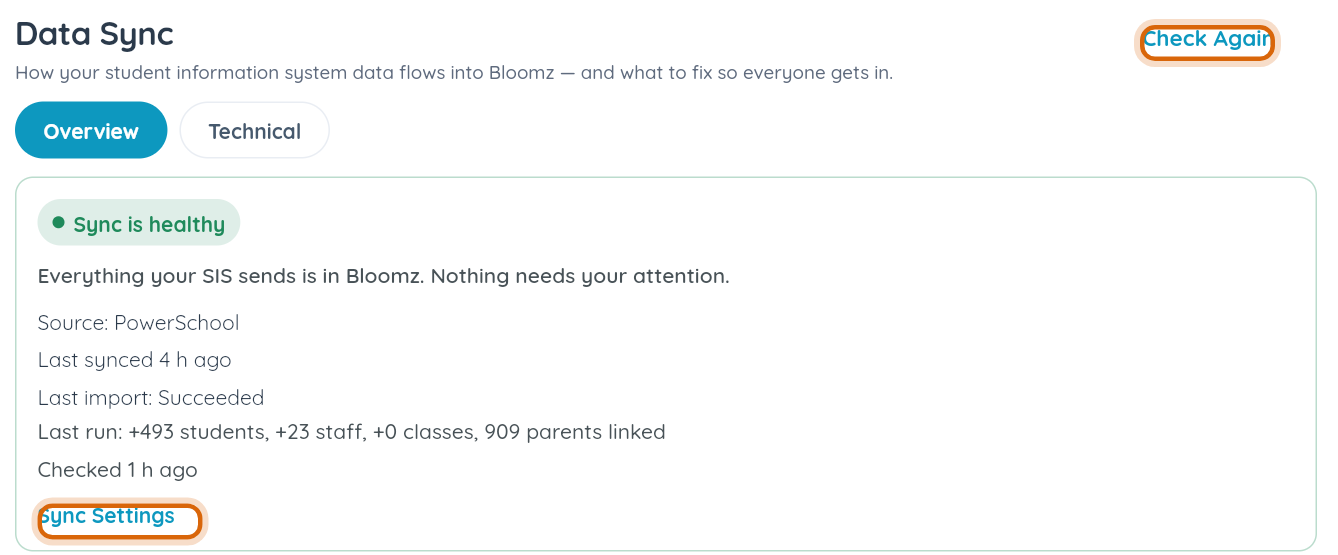
The top of the screen shows a status badge — Sync is healthy when everything your SIS sends has made it into Bloomz — along with the Source (your SIS), Last synced time, and the Last import result and record counts.
Step 3 — Open a flagged record
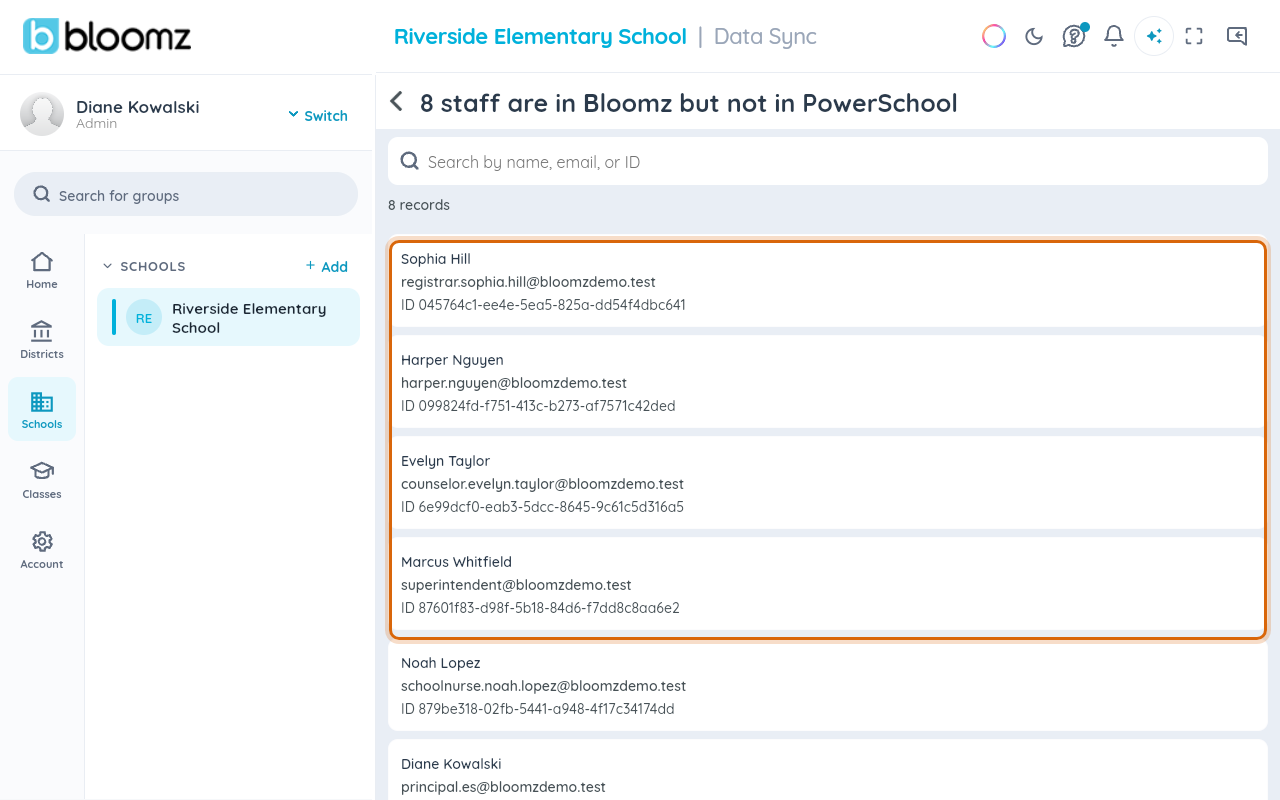
Below the status card, What came in breaks results down by record type (Students, Classes, Teachers, Parents & contacts, Staff) and flags anything not fully imported — for example a "10 not imported" badge under Staff. Select that badge (or an info card such as "N students are in this school in Bloomz but don't appear in the PowerSchool feed") to open the full record list.
Step 4 — Fix the issue
What to do depends on the issue type, and each info card in What came in spells it out — usually either fixing the data in your SIS so the next sync picks it up, or (for a suspected duplicate or misspelled name) a manual review in Bloomz. Select Check Again to re-check sync status immediately rather than waiting for the next scheduled run, or Sync Settings to change how the connection itself behaves.
Watch out: fixing the data in your SIS does nothing on its own until the next sync runs — select Check Again or wait for the scheduled run to see it reflected in Bloomz.
What happens next
An issue clears from What came in once the next sync confirms it's resolved. Records left unresolved carry over to the next scheduled sync and are flagged again, so the list never quietly loses track of a problem.
Two kinds of issue you'll see most
- Records in Bloomz but not in the SIS feed — a person who was added by hand and never entered into the SIS, or a person the SIS has stopped sending. People added by hand are left alone. A person the SIS has stopped sending is removed at the next scheduled sync, and a student is also removed from any class whose SIS section doesn't list them.
- Possible duplicates or name mismatches — the SIS sends a person who closely matches someone already in Bloomz, or the same person's name is spelled differently on each side. These route to a manual review (see Resolve duplicate identities found by sync).