 Bloomz
Set up houses and house points
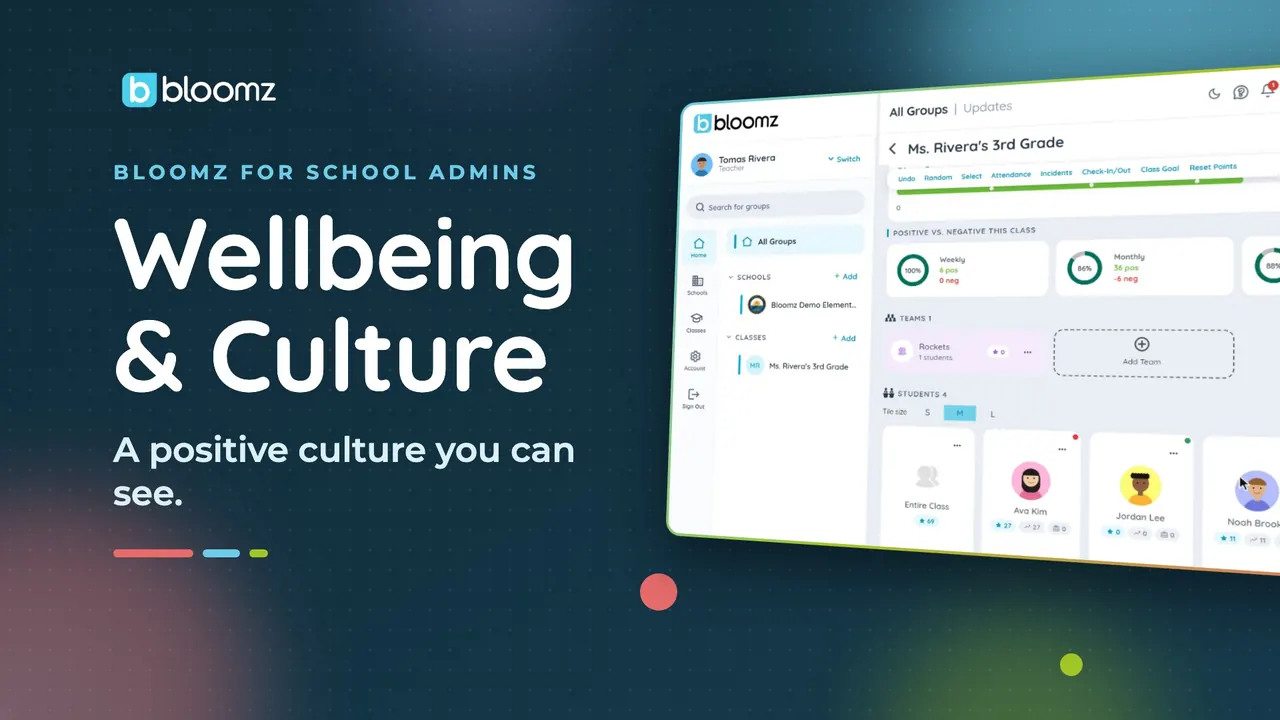
▶ Watch the video (45 seconds): Bloomz Wellbeing and Culture: points, house standings and a hallway display.
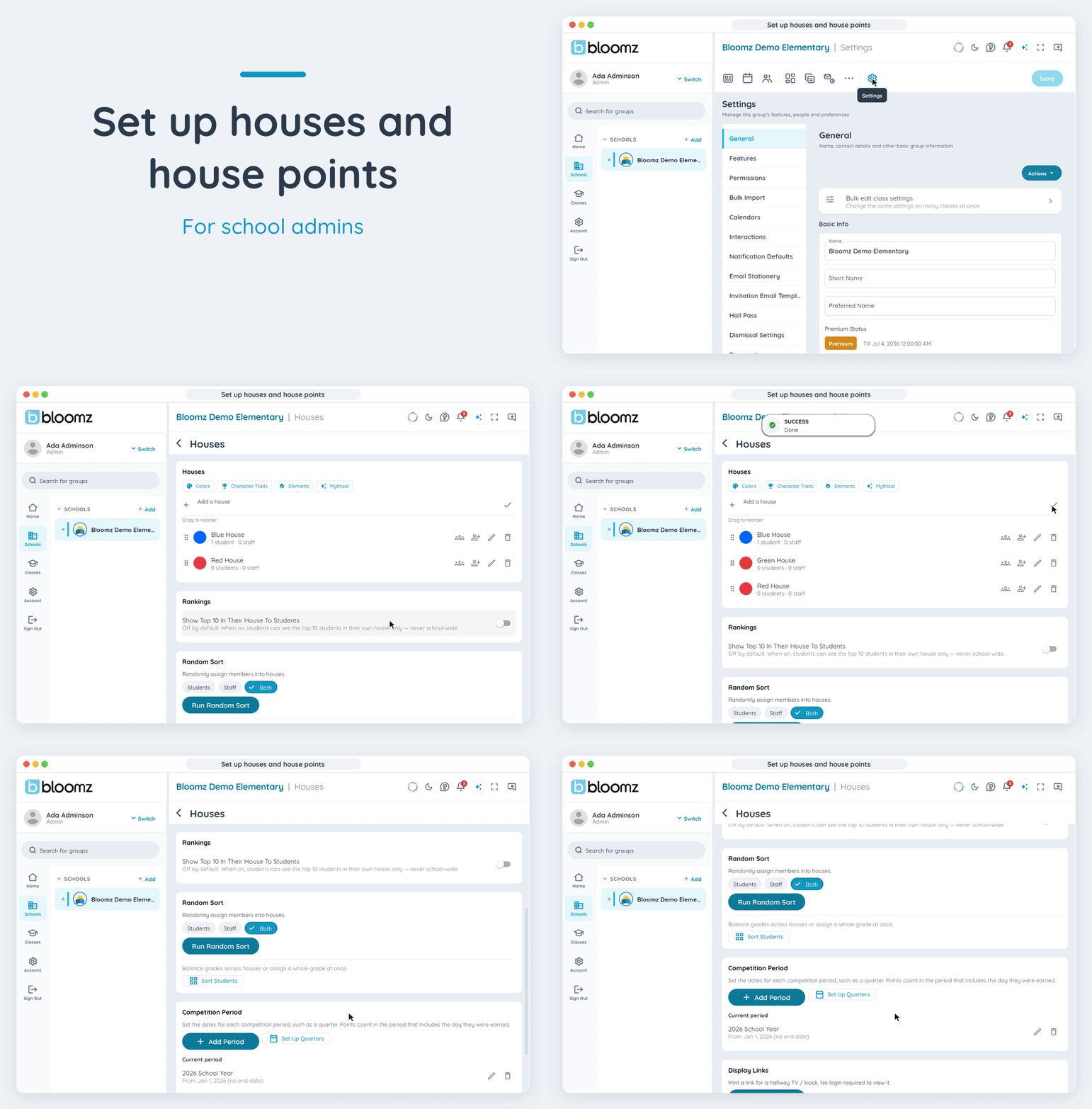
Houses group students and staff into school-wide, color-coded teams for friendly competition — set them up once, then let Bloomz sort members in and run competition periods for you.
Before you start
House setup is a school-admin task. You'll need house names and colors decided; Bloomz can auto-sort your existing students and staff into them, so you don't need a roster mapped out ahead of time.
Step 1 — Open Manage Houses
From your school's admin console, open Settings, select Interactions in the sidebar, then choose Manage Houses under Points.
Step 2 — Create your houses
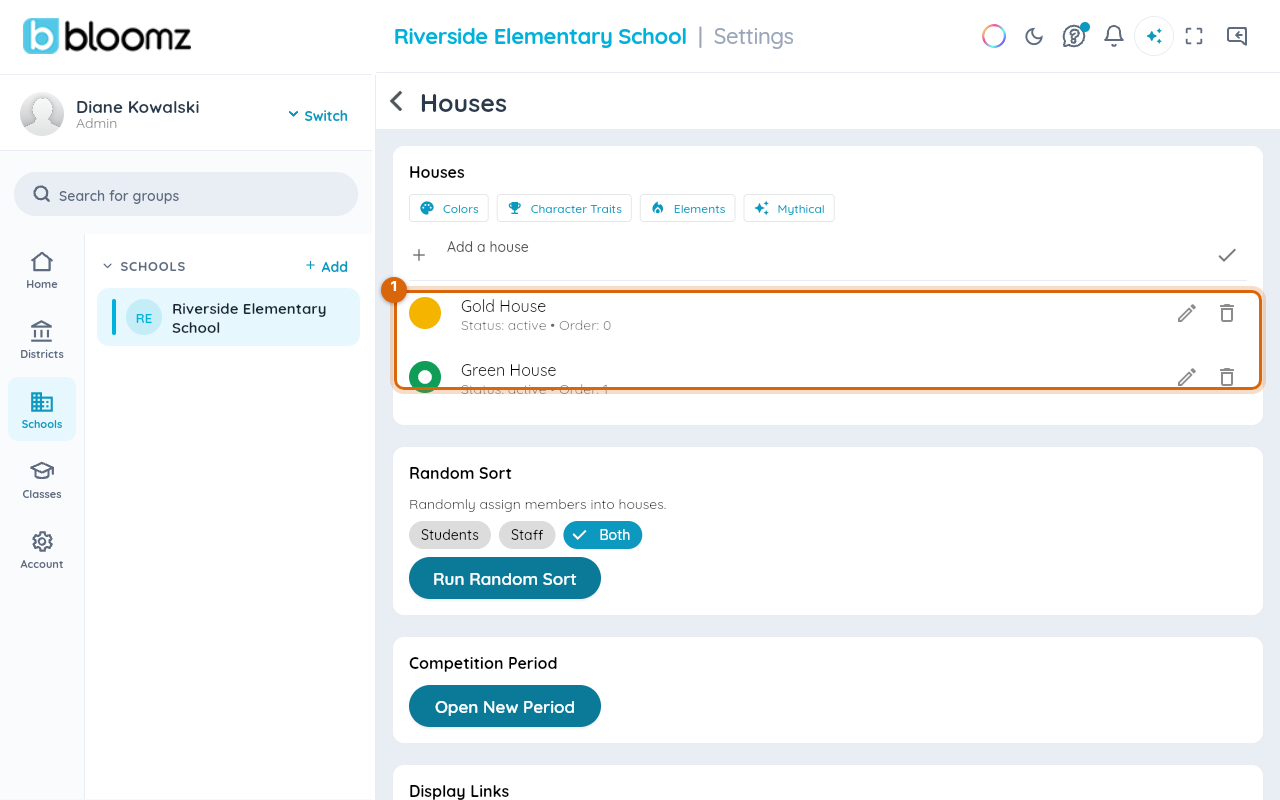
Select Add a house, name it, and pick a color — a quick-start row of presets (Colors, Character Traits, Elements, Mythical) can seed common sets like four color houses in one tap. Each house shows its status and sort order, with edit and delete actions alongside.
Note: color is required for every house, even one you give a crest image to. Uploading a crest (Edit House) pre-fills a matching color for you — still editable — because the color is what shows on the trend chart, name chips, and the hallway kiosk board, none of which can render an image; the crest itself only appears on the Houses Hub leaderboard and detail tray. Pick a distinct color for each house if you have more than four — the built-in presets repeat past four and become impossible to tell apart on the trend chart.
Step 3 — Sort members into houses
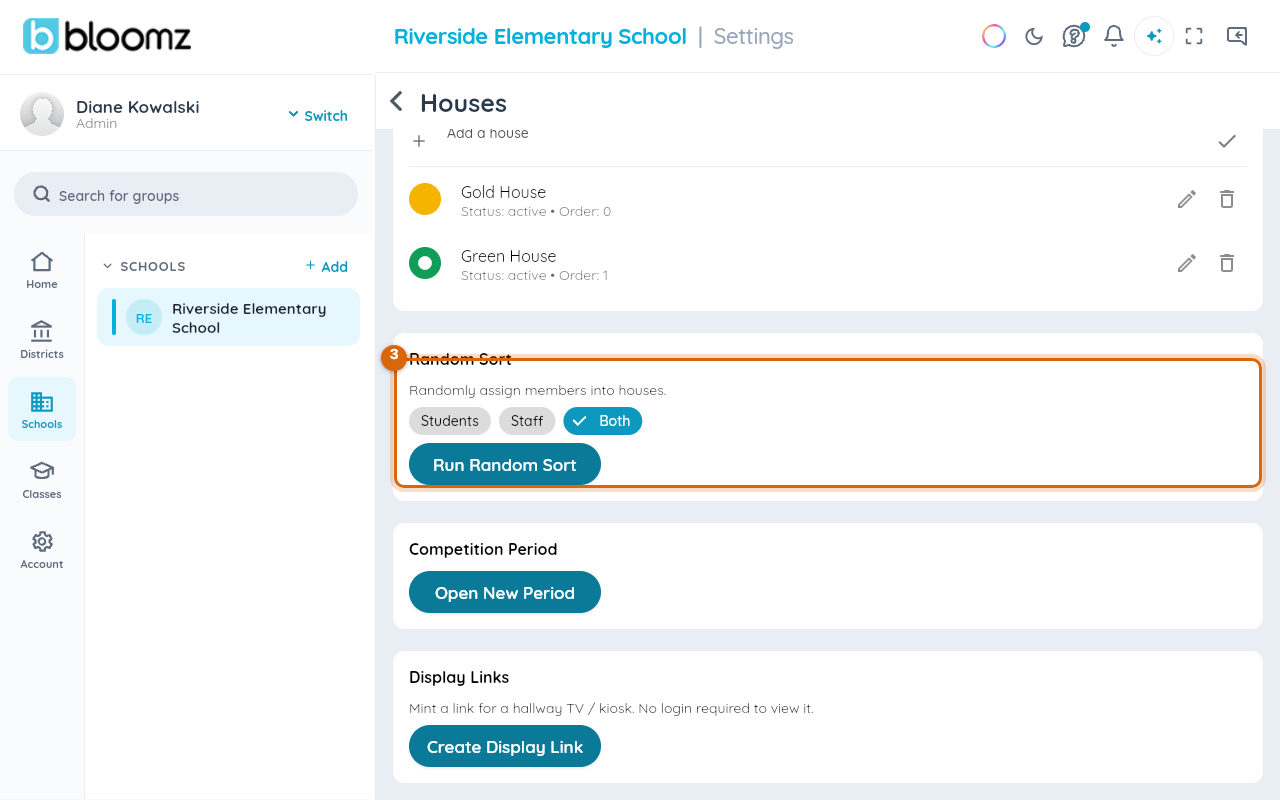
Use Random Sort to randomly assign Students, Staff, or Both across your houses in one action — the quickest way to populate a new house setup. To place specific people instead — a house captain, or topping up after a random sort — open a house and use Add Members to search and add them one at a time.
Step 4 — Run a competition period
Behavior points teachers award to a student roll up automatically into that student's house total; a student not placed in any house still gets their behavior award, it just carries no house points. Use Open New Period to start a fresh competition window when you want to reset standings — for a semester or a themed spirit week, for example — without losing the points history behind it.
Step 5 — Share the standings
Under Display Links, select Create Display Link to mint a no-login URL for a hallway TV or kiosk showing live house standings.
Watch out: because this feature is newer, not every school configuration exposes the same options — if you don't see a step above, check with your Bloomz account contact before assuming it's missing.