 Bloomz
Set up a tuition agreement and autopay
Tuition in Bloomz runs on a billing plan the school office sets up for your child: each installment posts as an invoice on the plan's schedule, and with autopay turned on your saved payment method covers each one automatically on its due date.
Before you start
- The school office creates the tuition plan and sends you a request to review and sign it. If you were expecting a plan and see no tuition invoices or request, ask the school office.
- If your school uses an agreement, you sign it, add a payment method and turn on autopay in one step. This flow is available on the web at app.bloomz.com; the mobile apps will follow in an app update.
- Autopay uses a saved card or bank (ACH) method; bank transfers usually cost less in processing fees than cards.
- You can turn autopay off again at any time — see Step 4 below.
Step 1 — The school assigns the plan and sends the request
The office creates the plan against your child's account — amount, frequency, and due day. This is what it looks like on the school side.
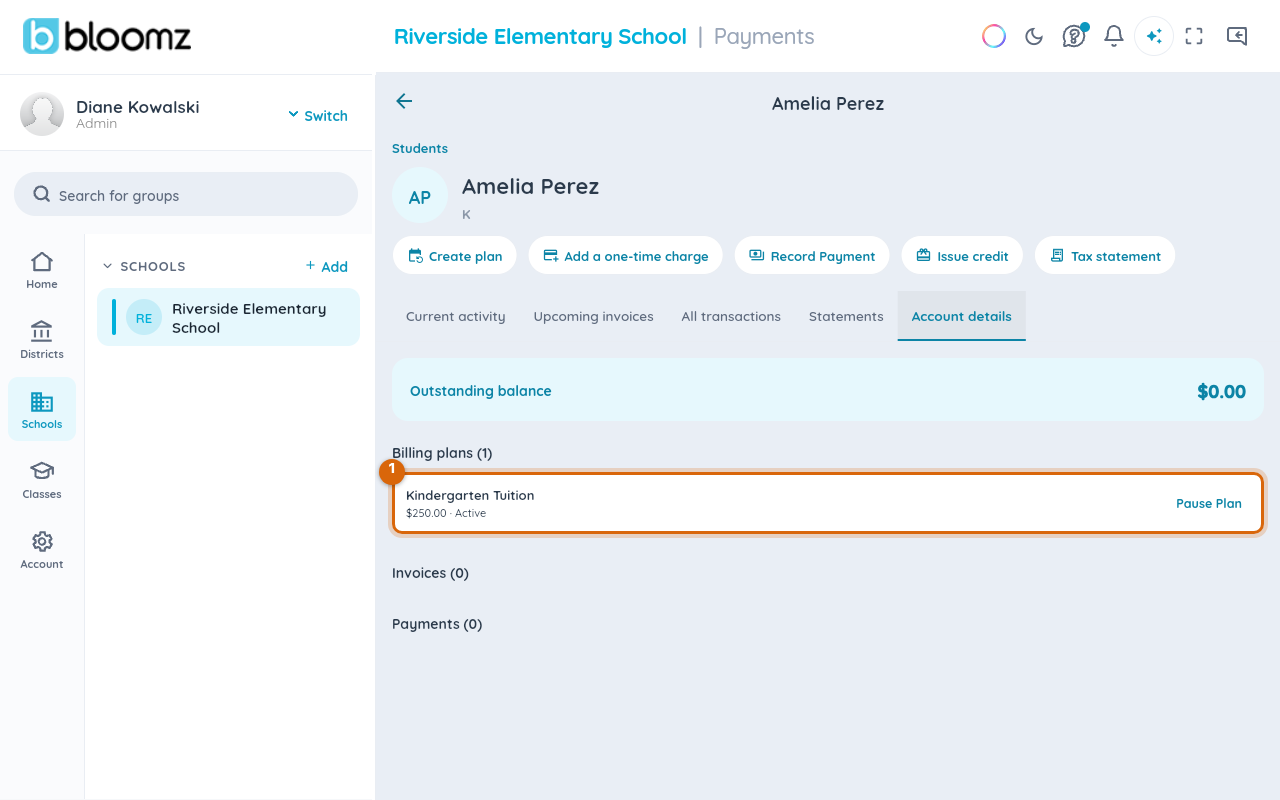
The school then sends you a request to sign and set up payment. Open it from the email, text or app notification you receive. It shows your child, each plan with every line and amount (including add-ons such as morning care), the start date and the due day. Read it, then sign by typing your name. From there the same flow takes you on to add a payment method and turn on autopay, so Steps 2 and 3 below happen in one go. If the school changes the plan before you finish, you will be asked to review the updated amounts and sign again.
From then on each installment arrives as a normal invoice in your Payments area, due on the plan's due day.
Step 2 — Save a payment method
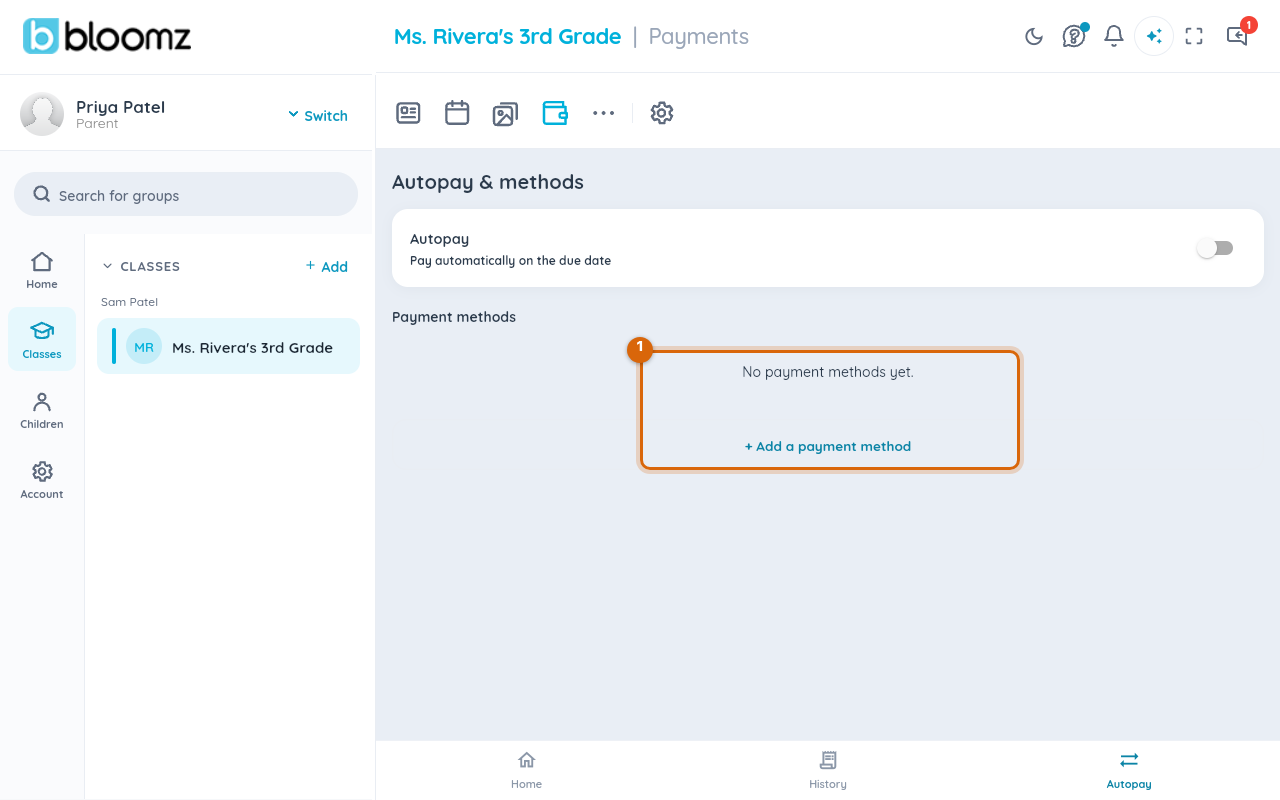
In the signing flow you are asked to add a card or bank account. You can also do this any time: in the Payments area, open the Autopay tab and add a card or bank account under Payment methods.
Step 3 — Turn on autopay
The last part of the signing flow has an Autopay switch, which is on by default, so each installment is collected automatically with your saved method on its due date. If you skipped it, switch it on from the Autopay tab in Payments.

Watch out: if autopay is off, a missed installment still shows as past due and the school's normal reminders apply — autopay exists specifically to stop that from happening.
Step 4 — Turn autopay off if you need to
Return to the Autopay tab any time and switch Autopay back off; future installments then wait for you to pay them by hand, but past charges already collected are not affected.
Watch out: an autopay charge that fails — insufficient funds, an expired card — can trigger a bank NSF fee on top of the missed payment. See Ask for a refund, and what an NSF fee means for what that fee is and how it's billed.