 Bloomz
Set district-wide defaults and let schools override them
Set baseline settings once for your whole district, and let individual schools adjust specific settings for their own needs without affecting anyone else.
Before you start
This is done in the Admin Tool, a separate web app from the Bloomz mobile and classroom app, meant for district- and school-level administration. You need district-admin access to set district defaults; a school admin can only override settings your district has marked as overridable.
Step 1 — Sign in to the Admin Tool
From a browser, sign in to the Admin Tool with your district admin account and open District Settings.
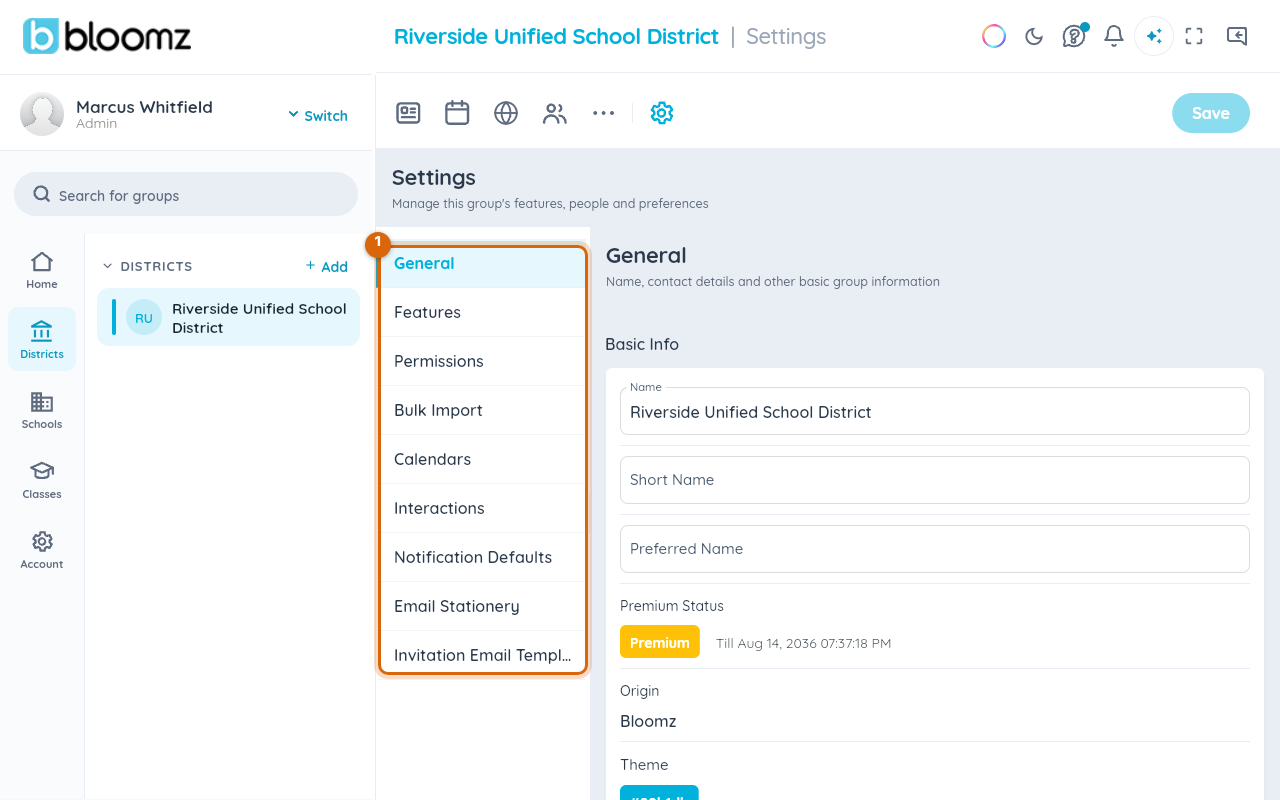
Step 2 — Set district-wide defaults
Under Defaults, set values for things like default class language, quiet hours for notifications, and default posting permissions. These apply to every school in the district unless a school overrides them.
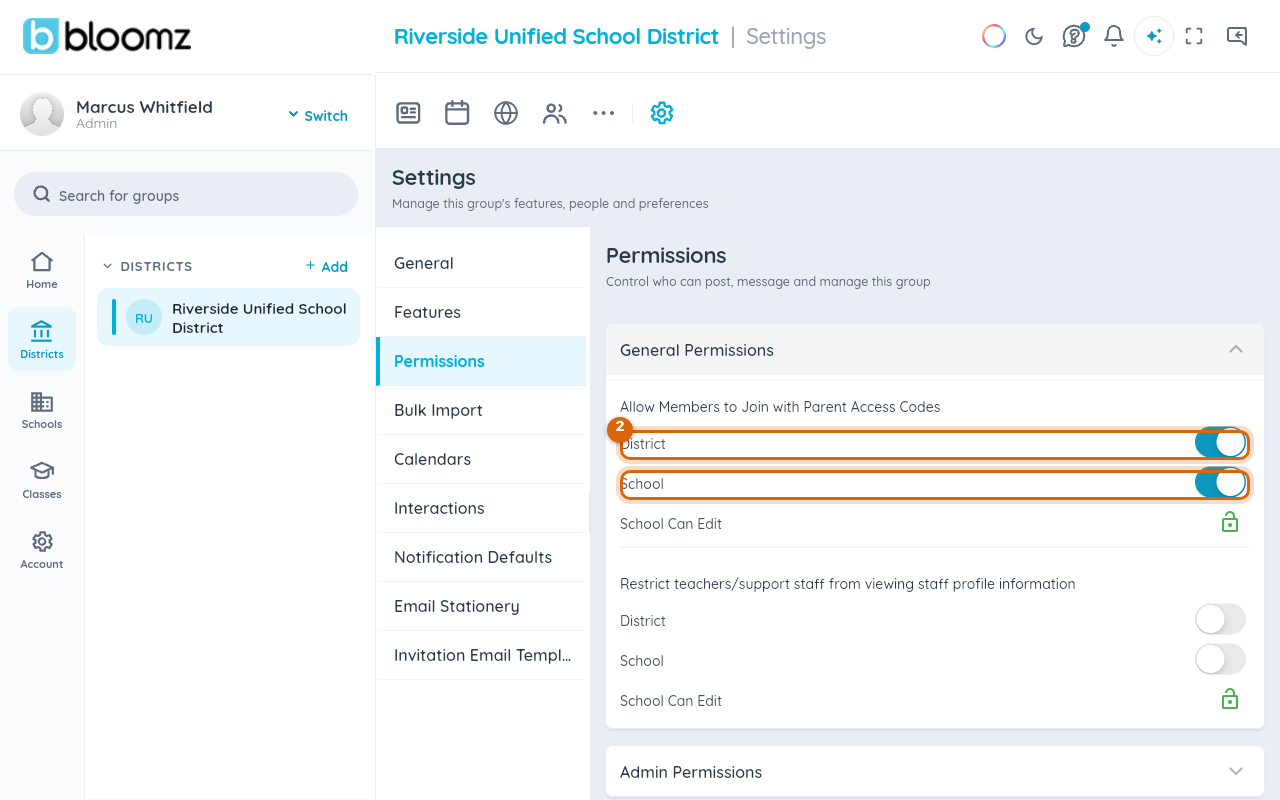
Step 3 — Mark which settings schools may override
For each setting, toggle Allow school override. Settings left off stay locked at your district's value everywhere.
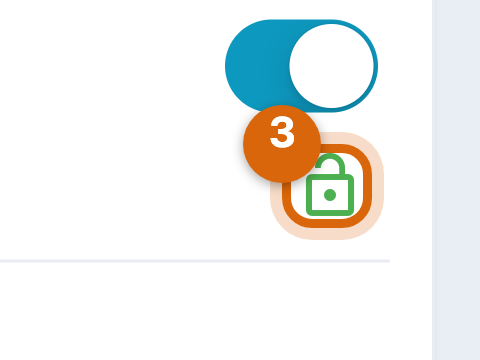
Step 4 — Save district defaults
Select Save District Defaults. The new baseline applies to every school that hasn't already set its own override for a given setting.
Step 5 — Override a setting at one school
Signed in as that school's admin, open School Settings; any setting marked overridable shows a Use school setting switch next to the district value. Turn it on and set the school's own value.
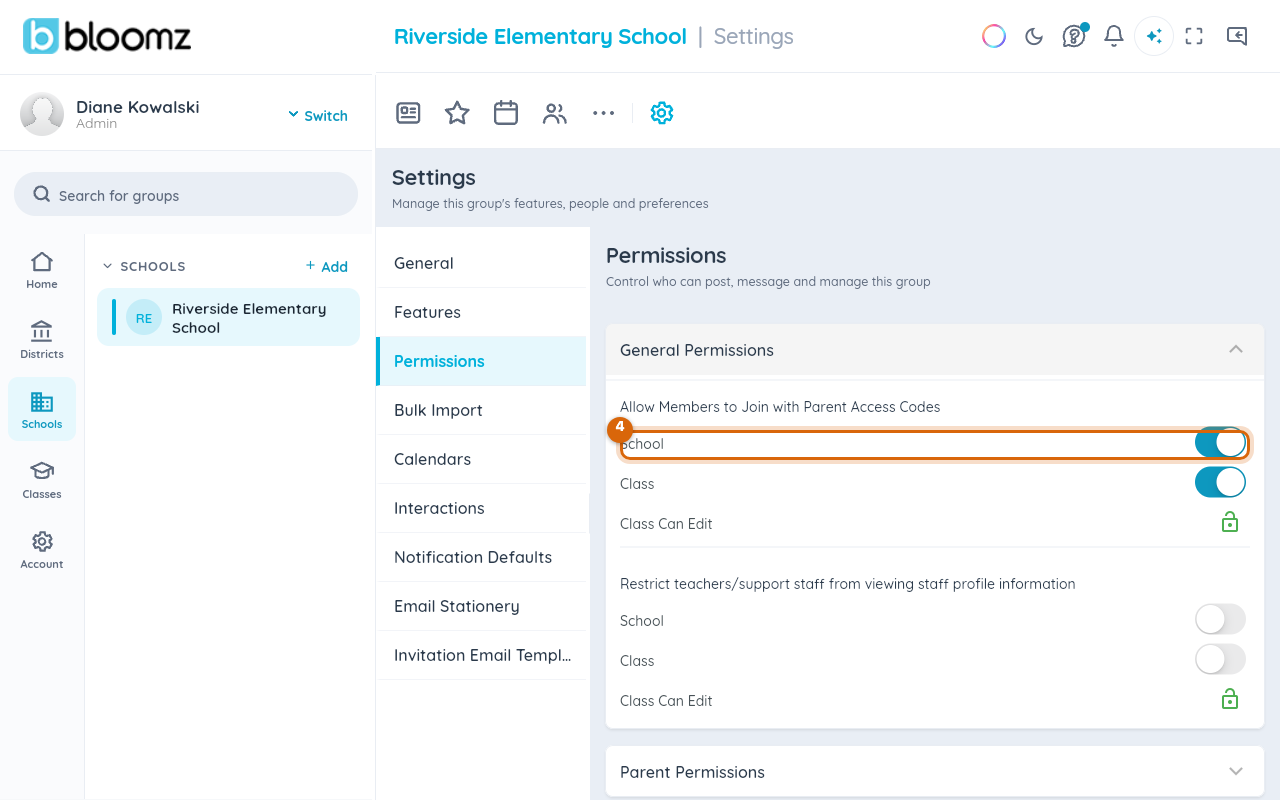
Watch out: turning Use school setting back off doesn't just hide the override — it reverts that school to whatever the district default currently is, even if that's changed since the school first overrode it.