 Bloomz
Read your school's engagement dashboard
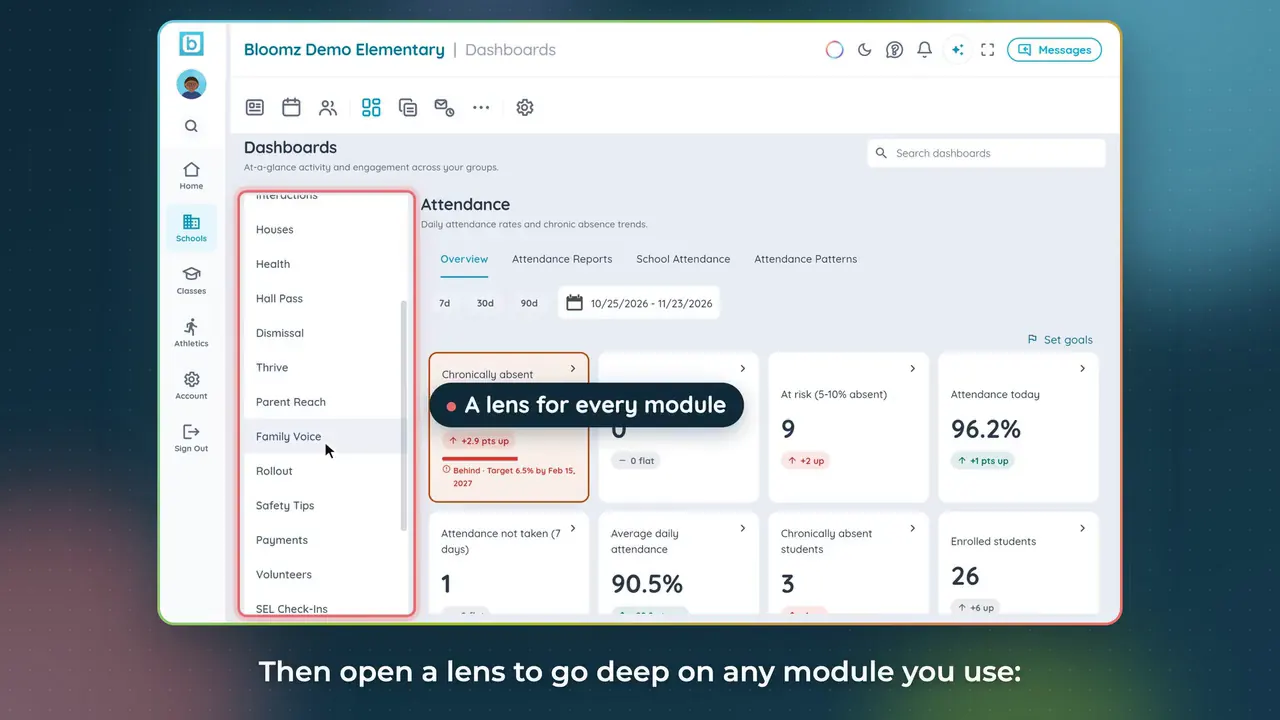
▶ Watch the video (61 seconds): Bloomz Insights & Analytics: headlines, KPI targets and a lens for every module.
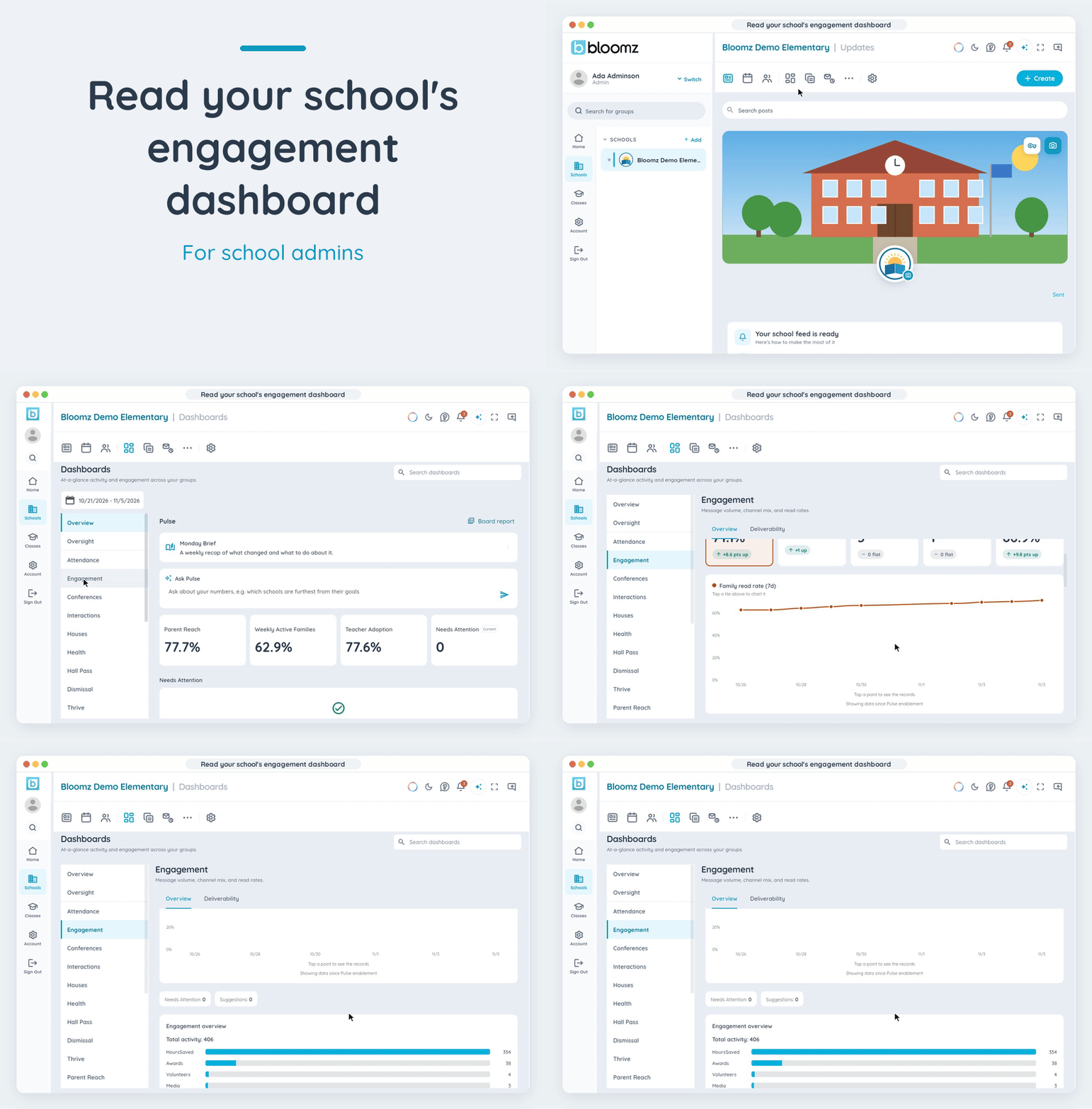
"Engagement dashboard" used to name its own screen — a separate Engagement Report with a distinct blue chrome. It's been folded into Bloomz Pulse: the numbers this article covers (message volume, read rates, parent reach, teacher adoption) now live as lenses on the same Dashboards screen Pulse's attention items use, not a screen of their own. If you're looking for how to open and use a lens in general — the date-range presets, and how a KPI card with a › opens the record list behind that number — see Read Bloomz Pulse and act on an attention item first; this article covers what the specific engagement-related lenses show.
Before you start
- These screens are for school admins (principals) and district admins. Teachers and parents do not see them. A principal sees their own school; a district admin sees the same view plus a school switcher.
- They show live data only — a card that isn't there means that measurement isn't collected yet, not that something is broken.
Step 1 — Open the Messages lens
Open your school, select More (…), and under Insights choose Reports, then select View Report on the Engagement Reports card. It opens Dashboards straight into the Messages lens — message volume, channel mix and read rates, over whichever 7d / 30d / 90d preset or custom range you pick.
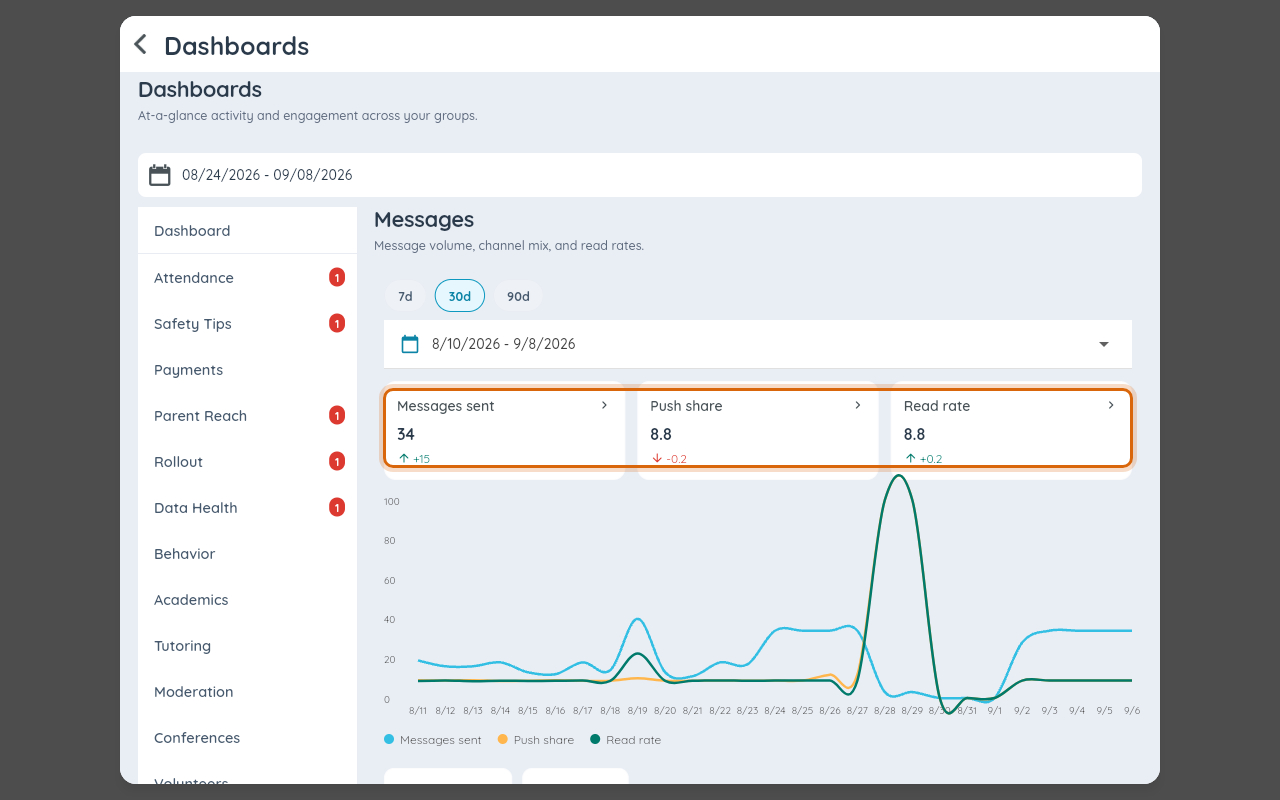
Messages sent, Push share and Read rate each carry a › — select one to open the exact messages behind that number, the same "every number is a door" pattern every Pulse lens uses.
Step 2 — (District admins) Pick a school
To look at one school at a time instead of your whole district's roll-up (see Run district reports and export an archive for the district-wide view), open More (…) > Dashboards and use the All Schools switcher near the top — the lens re-fetches for whichever school you pick.

Step 3 — Check message tone with AI Writing Insights
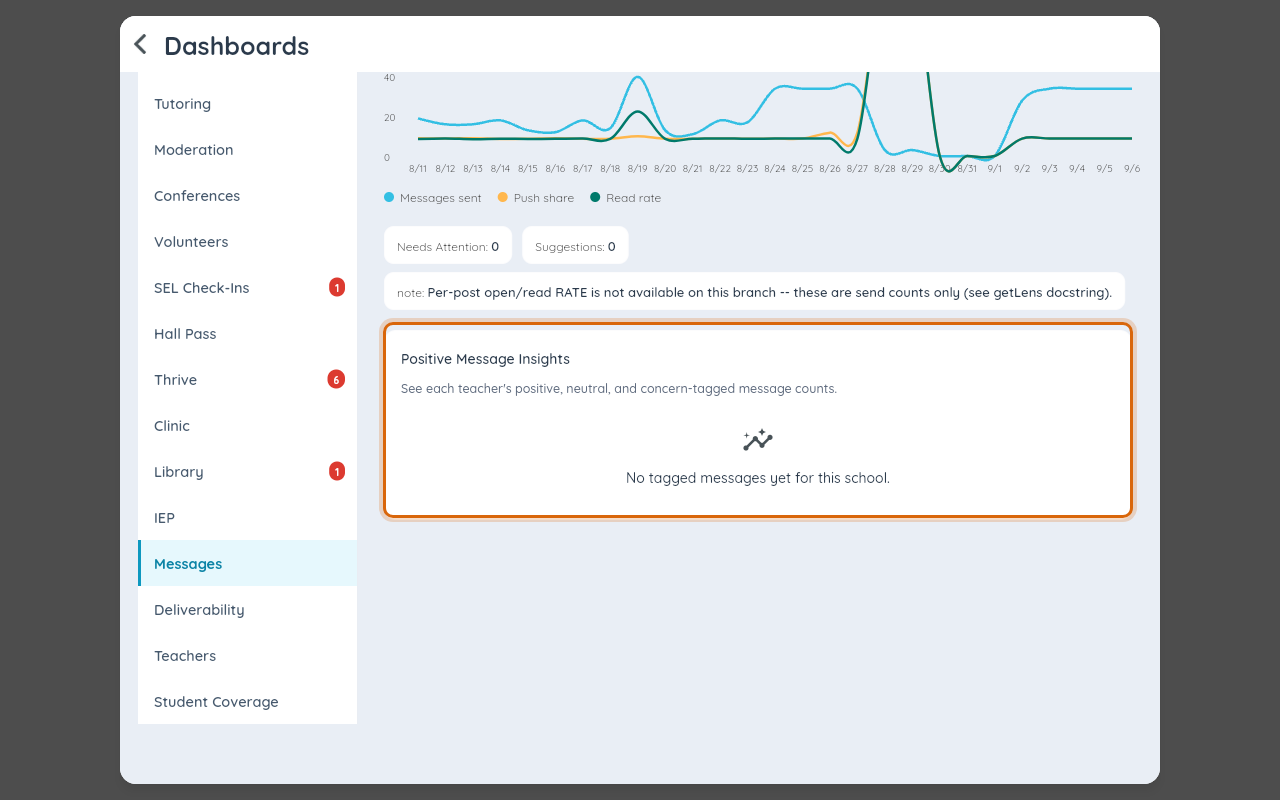
Scroll down on the Messages lens for Positive Message Insights — each teacher's positive, neutral and concern-tagged message counts, when your school has AI Writing turned on. An empty result here means no messages have been tagged yet, not that nothing was sent.
Watch out: the old per-class "Total Activity / School-Wide / Class Average" breakdown and its class leaderboard are gone from this screen — that granularity isn't part of the Messages lens. If you relied on comparing individual classes' activity, that comparison isn't available here any more.
Step 4 — Check reach and app installs
From Dashboards, select Parent Reach in the left navigation. It shows five figures: Parent reach (the percent of guardians Bloomz can actually contact), Unreachable guardians, Weekly active families, Active families (7d) and Accepted guardians — plus a trend line and role-level counts (staff, teachers, students, parents, not-contactable) below it.

Step 5 — (District admins) Read teacher adoption
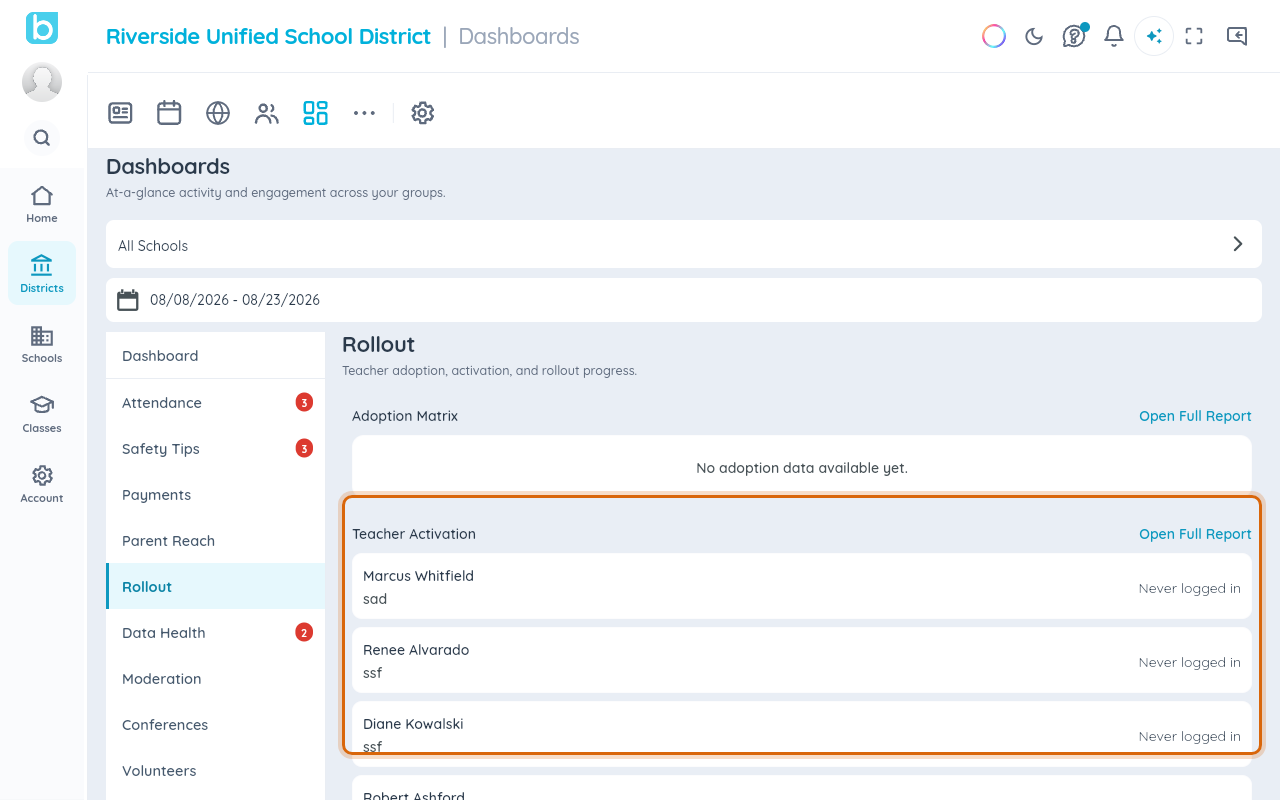
From the district's Dashboards, select Rollout in the left navigation. It shows an Adoption Matrix (once enough activity has accumulated to compute one) and a Teacher Activation list naming every teacher and their login status, so you can see at a glance who in the district has never signed in yet.
The satisfaction signal: the in-app rating card
Alongside the usage numbers, Bloomz collects a direct satisfaction signal. After a person finishes something real — sends a message, publishes a post, completes a check-in, books a conference, makes a payment — a small non-blocking card may ask one question: "How's the new Bloomz working for you?" on a 1–5 star scale. A high answer asks what's working well; a low one asks what would make it better, with an optional comment and an opt-in "it's OK to contact me" checkbox. The card never blocks anyone, appears at most a few times ever per person, can be snoozed with Not now, and offers Don't ask again on the very first ask. See Rate your experience in Bloomz for what the card itself looks like.
Not to be confused with Bloomz Pulse, the separate module reachable from the same Dashboards screen — that one surfaces attention items computed from activity data (see Read Bloomz Pulse and act on an attention item), not star ratings.
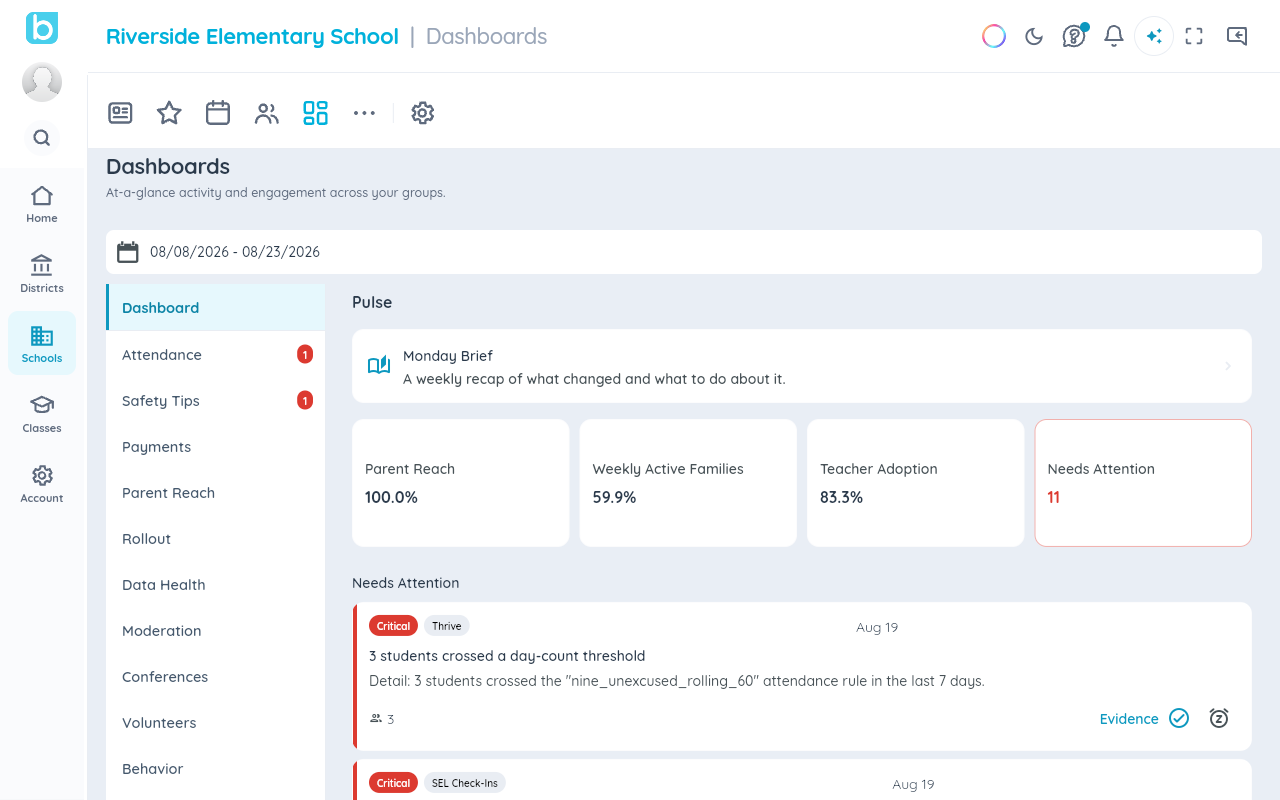
Watch out: the rating card and Bloomz Pulse share the word "Pulse" in casual conversation but are different features — if a teacher mentions "the Pulse card," ask whether they mean the star-rating prompt or an attention-item alert before you go looking in the wrong place.