 Bloomz
Add alt text to an image you share
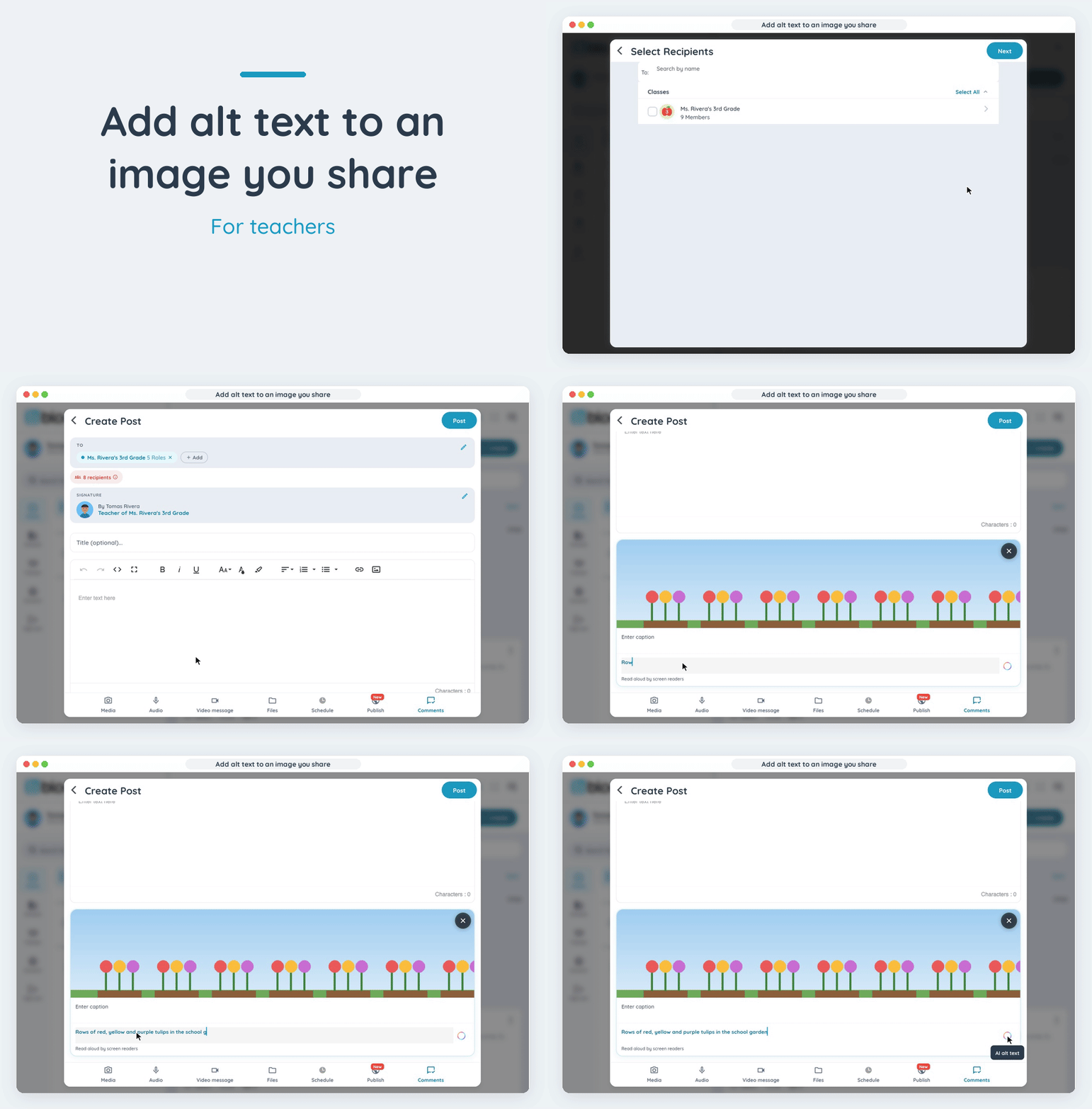
Alt text is a short written description of an image, read aloud by screen readers — it's how someone using TalkBack or VoiceOver knows what a photo in your post actually shows. Bloomz gives every photo its own alt text field right in the composer, separate from any caption you write.
Before you start
The caption and alt text fields under a photo are a Premium feature: you see them when your account is on a Premium plan. On a free plan the photo shows without them. Have your image ready to attach; the alt text field appears once a photo is in the composer. Videos get a caption only, with no alt text field.
Step 1 — Attach a photo
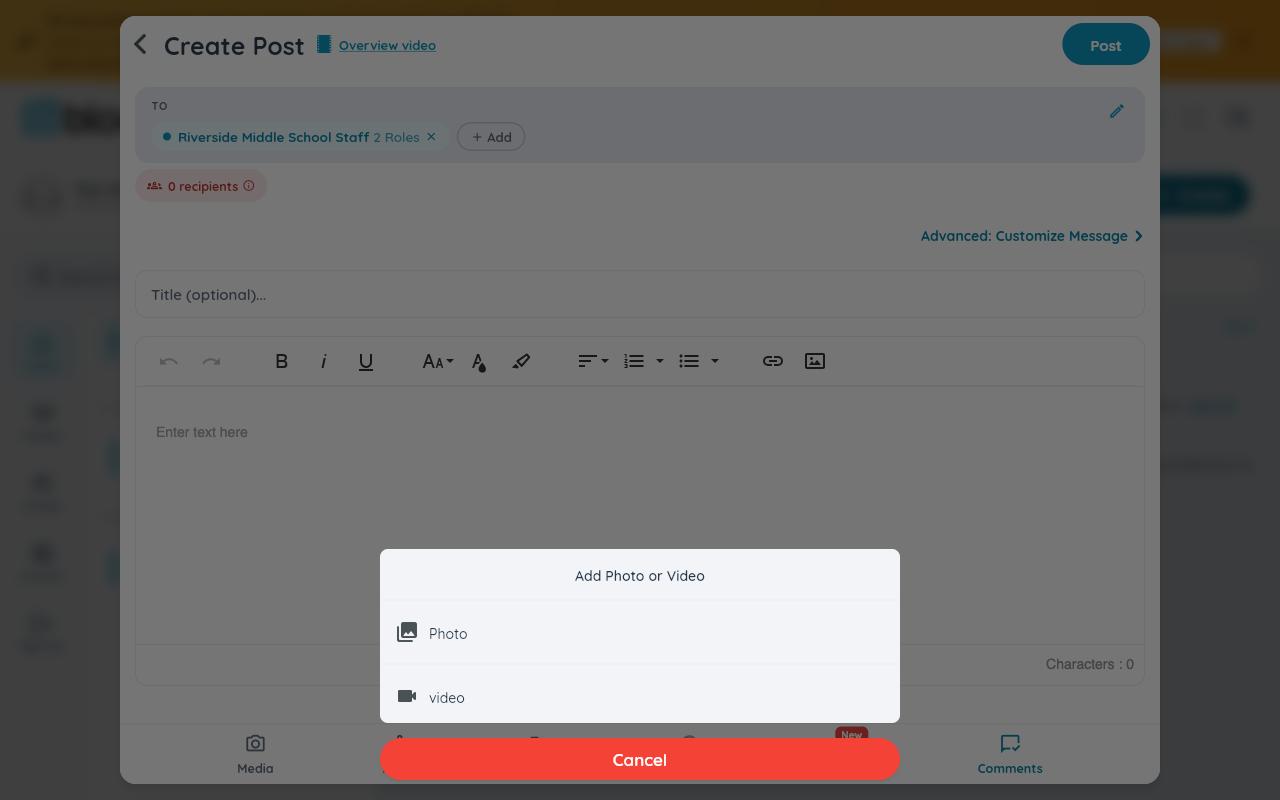
In the composer, select Media, then Photo, and choose your image.
Step 2 — Find the alt text field
Scroll down to the photo. Under it are two fields: Enter caption and, below it, Enter alt text (with the note "Read aloud by screen readers"). Describe what the image shows in a sentence or two — what a sighted viewer would notice first, not every visual detail.
Step 3 — Or let Bloomz suggest one
Beside the alt text field, select Generate to have Bloomz draft alt text from the image itself. Review and edit it rather than write from a blank field — useful when you're attaching several photos at once.
Watch out: the suggestion depends on the AI service being available. If it's unreachable, you'll see a brief "Bliss unavailable" message — write the alt text yourself in that case; nothing else about attaching or sending the photo is affected.
Add or change alt text on a photo already posted
If you see Edit alt text when you open a posted photo full screen, you can use it to add or change the description after the post is published. This action doesn't require a Premium plan.
What families see
Nothing changes visually — alt text isn't a caption and never appears as visible text under the photo. It's read by a screen reader in place of the image, so a family member who can't see the photo still knows what it shows.