 Bloomz
Read a post's delivery report
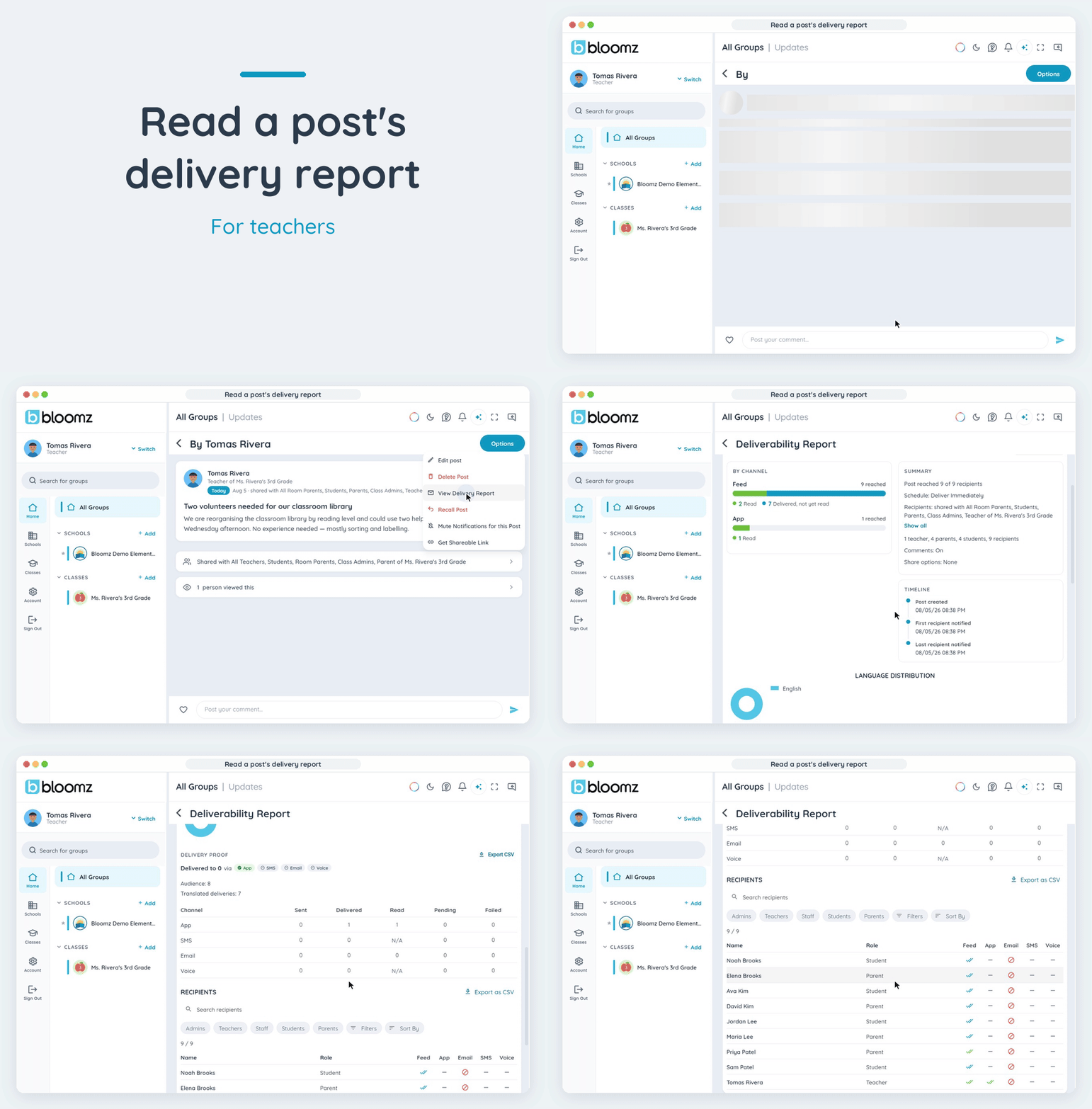
Sent a post and wondering who's actually seen it? Every post you send has a delivery report — a breakdown of who it reached, who's opened it, and who hasn't yet.
Before you start
You can view the delivery report for any post you sent; a group admin can also view it for posts sent to their group. It's the same report whether the post already went out or is still going through delivery.
The Deliverability Report is a Premium feature. On a Free account, opening it shows "Deliverability Report is a Premium feature" with an Upgrade button. Post authors can open the report for their own posts.
Step 1 — Open the post's options menu
Open the post's detail screen and choose Options. The menu shows Edit post, Delete Post, View Delivery Report, Recall Post, Mute Notifications for this Post, and Get Shareable Link.
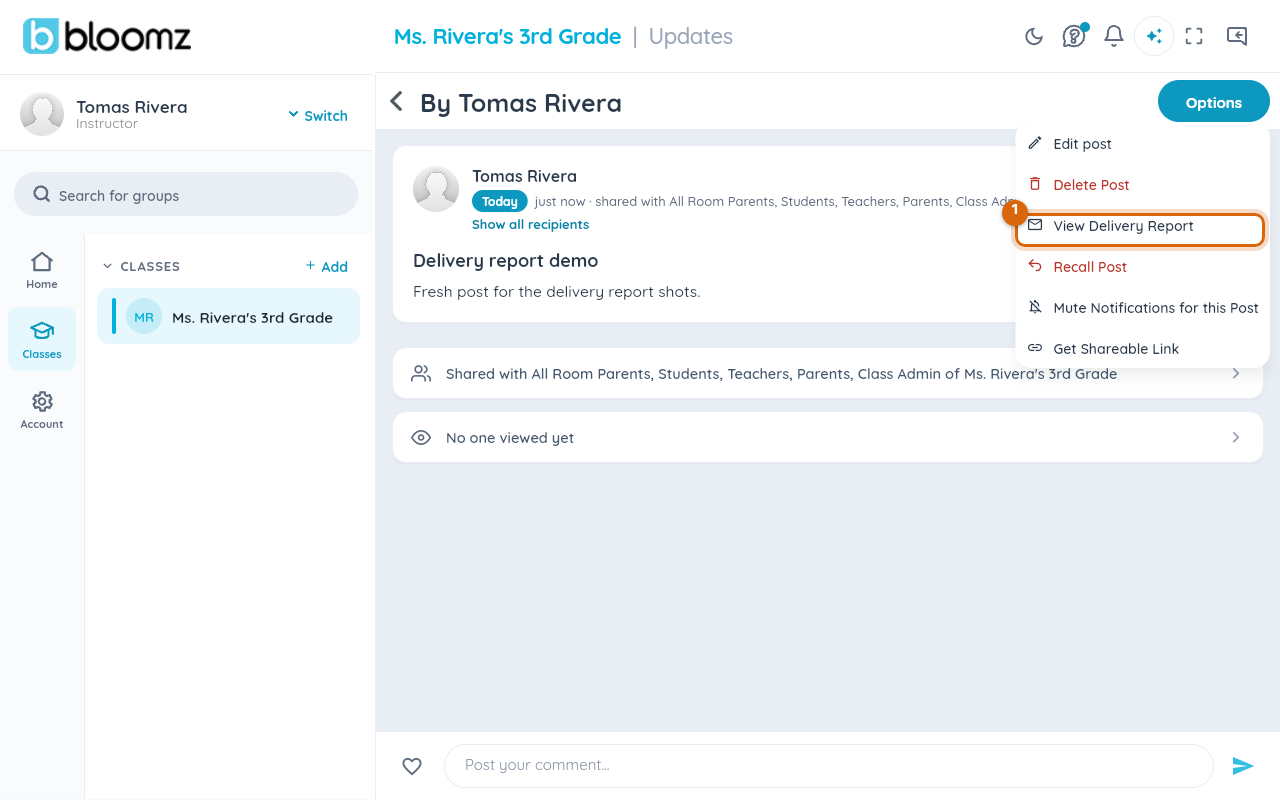
Step 2 — Choose View Delivery Report
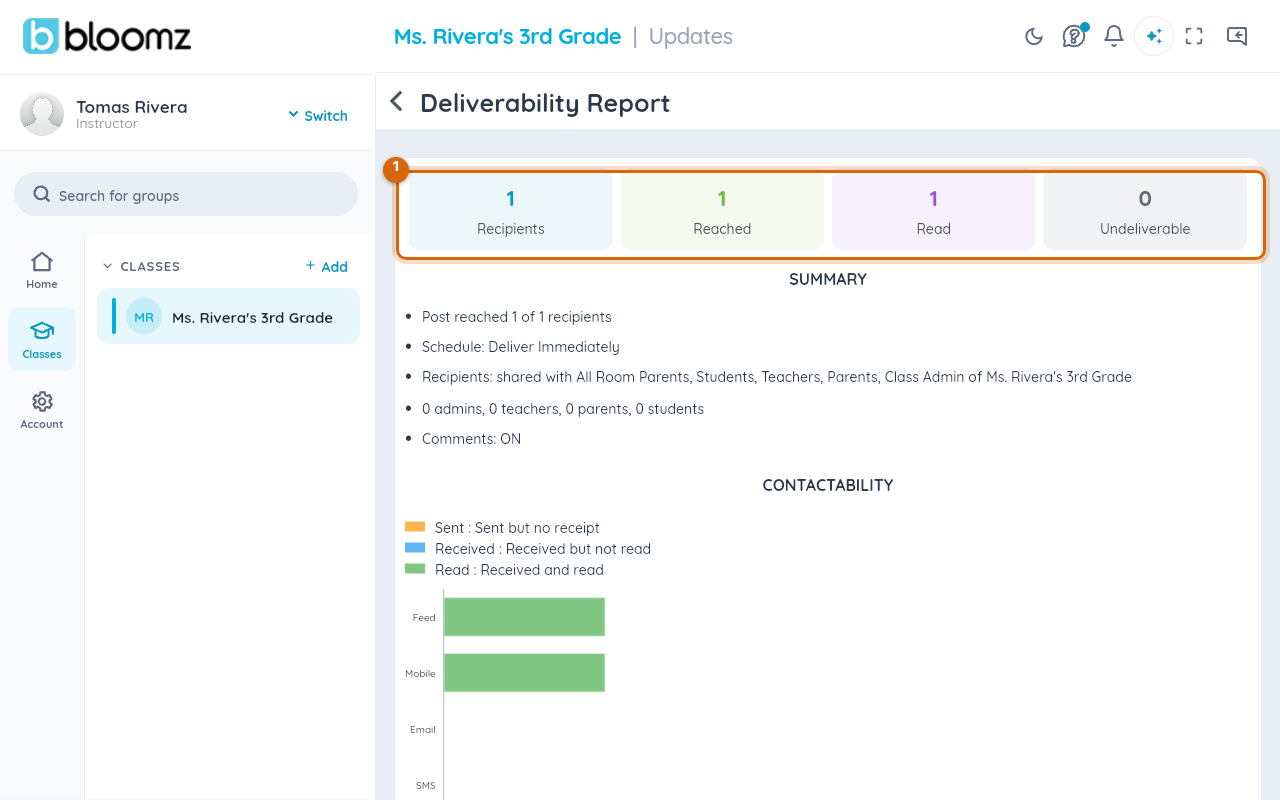
Select View Delivery Report. It opens the Deliverability Report with four summary tiles at the top: Recipients, Delivered, Read and a fourth tile that shows Pending for messages still on their way or, when some recipients have no delivery record, Not delivered. For posts where re-notifying is allowed, a Renotify button appears next to the tiles to resend to the people who have not received the post.
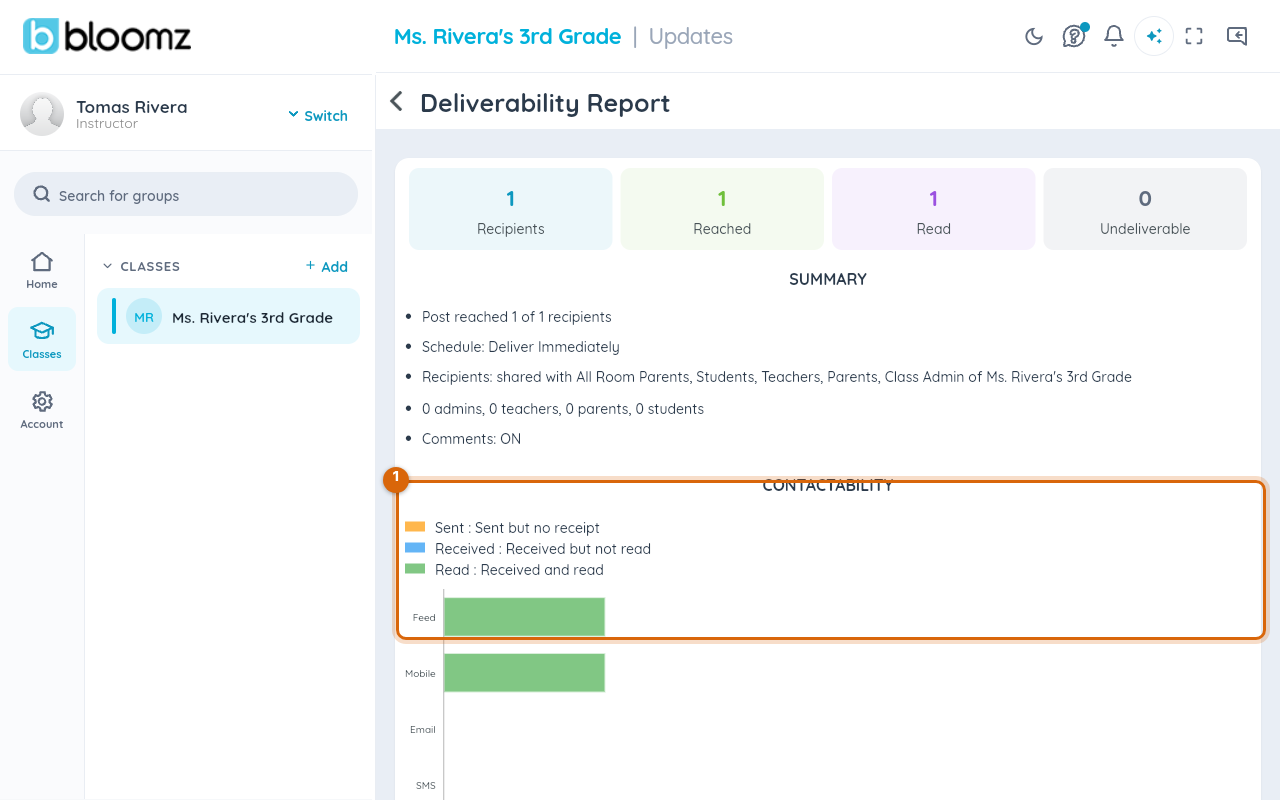
Below the tiles you'll find By channel bars, a Timeline card and, when language information is available, a Language distribution chart.
Step 3 — Check delivery by channel
Scroll to Delivery proof. The table has one row for each channel — App, SMS, Email and Voice — and the columns Channel, Sent, Delivered, Read, Pending and Failed. This matters because a family that has not opened the app may still have read the post by email. N/A appears where a channel cannot report a value, for example Read for SMS and Voice. Export CSV downloads this table.
If your school limits texts (for example urgent posts only, a daily cap, a 6 PM summary, or not texting people who use the app), a text that was held back is a school setting at work, not a delivery failure.
Further down, a Not delivered list shows the people the post did not reach, with the reason for each. Select Renotify undelivered to resend to just those people.
Step 4 — Look up a specific recipient
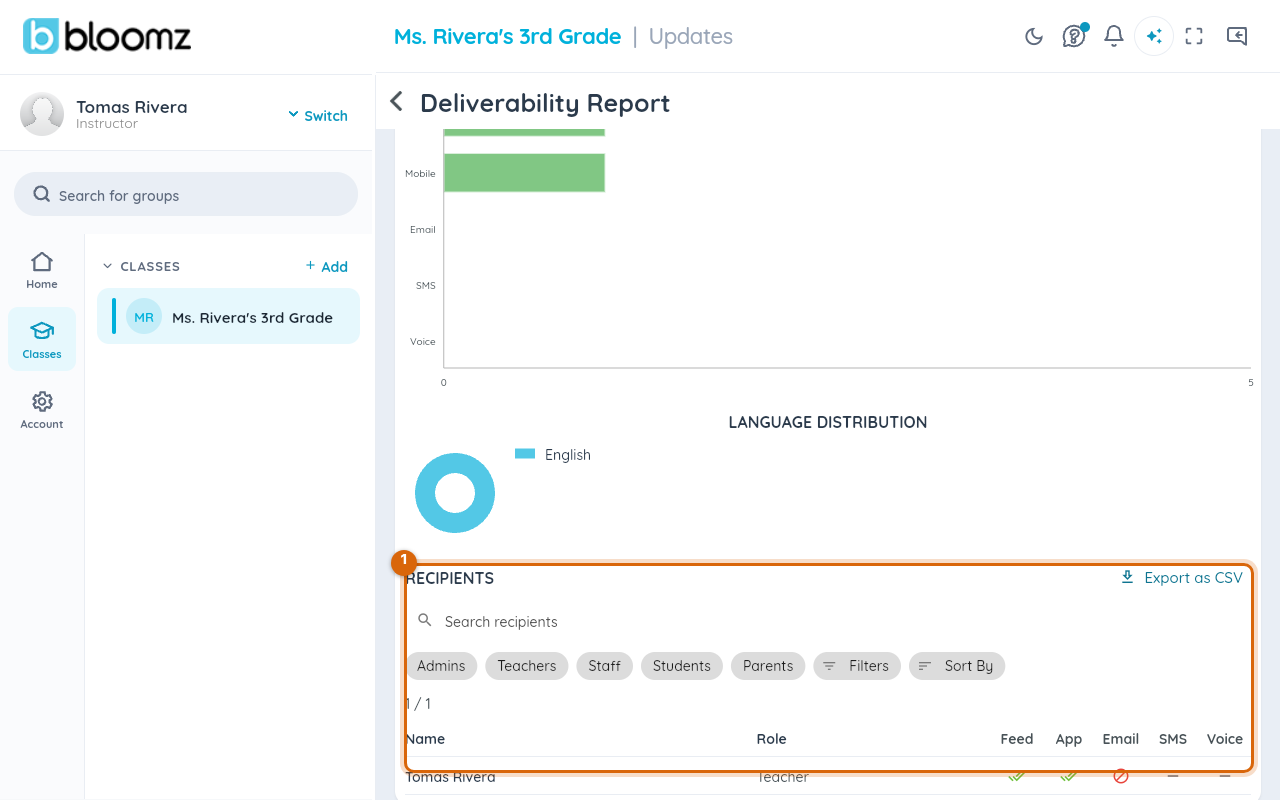
Under Recipients, search by name or filter by role (Admins, Teachers, Staff, Students, Parents), or use Filters and Sort By (First Name or Last Name). The table has a row per person with a mark for each channel (Feed, Mobile, Email, SMS, Voice): a double check for received or read, a dash for not applicable and a crossed-out mark for undeliverable. This is useful when you need to know whether a specific parent has seen an urgent notice. Export as CSV downloads the full list.
Watch out: "delivered" and "viewed" are different things. Delivered means the message reached the channel (an email landed in an inbox); viewed means someone actually opened it. A high delivered count with a low viewed count usually means people haven't checked their email yet, not that delivery failed.
What families see
Nothing — viewing a delivery report is silent. Families are never notified that you checked whether they'd seen a post.