 Bloomz
Bulk-import your whole district with a CSV (V2 format)
For a whole district at once — every school, class, staff member, student, family contact, and how they're all connected — the V2 format uses six linked CSV files instead of the V1 format's two. V2 is a district-level feature; for a single school, use Import students and families with a CSV (V1 format) instead.
Before you start
The six files, and how they reference each other:
- Schools —
sis_id,name. Every other file points back to a school by this ID. - Classes —
school_id,sis_id,name,grade, optionaltype(Class, Sports Team, Club, Department, Bus Route, and more — Class is the default). - Staff —
school_id(blank for district-level staff),sis_id, name,emailormobile_phone, optionalrole(District Admin, School Admin, Teacher, and so on — defaults to Teacher). - Students —
school_id,sis_id, required first/last name,grade. - Contacts — parents/guardians:
school_id,sis_id,child_id(linking to a row in Students),emailormobile_phone. - Membership — the file that actually connects everyone: for each row, a
school_idplus either aclass_idor agroup_id, and one ofstaff_id,student_id, orcontact_id, with arole(admin, teacher, parent, student, member, or coach). Contacts automatically follow their linked child's membership — you only need a contact row here if you're assigning them a staff-like role, such as a parent coaching a sports team.
Watch out: all six files must be present with matching filenames for a scheduled V2 import's nightly cleanup to run — a partial set is accepted for a one-time manual import, but recurring cleanup needs the complete set every time.
Step 1 — Open Advanced Bulk Import
From your district, open Settings > Edit Settings > Bulk Import, scroll past the Roles/Group types lists, and select Advanced Bulk Import to expand it.
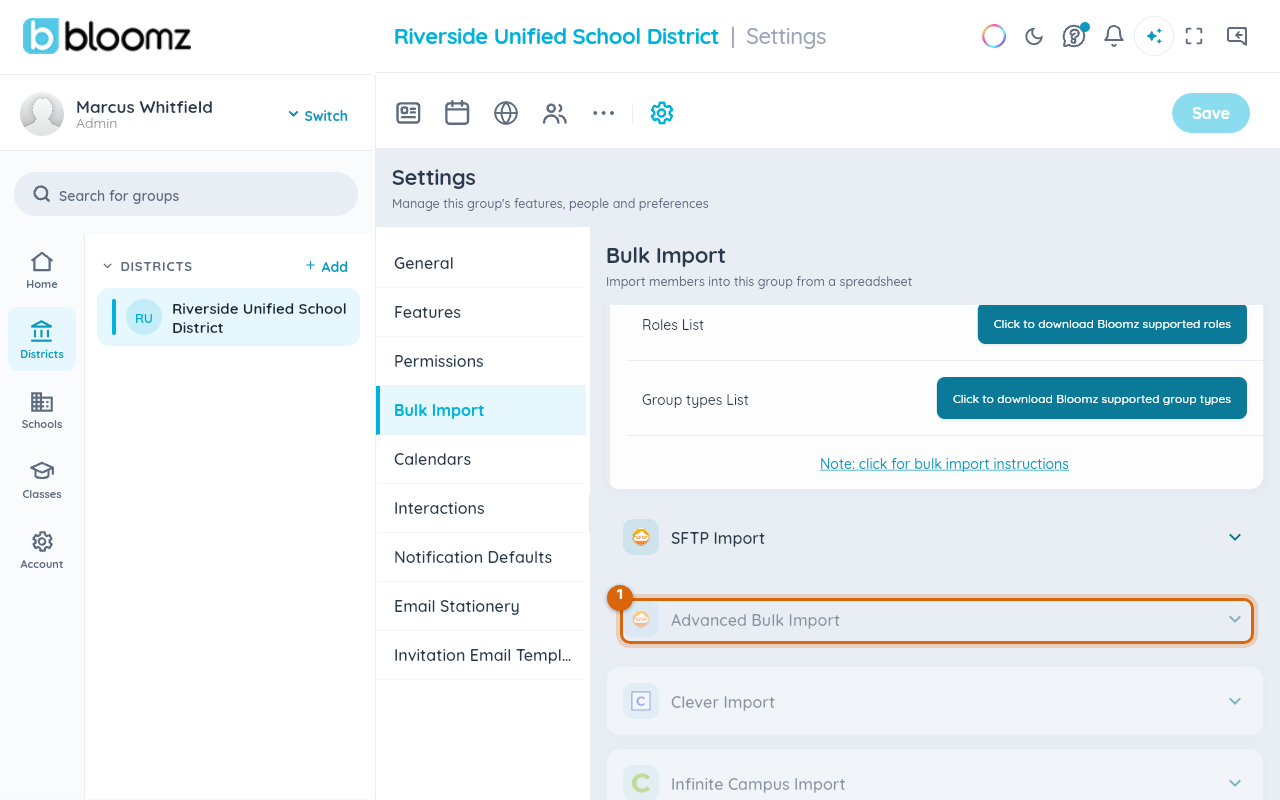
Step 2 — Download templates or reuse existing data
For each of the six files, either Download Template for a blank starting point, or Use Existing to pre-fill from your district's current data in Bloomz.

Step 3 — Upload each file in order
Fill in and upload each file with Upload Spreadsheet, checking the success/failure status after each one — Schools first, then Classes, Staff, Students, Contacts, and Membership last (Membership is what actually wires everyone together, so it depends on all five other files already being in place).

What happens next
As each file processes, its records appear under the matching school in Manage. Staff and student uploads open an invitation screen — even with invitations turned off you still confirm that screen to finish the import, but no invitations actually go out.
Bulk delivery via SFTP
For recurring imports, ask your Bloomz account team to enable Advanced Bulk Import
SFTP delivery for your district — Settings > Edit Settings > Bulk Import > Advanced
Bulk Import then shows your connection details, and files placed in the district's
Bulkimport-v2 folder are picked up on the schedule you set there.