 Bloomz
Stop your school's SIS from changing your phone number
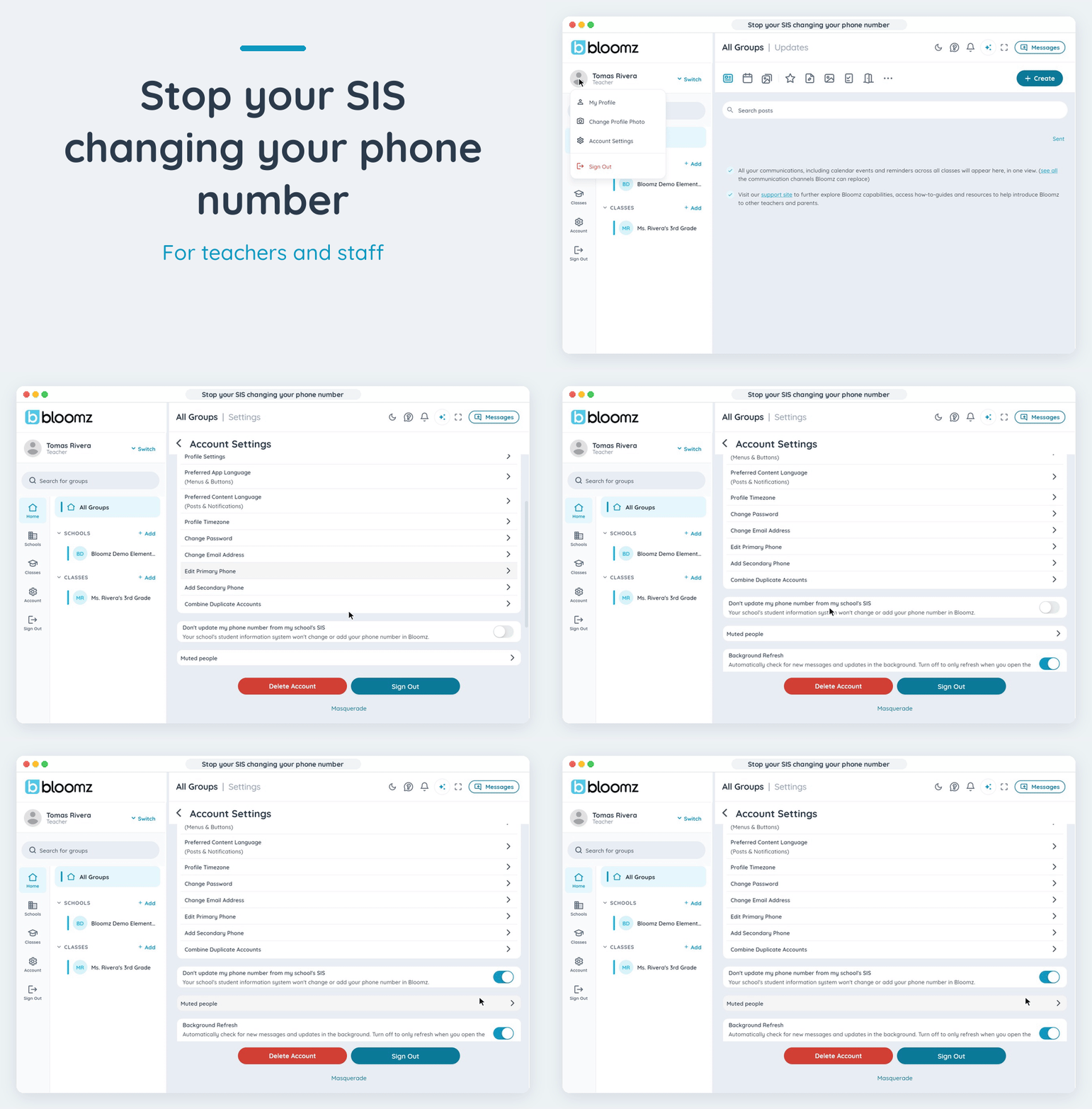
What this does
If your school connects Bloomz to its student information system (SIS), the school's sync can copy the phone number your school has on file into your Bloomz profile, and replace a number you changed yourself. Turn this setting on and the SIS will never add or change your phone number in Bloomz.
Turn it on
- Sign in to Bloomz on the web.
- Select your profile picture at the top left.
- Select Account Settings.
- Scroll down past Edit Primary Phone and Add Secondary Phone.
- Turn on Don't update my phone number from my school's SIS.
On the web app you can also select Account in the left-hand menu: the same switch is below the phone rows.
In the Bloomz phone app the switch is in the same place (profile picture, then Account Settings) once you have the newest version of the app.
It saves as soon as you turn it on; there is no Save button. To let the SIS update your number again, turn it off.
Remove your phone number
You can remove your phone number yourself on the web:
- Sign in to Bloomz on the web.
- Select your profile picture at the top left, then select Account Settings.
- Select Edit Primary Phone.
- If you have a Bloomz password, enter it in the Password field.
- Select Remove phone number, below Change Primary Phone.
- In Remove your phone number?, select Remove.
You'll see "Your phone number was removed."
If your school's SIS could add the number back, the message also shows Also stop my school's SIS from adding it back, already ticked. Leave it ticked: it turns on Don't update my phone number from my school's SIS at the same time, so the next sync doesn't put your number back.
If you only use the Bloomz phone app, you can contact Bloomz Support from the help button in the app and ask them to remove your number.
Without a phone number you won't get text messages or calls from Bloomz at that number. You'll still get notifications in the app and by email, and you'll sign in with your email address.
If you see "To remove your phone number, add an email address to your account first", your account has no email address, so the phone number is how you sign in. Add an email address first, then remove the number.
Good to know
- Turning on the SIS switch does not change or remove the number you have now.
- You'll only see the SIS switch if you're a teacher or staff member at a school that is connected to an SIS. Parents and students don't see it.
- Parents can remove their own number the same way, unless their school doesn't let parents change their email and phone. Students can't remove a phone number themselves.
- Both apply to you everywhere in Bloomz, including if you are also a parent at the school and use the same Bloomz account. A removed number is removed for your parent notifications too.
- Only you can change the SIS switch or remove your number this way. Bloomz Support can see the switch but can't turn it on or off for you.
- Your school or district admin can also stop the SIS from importing phone numbers for all staff at once. See "Stop importing staff phone numbers from your SIS".